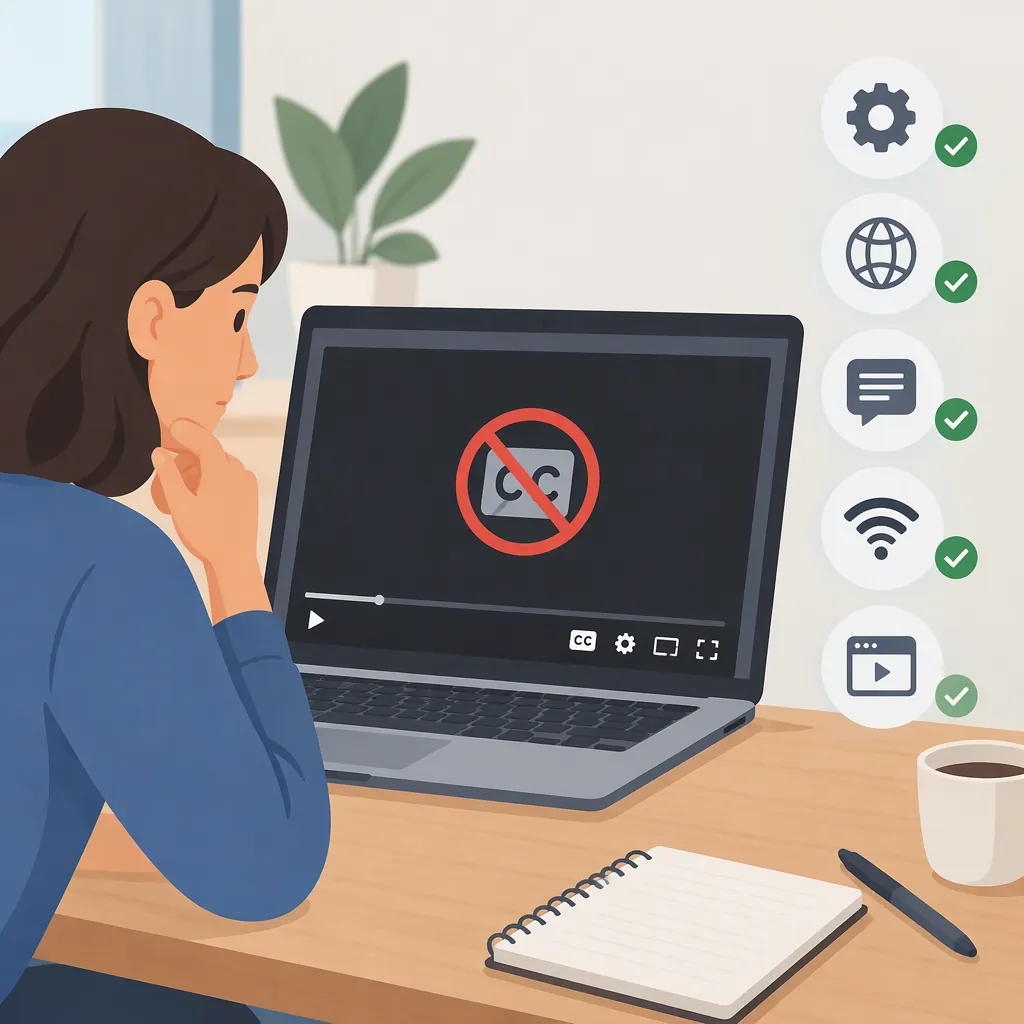
How to Troubleshoot Unavailable Subtitles and Closed Captions on YouTube
First check whether the video offers captions. On desktop, YouTube says the CC control appears at the bottom right of the player when closed captions are available. If captions are available but do not display, toggle CC off and on, then reload the page or restart the app. These playback checks are troubleshooting attempts, not ways to create a missing caption track. [c1] [c3]
Start with Caption Availability
Separate two situations before changing settings: the video does not offer captions, or available captions are not displaying correctly.
On a computer:
- Open the video and locate the controls at the bottom right of the player.
- Look for CC. YouTube identifies this as the control shown when closed captions are available.
- If CC is present, click it to turn captions on.
- Open Settings → Subtitles/CC to inspect the caption options shown for that video. [c1]
If you cannot find a caption option, do not assume the browser is broken. The official instructions apply to videos that have captions; they do not promise caption availability for every video. An absent control alone does not establish why captions are unavailable. [c1]
Check the Controls and Display Settings
On desktop, click CC to enable captions. If captions are already enabled, clicking the same control switches them off; click it again to switch them back on. [c1]
In the mobile app, tap the playing video to reveal its controls, then look for CC. Riverside's guide also describes a Captions menu under the player settings for choosing available languages. Treat its illustrated interface as guidance rather than a guarantee that every app version has the same layout. [c2]
If captions appear but are difficult to read, use the desktop path Settings → Subtitles/CC → Options. YouTube supports changes to font size, color, opacity, background, and other display properties. Its Reset option restores the default caption format. These settings address readability, not whether a video has a caption track. [c1]
Troubleshoot Captions That Are Blank or Not Working
When the player offers captions but no text appears, try a short sequence of playback checks:
- Toggle captions off and on.
- Reload the page or close and reopen the app.
- Check for an app or browser update.
- If you changed playback speed, test at Normal speed.
MiniTool lists these as troubleshooting suggestions for blank, unavailable, or unsynchronized automatic captions. The supplied article does not demonstrate that any step will fix your particular video, so treat them as tests rather than guaranteed repairs. [c3]
As an additional diagnostic comparison, try another video that visibly offers CC. Record whether the problem affects one video or both. This comparison can help organize further troubleshooting, but it does not by itself identify the cause.
MiniTool also suggests clearing cache and reinstalling the app. Keep these as later options rather than starting with them; first establish whether the video offers captions at all. [c3]
Caption Troubleshooting Record
Use this checklist to record what you observe:

- Video URL: __________
- Device and browser or app: __________
- CC control visible: Yes / No
- Caption options listed: __________
- Captions enabled but blank: Yes / No
- Result after toggling CC: __________
- Result after reloading or reopening: __________
- Result at Normal playback speed: __________
- Result on another video with CC: __________

Record observations rather than assuming that a missing control means a device failure.
Understand Automatic Captions and Language Limits
A missing caption track is different from a missing preferred language. If captions work in one language, inspect the language choices before troubleshooting playback.
Riverside's guide describes Auto-translate under the desktop Subtitles/CC menu and notes that a mobile Auto-translate option may be available. Use it only if the player offers it; the guide does not establish that it appears for every video. It also cautions that machine translation is not completely accurate. [c2]
For videos without automatic captions, Riverside lists possible explanations such as a recent upload that has not yet been transcribed or audio that automatic transcription could not process. These are possible causes, not a diagnosis of the video you are watching. The supplied references give no guaranteed processing time. [c2]
Automatic captions can also contain errors, especially with poor audio, heavy accents, or technical language. Availability and accuracy are separate checks: visible captions still need scrutiny when wording matters. [c2]
If You Own the Video
For a video you manage, consider the caption track itself rather than relying only on viewer-side settings. Riverside's guide says creators can upload their own caption files or edit automatically generated captions. It describes uploading an SRT file through YouTube Studio → Subtitles. [c2]
Review the text and timing before treating the captions as finished. This is an editorial check, not a claim that uploading a file resolves every caption issue.
Evidence limit: The supplied official YouTube source covers desktop viewing and display settings. The mobile, automatic-caption, and creator guidance here comes from Riverside's third-party guide; the playback troubleshooting suggestions come from MiniTool. Neither third-party source establishes the cause of an individual failure or guarantees a repair.
FAQ
Why Is There No Cc Button on a YouTube Video?
YouTube says the desktop CC control is visible when closed captions are available. If it is absent, first check whether the video offers captions rather than assuming a playback fault. The missing control does not explain why a track is unavailable. [c1]
Will Reloading YouTube Restore Missing Captions?
Reloading is a suggested test when available captions are blank or not working. MiniTool recommends it, but the supplied evidence does not guarantee a fix or show that reloading can create a caption track that the video does not offer. [c3]
How Long Should I Wait for Automatic Captions?
The supplied references do not give a guaranteed waiting period. Riverside identifies a recent upload that has not yet been transcribed as one possible reason for missing captions, but it also lists audio-related problems. Waiting is therefore not a guaranteed solution. [c2]
What If Captions Are Available but Hard to Read?
On desktop, open Settings → Subtitles/CC → Options and adjust font size, color, opacity, or background settings. YouTube also provides Reset to restore the default caption format. [c1]