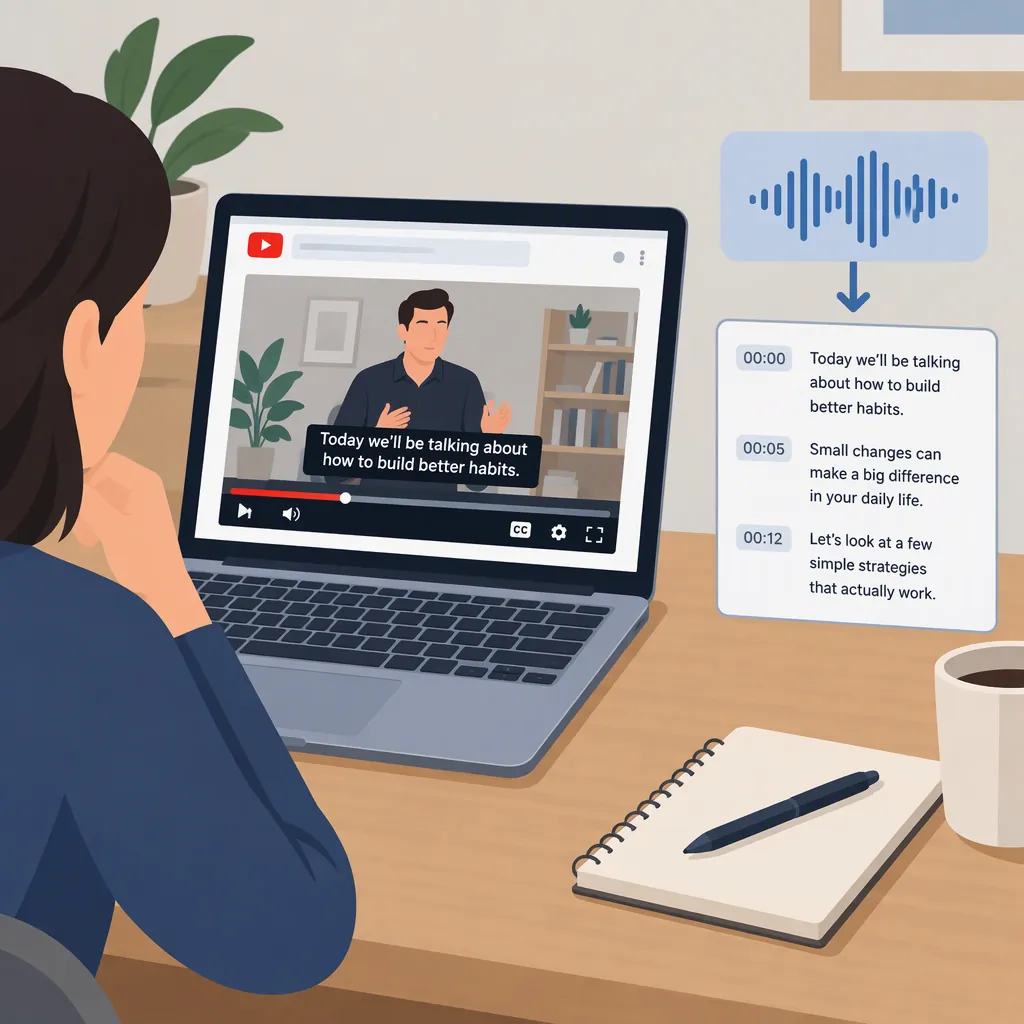
How to Generate Subtitles and Transcripts from a YouTube Video
To generate subtitles from a YouTube video, choose between getting text from a public video link and creating a new transcription from authorized media. Noteey describes a link-to-text workflow; Descript describes importing media, reviewing a transcript, and exporting timed subtitles as SRT or VTT. Save readable text for notes or a timed subtitle file for captions, then check the result against the recording. Neither workflow establishes support for every YouTube video. [noteey] [descript]
Choose the Output You Need
Getting text from a link and transcribing audio are related tasks, but they do not necessarily produce the same deliverable.
| Your goal | Workflow to consider | What to check |
|---|---|---|
| Read, search, or take notes on the dialogue | Get subtitle or transcript text from a YouTube link | Output language, wording, and text provenance |
| Create new subtitles from speech | Transcribe authorized media, correct the text, and review timing | Input support and timed subtitle export |
| Display captions in the video image | Generate and review captions, then burn them into the video | Appearance and placement in the rendered video |
Noteey describes viewing and copying text from a YouTube-link workflow. Its page uses both “extract” and “generate,” but does not explain whether the returned content comes from an existing caption track, a new transcription, or translation. Treat it as text obtained from a link, not automatically as the video's original subtitles. [noteey]
Descript describes importing media, generating and editing a transcript, and exporting separate subtitle files or creating burned-in captions. These are options for making new subtitles from your authorized source media. [descript]
Keep a readable transcript and a timed subtitle file as separate deliverables when you need both. A page labeled “subtitle downloader” does not, by itself, establish how its text is produced or which file formats it can export.
Get Subtitle or Transcript Text from a YouTube Link
For reading and note-taking, start with the intended video's public URL rather than downloading the video unnecessarily.
Example: Noteey's Link-To-Text Workflow
Noteey describes the following interface steps:
- Paste the YouTube URL. Copy the public video's URL into the input.
- Click “Get Subtitle.” Noteey describes this as starting subtitle generation.
- View or copy the result. Its page describes viewing the text and copying it to the clipboard. [noteey]
Before using the returned text:
- Confirm the video. Check that the text belongs to the intended recording.
- Check the language. Noteey describes output in the browser's language, which may differ from the spoken audio. [noteey]
- Confirm what the text represents. If you need an original-language, word-for-word transcript, check both the output language and how the text was produced. Noteey's page does not establish its text provenance. [noteey]
- Verify important passages. Compare names, numbers, technical terms, and quotations with the recording.
If the output language differs from the audio, do not use it as an original-language quotation without verification. If its provenance cannot be confirmed, do not label it as the original caption track or a verbatim transcript of the original speech.
If no text appears, treat that as a failed attempt—not evidence that the video contains no speech. Do not bypass private-video access or other restrictions. For a new transcription, use media you own or have permission to process.
Noteey's page describes viewing and copying text, but does not specify a timed subtitle-file export. Getting readable text therefore does not confirm that you have an upload-ready caption file. [noteey]
Generate New Subtitles from the Audio
When link-based text retrieval does not meet your needs, transcribing authorized media is a separate route. It creates a new transcription; it does not guarantee recovery of an existing YouTube caption track.
Example: Descript's Media-To-Subtitle Workflow
Descript's subtitle-generator page describes this sequence:
- Open a new project and import authorized media. The page lists MP3, MP4, WAV, MOV, or similar files as transcription inputs. Prefer your original recording when available. [descript]
- Let the media be transcribed. Descript describes automatic transcription after import, with an editable transcript and speaker tagging. Confirm that the resulting language matches your intended output. [descript]
- Correct the transcript. Listen to the recording while checking wording, names, numbers, terminology, and speaker labels.
- Review caption timing. Play the video and compare each caption with the corresponding speech.
- Export separate subtitles. The page gives the path Publish > Export > Subtitles, then a choice of SRT or VTT. [descript]
- Alternatively, create burned-in captions. Descript describes using its Text tool to style and burn captions into the video. [descript]
These are paths described on Descript's page, not universal interface instructions. The cited workflow does not establish that Descript can directly import any YouTube URL. Use an authorized media file unless you have separately confirmed support for your intended input.
If You Need a Link-Based Generation Route
OpusClip's page describes pasting a source video link or uploading a file, generating subtitles, editing the results, and downloading or publishing the resulting videos. Its source-support statement lists YouTube under a Pro plan condition. Confirm the applicable plan and input support before processing your recording. [opus]
If your goal is a separate subtitle file rather than a captioned video, confirm that the selected workflow offers the required export before starting. Do not assume that every subtitle generator produces the same deliverables.
Review the Transcript and Subtitle Timing
Treat generated text as a draft. Descript and OpusClip both describe editing generated results; use that opportunity to check the output against the recording. [descript] [opus]
For a Readable Transcript
Organize paragraphs and speaker labels without changing the meaning. Mark speech you cannot resolve rather than filling gaps with guesses. If you remove filler words or rewrite sentences for readability, label the result as an edited transcript, not a verbatim one.
Keep a record of the source video and the output language. Verify any passage you intend to quote directly against the audio.
For Timed Subtitles
Review captions during playback, not just in a text editor. Check that they:
- Appear with the intended speech.
- Preserve names, numbers, negation, and other meaning-critical details.
- Remain readable.
- Do not cover important visual information when displayed.
- Retain their timing information in the exported subtitle file.
After export, review the subtitle file with the intended video to catch timing or display problems.
For Burned-In Captions
Inspect the rendered video as well as the transcript. Burned-in captions are part of the video image and cannot be switched off, unlike separate subtitles. [descript]
Subtitle Review Checklist
- Confirm the source video and output language.
- Confirm text provenance before labeling it as original subtitles or a verbatim transcript.
- Check names, numbers, terminology, and negation against the audio.
- Verify speaker changes and labels.
- Mark unresolved speech instead of guessing.
- Review caption timing during playback.
- Check readability and placement in the final video.
- Keep readable text separate from the timed subtitle file.
- Confirm permission for the intended sharing or publication.
Understand Access and Evidence Limits
The cited pages are provider descriptions, not official YouTube documentation or independent comparative tests. They describe link-based text retrieval, media transcription, and caption-generation workflows, but do not establish universal video access, comparative accuracy, or current availability for a particular account. [noteey] [descript] [opus]
Before processing a long recording, use a short authorized sample to check input support, output language, export format, and review effort. Confirm account and export restrictions before relying on the workflow. Provider claims about speed or accuracy are not guarantees for your recording.
A video's public availability is separate from permission to republish its transcript or reuse its content. This guide does not establish legal permission for a particular use.
FAQ
Should I Save a Transcript or a Subtitle File?
Save readable text when you need notes or a searchable document. Choose a timed subtitle file when you need captions synchronized with a video. Descript describes SRT and VTT exports; Noteey describes viewing and copying text. [descript] [noteey]
Can I Generate Subtitles Using Only a YouTube Link?
Some provider-described workflows accept links. Noteey describes pasting a YouTube URL to obtain text, while OpusClip lists YouTube among supported sources under a Pro plan condition. Check support for your video and the deliverable you need. If the link fails, use an authorized original media file rather than bypassing access restrictions. [noteey] [opus]
Is Text from a Subtitle Downloader Always the Original Caption Track?
Do not assume so. Noteey's page uses both extraction and generation language without specifying the underlying mechanism, and it describes output in the browser's language. Unless you can confirm the source and language, do not label the result as the original subtitle track or an original-language verbatim transcript. [noteey]
How Do I Export SRT or VTT Subtitles?
Descript's page describes opening Publish > Export > Subtitles and choosing SRT or VTT after transcription and review. This is a Descript-specific path; other interfaces may differ. [descript]
Do Automatically Generated Subtitles Need Review?
Yes. Compare the words with the audio and check timing during playback before quoting, sharing, or publishing. Descript and OpusClip describe editing generated results, but that does not establish that the initial output is error-free. [descript] [opus]