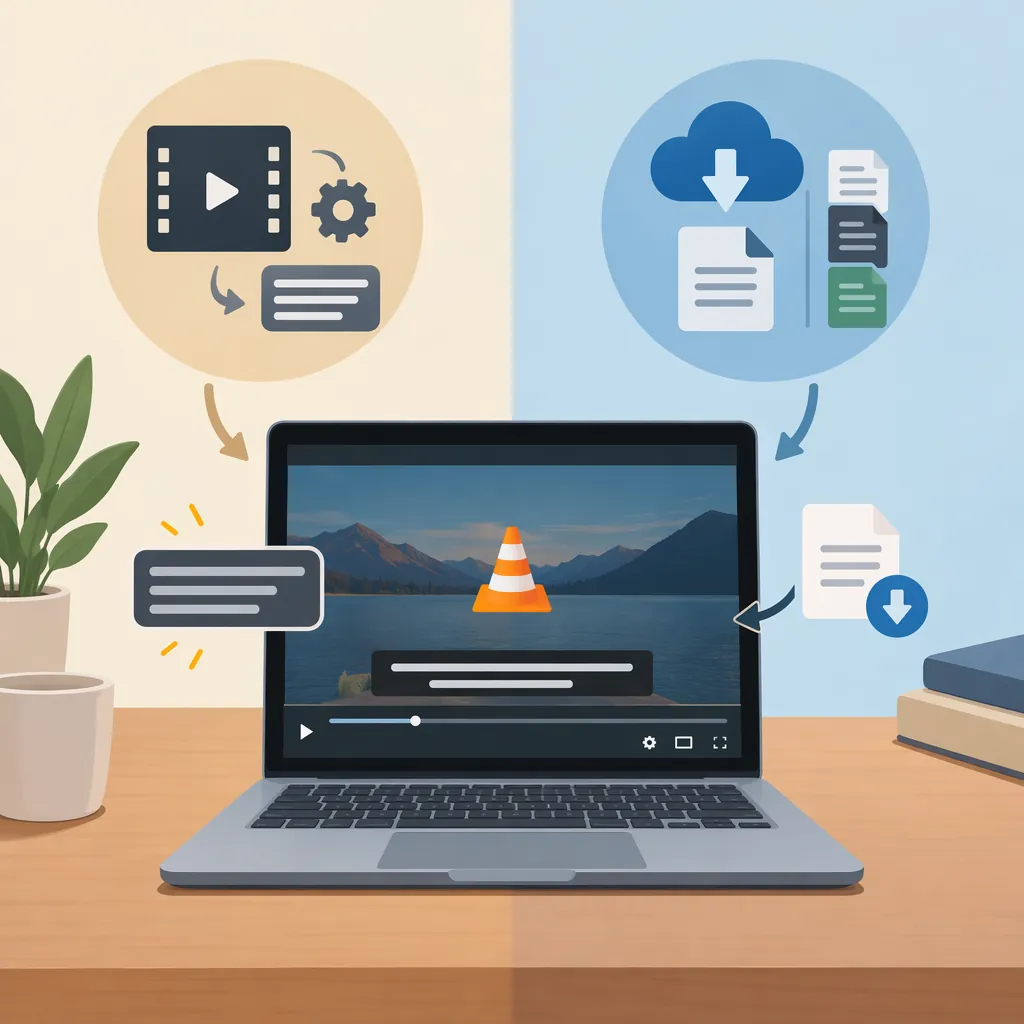
Can Vlc Auto-Generate Subtitles? What to Use and How
VLSub does not generate subtitles from speech: it searches for existing subtitle files and loads them into VLC. VideoLAN announced offline AI subtitling in January 2025, but the supplied July 2026 guide still describes it as unavailable in a stable public release. These sources do not verify availability in your current VLC version. For an original recording, use a speech-to-text tool that exports a supported subtitle file, then load that file in VLC.
Subtitle Generation, Downloading, and Auto-Loading
Search results for “VLC auto generate subtitles” often mix together three different tasks:
- Generation: transcribing spoken audio into new, timed captions.
- Downloading: finding an existing subtitle file online, which is what VLSub does.
- Auto-loading: displaying a subtitle file that already exists beside your video.
The Wondershare guide calls VLSub an automatic subtitle generator in places, but explicitly explains that it only fetches ready-made subtitles. The distinction matters: searching a subtitle database is not a way to transcribe a personal recording. [vlsub-guide]
The Movavi guide documents both manual loading and same-folder auto-loading in VLC. Those playback features do not create new text from audio. [vlc-subtitles]
What the Sources Say About Vlc AI Subtitles
A January 13, 2025 gHacks report describes VideoLAN's CES announcement of offline AI subtitling and real-time translation. The report says the feature was not yet available at publication. It describes planned functionality, not a released workflow readers could follow. [ai-announcement]
The supplied Movavi article, dated July 16, 2026, also says the announced feature had not reached a stable public release. Neither source establishes its status in every later VLC build. [vlc-subtitles]
Availability limitation: This article does not verify current release notes or your installed version. Do not treat the announcement as proof that your copy of VLC includes a working AI transcription menu.
Find Existing Subtitles with Vlsub
For a movie or TV episode that may already have subtitles online, the referenced guides describe this desktop workflow:
- Open the video in VLC.
- Open View > VLSub, if that entry is available.
- Choose the subtitle language and enter the title. Include the season and episode when relevant.
- Use Search by name, or Search by hash when available.
- Select a result and use the download button.
- If VLC does not activate the downloaded file, add it through the Subtitle menu. [vlsub-guide] [vlc-subtitles]
VLSub's presence and menu placement can depend on your installation. The supplied guides differ on whether installation is necessary and on extension locations, so this article does not prescribe a universal installation path.
A result is not necessarily a correct match. The Wondershare guide notes that downloaded subtitles can have incorrect wording or timing and that several files may need testing. If no matching file exists online, VLSub cannot create one from the audio. [vlsub-guide]
Load a Subtitle File in Vlc
If you already have subtitles—or have generated them elsewhere—open the video, choose Subtitle > Add Subtitle File, and select the file. The Movavi guide lists SRT, ASS, and VTT among supported formats. [vlc-subtitles]
For automatic loading, place the video and subtitle file in the same folder and give them matching base names. The guide also recommends checking Autodetect subtitle files under Tools > Preferences > Subtitles/OSD if detection does not work. Menu labels and locations may differ across platforms. [vlc-subtitles]
This is automatic loading, not automatic generation. Keeping a separate subtitle file beside the video does not mean the text has been permanently burned into the video image.
Same-Folder Naming Example
Place these two files in the same folder:

lesson.mp4
lesson.srt

Open lesson.mp4 in VLC. If subtitles do not appear, try Subtitle > Add Subtitle File and select lesson.srt. This example illustrates file naming; it does not create or transcribe subtitles.
Create Subtitles for an Original Recording
For a tutorial, interview, or other recording without an existing subtitle file, use a transcription workflow rather than a subtitle search. Both the Wondershare and Movavi guides distinguish speech-to-text caption creation from VLC's existing-file workflows. [vlsub-guide] [vlc-subtitles]
A practical approach is to select a transcription tool that can export a VLC-supported format such as SRT, generate captions, review them, and then load the exported file in VLC. Verify export support before choosing a tool: exporting a captioned video is not the same deliverable as exporting a separate subtitle file.
Treat generated captions as a draft. Review wording and timing before sharing them. This is an editorial recommendation, not an accuracy guarantee for any tool.
If the file loads but the captions appear too early or too late, the guides describe adjusting Subtitle track synchronization under Tools > Track Synchronization. A timing adjustment will not repair incorrect words. [vlsub-guide] [vlc-subtitles]
Subtitle Review Checklist
- Confirm the transcription language matches the speech.
- Check names, technical terms, and unclear passages against the audio.
- Review caption timing at the beginning, middle, and end.
- Confirm the tool exports a separate supported subtitle file.
- Open the exported file with the video in VLC and check playback.
FAQ
Does Vlsub Automatically Transcribe My Video?
No. VLSub searches for existing online subtitle files. Despite some guides calling it a generator, it does not create captions by recognizing speech.
Can I Use Vlc's Announced Offline AI Subtitles Now?
The supplied sources do not verify availability in your current build. gHacks described the feature as forthcoming in January 2025, and the supplied July 2026 Movavi guide still said it had not reached a stable public release. An announcement alone is not confirmation that the feature is installed.
How Do I Make Vlc Load Subtitles Automatically?
Put the subtitle file beside the video and match the base names, such as lesson.mp4 and lesson.srt. If VLC does not detect it, check the subtitle autodetection setting or load it manually through Subtitle > Add Subtitle File.
What If the Downloaded Subtitles Are Out of Sync?
Try VLC's subtitle synchronization control under Tools > Track Synchronization. If the file is for a different version of the video, consider another matching subtitle file. Timing controls cannot correct inaccurate text.