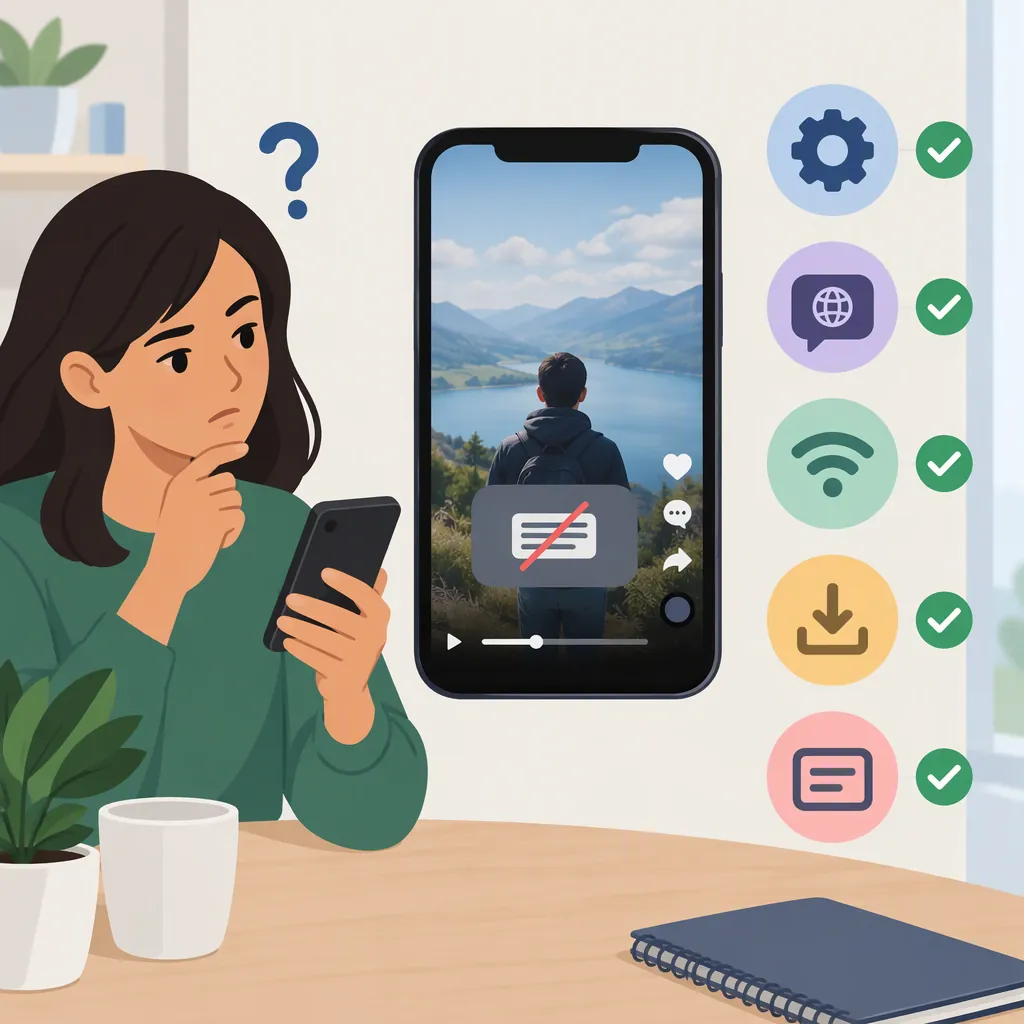
TikTok Auto Captions Not Available: Troubleshooting and Alternatives
If TikTok auto captions are not available, first distinguish a missing creator caption tool from captions that are not showing while you watch. For your own video, check the editing screen before posting and look for caption controls. If generation is available but the transcript is poor, review the speech, background noise, and language settings. If the tool remains unavailable, prepare and review subtitles in a separate editor. The provided guide is from 2023, so its menu labels are not confirmation of TikTok’s current interface or feature availability.
Identify Which Caption Problem You Have
“Auto captions not available” can describe different problems. Use the symptom to choose your next check rather than treating every case as the same failure:
- The caption tool is missing: You cannot find a caption option while preparing your own video.
- Generation does not finish: You can select the tool, but it produces no usable transcript.
- The transcript is inaccurate: Captions appear, but words or timing need correction.
- Captions are not visible during playback: You are watching a video rather than editing your own upload.
The supplied guide discusses both creator caption generation and viewer display settings. Those are separate checks; changing a viewing preference is not evidence that caption generation is available for your upload. [ref_1]
Evidence limit: The only provided reference is a third-party guide dated April 17, 2023. It does not establish current regional availability, account eligibility, supported languages, or a live TikTok outage.
Check Caption Controls Before Posting
For a video you are creating, use this sequence as a navigation check:
- Open the video in the editing workflow before publishing.
- Look for caption controls in the editor and any additional publishing options.
- If a caption consent prompt appears, review it before choosing whether to enable the feature.
- If captions generate, review and correct them before saving.
The 2023 guide describes caption access during editing, a consent prompt, and a “More options” setting labeled “Allow auto-generated captions.” Treat these as historical labels to look for, not guaranteed current menu locations. [ref_1]
If those controls are absent, the supplied evidence cannot tell you why. Do not assume the absence proves an account restriction, a regional block, or an outage. As a general troubleshooting test, preserve your work and compare the same workflow with a new, short test clip. This is a diagnostic suggestion, not a verified fix.
Caption Availability Test Log
Record the following before changing anything:
- Device and operating system:
- TikTok app version:
- Recorded clip or uploaded file:
- Spoken language:
- Caption control visible: yes / no
- Exact on-screen error, if any:
- Result with a short spoken test clip:
- Original video and draft preserved: yes / no

Compare the original and test clip at the same editing stage. A difference helps narrow the symptom but does not prove its cause.
Check Audio When Captions Generate Poorly
If the tool runs but the result is incomplete or inaccurate, review the source audio before treating the problem as feature unavailability.
The guide identifies background noise and accents as possible sources of transcription errors. It recommends clear speech, less background noise, checking language settings, and reviewing caption timing. These suggestions address transcript quality; they do not establish why a caption button is missing. [ref_1]
For a controlled comparison, use a short clip with clearly audible speech and little competing sound. If your interface offers a transcription-language selector, check that it matches the speech. Then compare the output with the original clip.
Listen through every generated line. Correct names, technical terms, missing words, and timing rather than assuming automatic output is ready to publish.
Separate Viewer Settings from Creator Tools
If you are watching someone else’s video, start with caption display settings rather than your upload editor.
The guide describes a viewer setting under “Settings and Privacy” → “Accessibility” called “Always show auto-generated captions.” Because the source is from 2023, check the controls actually present in your app rather than relying on that exact path. [ref_1]
As a comparison test, check another video that visibly offers captions. Record whether captions are missing on one video or across several. This helps describe the problem without claiming a cause.
The provided reference does not establish that a viewer can generate captions for every video. A display preference should not be treated as a guarantee that a particular video has available captions.
Use a Reviewed Subtitle Fallback
When the built-in tool remains unavailable, a separate editing workflow is an alternative. The guide describes importing a video into captioning software, generating and correcting subtitles, then exporting the captioned video for upload. It does not establish current capabilities for every editor. [ref_1]
If automatic transcription is unavailable in your chosen editor, manually transcribe the speech and add timed text where that editor supports it. Keep an original copy so the captioned export is not your only version.
Text embedded in the exported video is different from a selectable caption track: it is part of the picture. Treat that approach as a fallback, not as proof that TikTok’s native captions have been restored.
Do not delete an existing post merely to test caption availability. The provided source is not current enough to establish which post-publication caption changes TikTok now permits.
Subtitle Export Review Checklist
- Preserve the original video.
- Match subtitle wording to the audible speech.
- Correct names, numbers, and technical terms.
- Align each line with the corresponding speech.
- Use readable contrast and placement.
- Preview the export with sound off for readability.
- Preview again with sound on for wording and timing.
- Check the uploaded preview before publishing.
FAQ
Why Is the TikTok Auto Captions Button Missing?
The supplied reference does not establish a current cause. It recommends checking the editing stage and whether captions were enabled. Its 2023 instructions cannot confirm regional restrictions, account eligibility, or an outage.
Will Changing Language Settings Restore Auto Captions?
The guide recommends checking language settings for transcription accuracy. It does not demonstrate that changing them restores a missing caption tool. Treat language selection as a quality check when a relevant control is available.
Does Enabling Viewer Captions Enable Captions for My Uploads?
Do not treat the two controls as interchangeable. The guide discusses a viewer Accessibility preference separately from creator caption generation. Check caption availability within your own video’s editing workflow.
What Can I Do If Native Captions Remain Unavailable?
Prepare subtitles in a separate editor, review the wording and timing, and export a captioned video. The guide supports this alternative workflow, but it is not a repair for TikTok’s native caption feature.