How to Do Auto Captions on TikTok
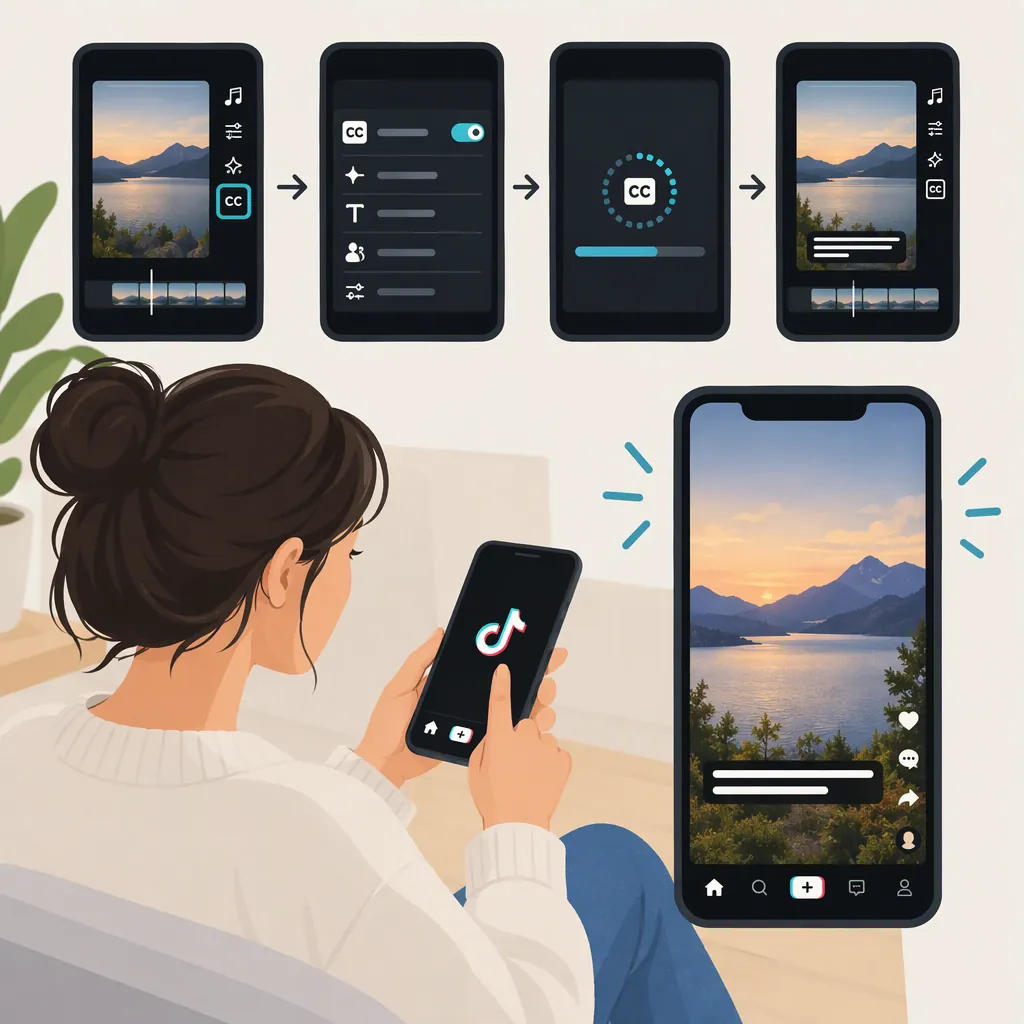
To generate auto captions on TikTok, record or upload a video, then tap Captions in the editing screen. Let TikTok transcribe the audio, review the generated text, and correct mistakes before posting. This is the creator workflow described by the provided guide; exact controls may differ in your app. [c2]
Generate Auto Captions for Your Video
Auto captions turn spoken audio into on-screen text. They are different from the written description you add to a post. The provided creator guide describes this workflow: [c2]
- Record or upload your video in TikTok.
- Open the editing screen and look for Captions.
- Tap Captions and wait for the audio to be processed.
- Read the generated transcript while listening to the video.
- Correct the text using the available caption-editing controls.
- Preview the video before posting to check that the captions match the speech.
The references are third-party guides, not current TikTok documentation. Treat the button names as guidance rather than a guarantee of the exact layout in your version of the app.
Review and Correct the Transcript
Automatic transcription can misinterpret words, particularly when speech includes slang, accents, or background noise. The creator guide recommends reviewing and editing the generated captions. [c2]
Use the captions as a draft, not as a verified transcript. Check names, numbers, technical terms, and words that change the meaning of a sentence, such as “not.” Correct the wording to reflect what was actually said rather than replacing the speech with a summary.
For readability, preview the full video—not just the first caption. If you use manual text overlays, choose a clear font and strong contrast against the background. The guide describes font, color, background, and timing controls for manual text. Do not assume those same controls are available for every auto-caption interface. [c2]
Pre-Publish Caption Checklist
- [ ] Compare every caption with the spoken audio.
- [ ] Check names, numbers, technical terms, and negations.
- [ ] Correct missing or misheard words.
- [ ] Watch for captions that appear too early or too late.
- [ ] Preview with sound off to assess readability.
- [ ] Check that text does not obscure important visual information.
If Captions Are Missing or Incorrect
If captions have not appeared: Allow audio processing to finish and check that you enabled the caption tool. The provided guide also suggests checking for app updates and restarting the app for temporary problems. These are troubleshooting suggestions, not guaranteed fixes. [c2]
If the transcript is inaccurate: Correct the text manually. For a new recording, consider a quieter location if background noise is interfering with transcription. [c2]
If you cannot use the auto-caption tool: Manual text is an alternative described by the creator guide. Open Text, enter a short segment of the spoken words, and set its duration using the available timeline controls. Repeat for the remaining speech, then preview the entire video. Manual text entry does not automatically transcribe the audio. [c2]
The supplied references do not establish why the creator caption tool might be unavailable for a particular account, language, or device.
Creator Captions Vs. Viewer Caption Settings
Generating captions for your own video and showing captions while watching someone else's video are different tasks.
- Creating captions: Use the editing workflow after recording or uploading your video. [c2]
- Viewing captions: Manage caption visibility in the feed or app settings. MakeUseOf's guide, updated in August 2023, describes tapping a caption icon in the feed or navigating through Profile → menu → Settings and privacy → Display → Captions. It notes that wording can differ between Android and iPhone. This older path may not match today's interface. [c1]
Turning on a viewer caption setting is not the creator transcription workflow. If your goal is to add captions to a video you are making, start in that video's editing screen.
FAQ
Can I Edit TikTok's Auto-Generated Captions?
Yes. The provided creator guide describes editing generated caption text to correct transcription errors. Review the wording before posting, and use the editing controls available in your app. [c2]
Will Auto Captions Write Text for a Video Without Speech?
The feature described in the references transcribes spoken audio. Do not rely on it to create explanatory text for a silent clip or music-only video. Use manual Text overlays if you need to add your own wording. [c1] [c2]
Are TikTok Auto Captions Always Accurate?
No. Both references warn that automatic captions can contain errors. Compare the text with the audio and correct mistakes, especially where a misheard word changes the meaning. [c1] [c2]