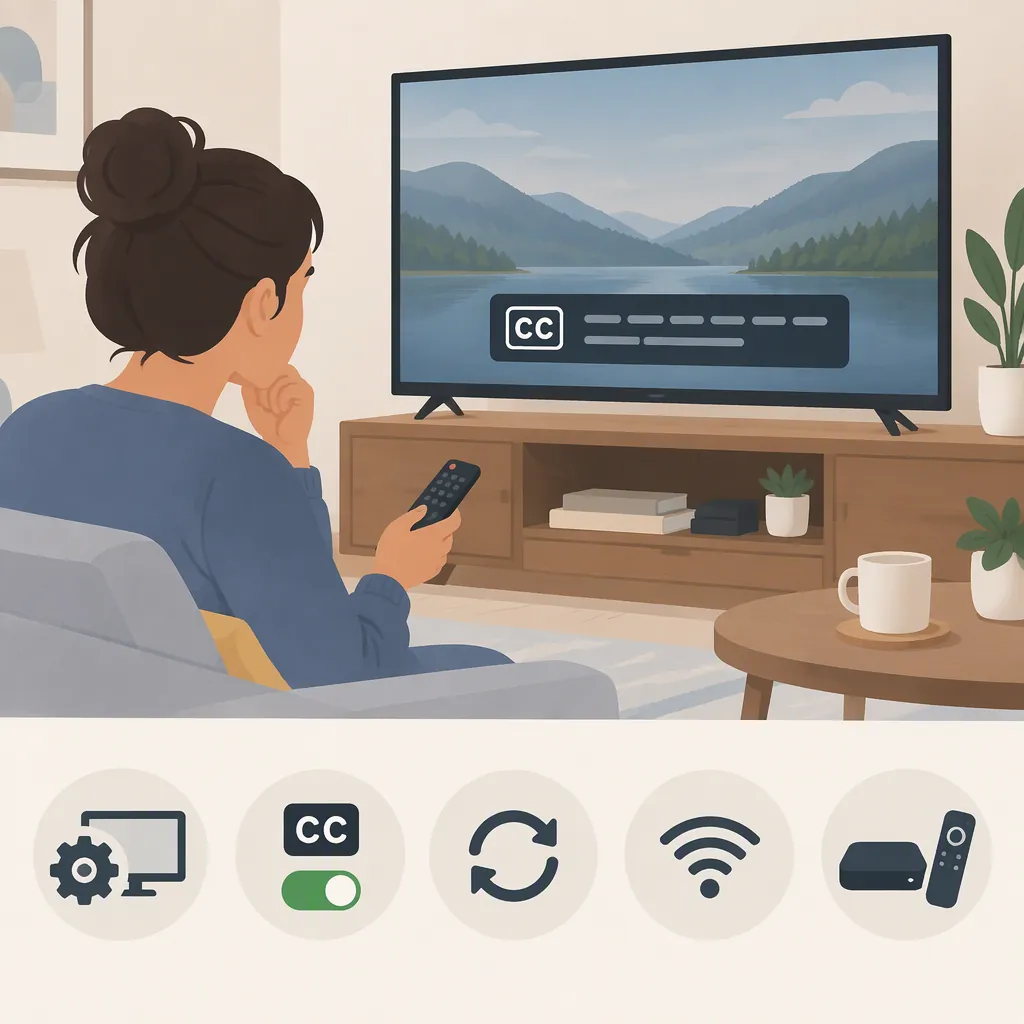
How to Troubleshoot Unavailable Subtitles or Closed Captions
First, check whether a caption track is missing or an available track fails to display. For YouTube playback problems, try toggling CC, reloading the page or restarting the app, checking for updates, and returning playback speed to Normal. These steps come from the MiniTool YouTube troubleshooting guide; they are troubleshooting attempts, not guaranteed fixes or a way to create a missing caption track. They do not address subtitle-generation commands in editors. [c1]
Identify What Is Unavailable
Open the player's caption menu, if available, and note which languages are listed. Then choose the branch that matches your symptom:
| What you see | Where to start |
|---|---|
| No caption option or no language track listed | Compare the same video across playback environments and test another video with selectable captions. |
| A caption track is selectable, but no text appears | Try the low-disruption YouTube playback checks below. |
| Captions appear but are out of sync | Return playback speed to Normal if you changed it, then check again. [c1] |
| An editor's Generate Subtitles command is unavailable | Follow the separate editor-documentation checklist below. |
Caption Troubleshooting Record
Keep a short record so you can compare results and avoid repeating unsuccessful steps.
- Video link or project name:
- Player or editor:
- Device and app/browser version:
- Caption option visible: yes / no
- Caption languages listed:
- Selected caption language:
- Symptom: unavailable / blank / out of sync / generation disabled
- Exact error message, if any:
- Playback speed:
- Result on another video with selectable captions:
- Result for the same video in another playback environment:
- Changes tried and results:
Try Low-Disruption YouTube Playback Checks
If a caption track is available but blank or not displaying correctly, try one change at a time. Check the result after each step.
- Toggle captions. If the CC control is available, turn captions off and back on.
- Reload or restart. Reload the video page, or close and reopen the YouTube app.
- Use Normal playback speed. If you changed the speed, reset it before checking caption timing again.
- Check for updates. Update the YouTube app or the browser you use to watch the video.
The MiniTool guide recommends these checks for YouTube automatic-caption problems. Interface labels and update procedures may differ from its examples. [c1]
If no caption track is listed, move to the comparison checks rather than repeatedly toggling CC or restarting the app.
Compare Results Before Clearing or Reinstalling
Use two comparisons to decide what to investigate next:
- Try the same video in another playback environment you already have available, such as another browser or the app.
- Try a different video with a selectable caption track in the original player.
Check both whether a track is listed and whether its text displays. The following results suggest investigation priorities—not confirmed causes.
| Comparison result | Next investigation priority |
|---|---|
| The same video's captions display in another environment | Focus on the original app or browser. Continue its playback checks before considering cache clearing. |
| Other videos' captions work in the original player, but the affected video's do not | Focus on the affected video's caption availability or behavior rather than repeatedly resetting the player. |
| The affected video has no listed track in either environment, while other videos' captions work | Ask the content publisher or platform support to confirm that video's caption availability. Include the video link and your comparison results. |
| Several videos with selectable captions fail in the original environment | Continue investigating that environment and record whether those videos work elsewhere. |
| Results are inconsistent or you cannot complete the comparisons | Record what remains untested. Avoid assigning a cause from incomplete results. |
If No Caption Track Is Listed
Record whether the same video offers a track elsewhere and whether other captioned videos work in the original player. If you still cannot find a track, take the video link, device details, and test results to the content publisher or platform support to ask about availability.
These comparisons help narrow the investigation. They do not establish why a track is absent, and the MiniTool guide does not demonstrate that local resets create missing caption tracks. [c1]
Consider Cache Clearing or Reinstallation Later
For persistent YouTube playback problems, the MiniTool guide also suggests clearing the browser or app cache, with YouTube app reinstallation presented as a last resort. [c1]
Before proceeding:
- Review the device's prompts and distinguish cache removal from broader storage or data removal.
- Use instructions appropriate to your device rather than an uninstall procedure intended for another platform.
- Record the result after each action.
- Avoid repeating resets without new evidence, particularly when no caption track is listed.
Investigate an Unavailable Subtitle-Generation Command Separately
A disabled Generate Subtitles command in an editor needs a different investigation from a player that cannot display captions. The MiniTool guide covers YouTube playback, not editor-specific generation requirements. [c1]
Use this product-independent checklist:
- Record the exact state. Note the editor version, project state, selected media, whether the command is disabled or returns an error, and the full error text.
- Find documentation for that version. Look for the command's requirements and any documented troubleshooting procedure.
- Compare each documented prerequisite with the project. Mark each requirement as met, not met, or cannot confirm. Do not substitute assumptions for a documented requirement.
- Address documented mismatches. If the documentation describes a relevant correction, make one change at a time and record whether the command becomes available.
- Ask for tool-specific support if unresolved. Provide the version, error text, steps tried, and requirements you could not satisfy or confirm.
A simple comparison table can make the request clearer:
| Documented prerequisite | Current project state | Status | Action or question |
|---|---|---|---|
| Copy the requirement from the tool's documentation | Record what you observe | Met / Not met / Cannot confirm | Note the documented correction or what needs clarification |
Do not infer a language restriction, account restriction, processing delay, or service outage from an unavailable button alone. Treat those as possible investigation topics only if the tool's documentation or an explicit error identifies them.
Evidence and Troubleshooting Limits
The cited evidence is one third-party MiniTool YouTube troubleshooting guide, not official platform documentation. It supports the listed YouTube playback suggestions but does not verify a particular video's caption availability, current interface behavior, or editor-specific subtitle-generation requirements. [c1]
The comparison table and editor checklist are diagnostic workflows, not source-established explanations for a failure. If troubleshooting does not help, preserve the record and seek confirmation from the relevant publisher, platform, or tool support rather than assigning an unsupported cause.
FAQ
What Should I Try If Captions Are Enabled but Blank?
For YouTube, toggle CC off and on, reload the page or restart the app, and check for app or browser updates. [c1] If the problem continues, compare the same video in another environment and test another video with selectable captions before clearing a cache or reinstalling.
What Should I Do If No Caption Track Is Listed?
Check whether the same video lists a track in another playback environment and whether another captioned video works in the original player. If the affected video still has no track, ask its publisher or platform support to confirm availability. The MiniTool guide does not establish that cache clearing or reinstallation can create a missing track. [c1]
What Should I Try If Captions Are Out of Sync?
If you changed playback speed, return it to Normal and check again. The MiniTool guide recommends this for caption problems during high-speed playback; it does not establish the cause of every timing issue. [c1]
Should I Clear the Cache or Reinstall YouTube First?
Start with the less disruptive playback checks and comparisons. The MiniTool guide lists cache clearing as a later step and app reinstallation as a last resort. [c1] Review your device's prompts before removing anything.
Do These Steps Fix an Unavailable Subtitle-Generation Command?
Do not assume they do: the cited guide addresses YouTube caption playback, not editor generation commands. [c1] Find the command's documentation for your editor version, compare its prerequisites with your project, and provide unresolved requirements and error details to the tool's support team.