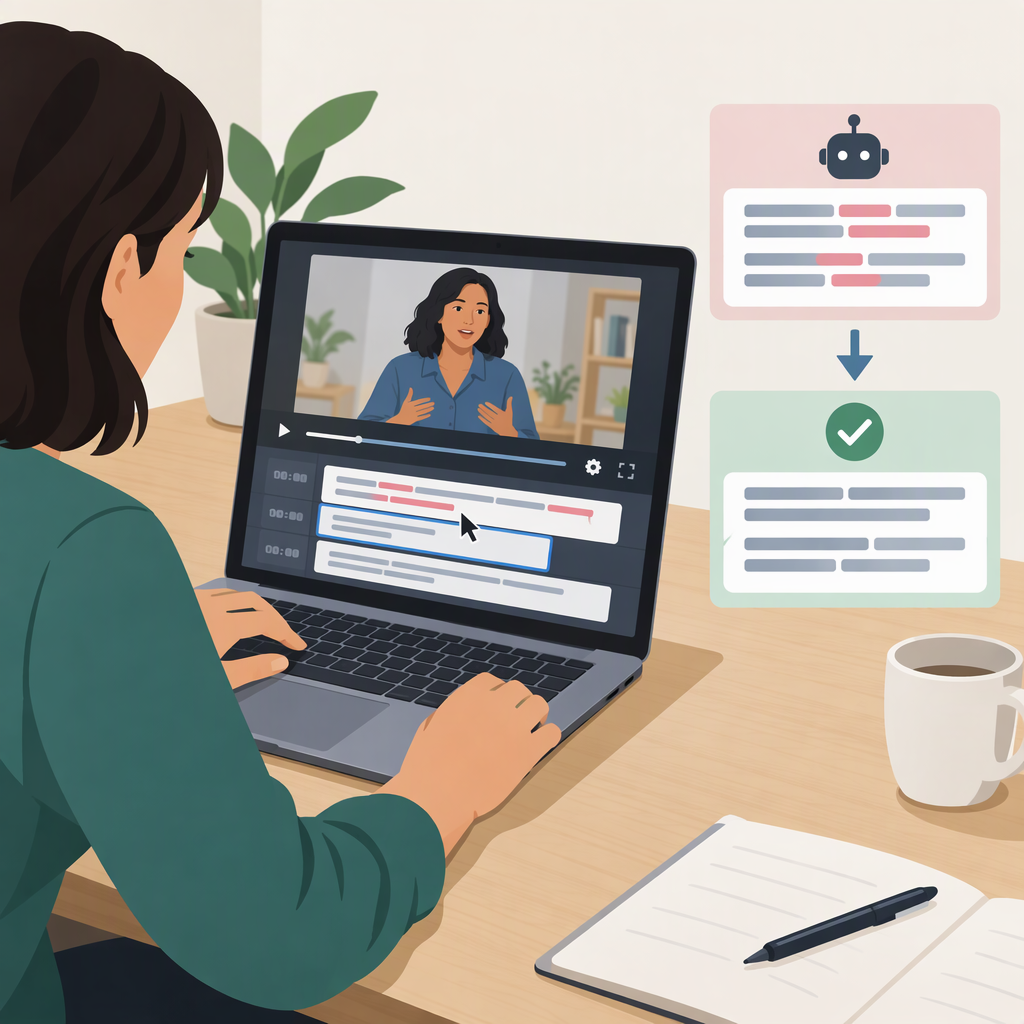
How to Correct Auto-Generated Subtitles Without Changing What You Said
Start with the Recording—Not a Guess
To correct auto-generated subtitles without changing what you said, compare them with the original recording and change a word only when you can hear what was spoken. Keep the speaker’s wording; don’t paraphrase or remove words just to make a line read more smoothly. If a passage remains unclear, don’t present a guess as certain.
That matters because automated text can differ from the audio in ways that change meaning. W3C’s Web Accessibility Initiative gives the example of a missing “not” reversing the meaning of a caption, and advises allowing time to correct automatically generated text. (w3.org)
A Careful Correction Workflow
- Listen while following the subtitles. Work through the recording in manageable sections. Compare each displayed phrase with what you hear, rather than relying on the generated text alone.
- Replay uncertain parts. Pause and listen again. If it helps, use a player that lets you slow the audio or pause easily; W3C mentions these as possible aids, not requirements. (w3.org)
- Correct only what the audio supports. Check names, numbers, contractions, and short words that can be easy to miss. For instance, in a hypothetical recording where the speaker says “I did not send it,” a subtitle that reads “I did send it” should be corrected only if replay confirms the word “not.”
- Keep unresolved speech unresolved. Don’t fill a gap with a plausible-sounding word. If you can’t confidently make it out, leave a note in your working draft and check the destination’s convention before deciding how to handle that passage in the published subtitles. There is no uncertainty label prescribed here for every platform or format.
- Review the whole result with the recording. A final text-only scan can catch typos, but it cannot confirm that every word matches the audio or that the subtitles remain aligned with it. Captions are synchronized with audio, so review them in context where possible. (w3.org)
Improve Readability Without Rewriting
Separate wording edits from presentation edits. Correcting a misheard word changes the text to match the speech. Capitalization, punctuation, line breaks, and timing may affect how subtitles are presented, but choices depend on the destination and context; this guide does not set universal formatting limits.
For example, adding punctuation to a hypothetical line such as “Let’s eat Grandma” may make it easier to read—but punctuation can also affect how a reader interprets the words. Check that a presentation edit reflects the intended delivery and does not conceal, add, or replace spoken wording. Before adjusting line breaks or timing, consult the guidance for the platform or format you will use.
Final Check Before Using the Subtitles
Play the full recording with the corrected subtitles visible, and check:
- Words: Does each corrected phrase match what you hear? Revisit any uncertain words.
- Meaning: Did an edit accidentally add, omit, or change spoken wording?
- Presentation: Are punctuation, line breaks, and timing usable in context and appropriate for your destination?
- Unresolved passages: Have you avoided presenting guesses as verified speech?
The goal is straightforward: correct the generated text against the recording while preserving the speaker’s words. Destination-specific formatting and uncertainty conventions should be checked against the relevant guidance; no particular platform or file format is assumed here.