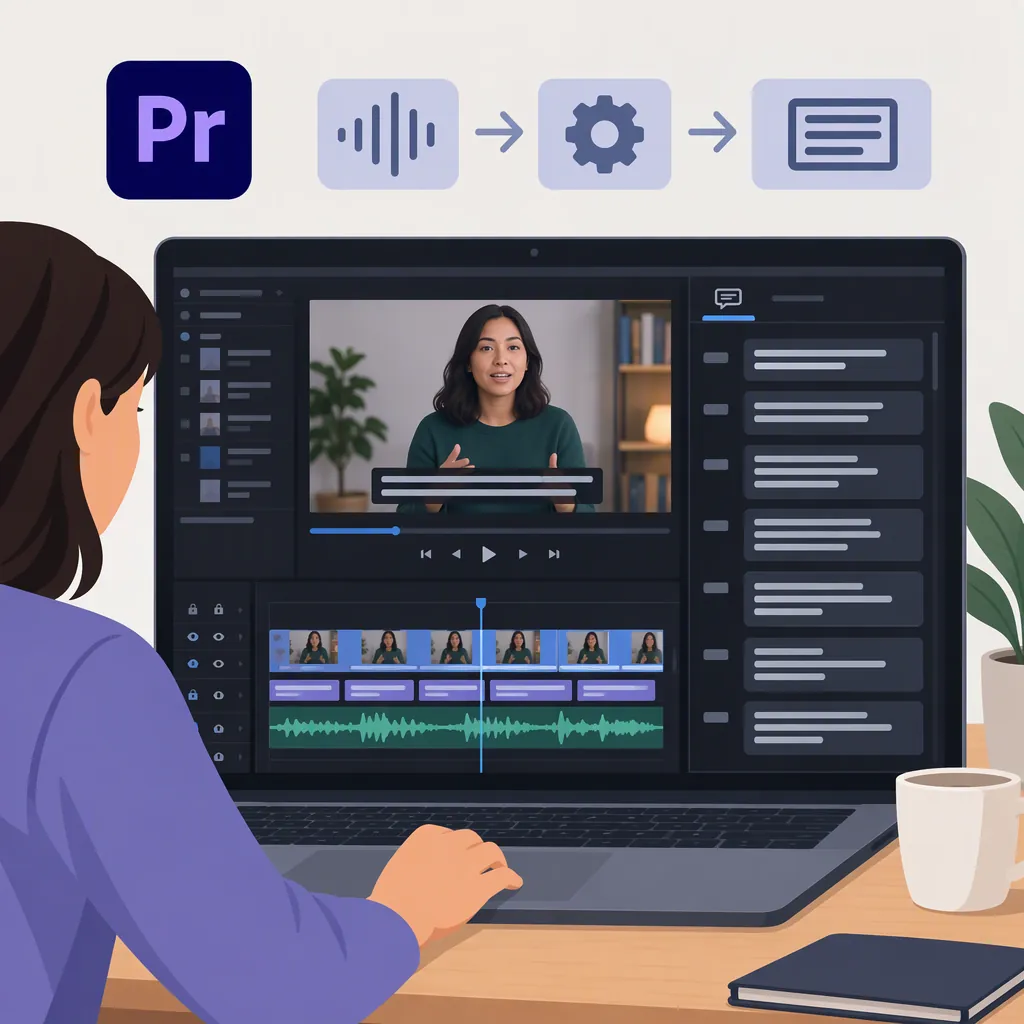
How to Generate Automatic Subtitles in Premiere Pro
To generate automatic subtitles in Premiere Pro, start with transcribed media, open Window > Workspaces > Captions and Graphics, then select Captions > Create captions from transcript. Choose your caption preset, format, style, and timing settings, then select Create captions. Adobe documents that the resulting captions are aligned with the video's dialogue. Review the text and timing before delivery. [adobe-create-captions]
Start with a Transcript
The documented workflow creates captions from a transcript. Adobe recommends creating a project and importing media with Automatic Transcription selected; this creates a transcript as the media is imported. [adobe-create-captions]
Before creating subtitles, confirm that you have a transcript for the material you intend to caption. As an editorial precaution, compare it with the spoken audio and check names, technical terms, numbers, and punctuation.
Scope limitation: The supplied Adobe page explains caption creation, but it does not provide a complete manual transcription procedure for media imported without Automatic Transcription. If no transcript is available, resolve that prerequisite before following the caption-generation steps below.
Generate Captions from the Transcript
Once a transcript is available, follow Adobe's caption-creation workflow: [adobe-create-captions]
- Open Window > Workspaces > Captions and Graphics to switch to the captioning workspace.
- Select Captions > Create captions from transcript.
- In the Create captions dialog, choose a caption preset. Adobe identifies Subtitle default as suitable for most use cases.
- Select the caption format and, if applicable, a broadcast stream.
- Choose a saved caption style if you want to use one.
- Adjust caption length, duration, gaps, and the single-line or two-line layout.
- Select Create captions.
Adobe states that the generated captions are aligned with the video's dialogue. Treat that alignment as a starting point for review, rather than a substitute for watching the captioned sequence. [adobe-create-captions]
Choose Caption Settings Deliberately
The Create captions dialog separates delivery-related choices from text layout and timing. Adobe documents the following controls: [adobe-create-captions]
| Setting | Documented Purpose |
|---|---|
| Caption preset | Choose a preset, including Subtitle default. |
| Format | Select the caption format for the video. |
| Stream | Specify a broadcast stream for certain formats, such as Teletext. |
| Style | Select a saved caption style. |
| Length, duration, and gap | Set character length, caption duration, and gaps between captions. |
| Lines | Keep captions on one line or wrap them into two lines. |
As a practical approach, choose the required delivery format first, then test layout and timing on a passage containing both short and long sentences. Aim for readable phrases rather than applying one arbitrary setting to every project.
The supplied reference does not establish a universal character limit, duration, or gap. This guide therefore does not prescribe numeric settings as an Adobe requirement.
Review Subtitles Before Delivery
Use a separate review pass after generation. The following checklist is editorial guidance, not a claim that automatic captioning guarantees accuracy.
Listen while reading to check wording and synchronization. Then watch without sound to assess whether the captions remain understandable and readable. Pay particular attention to scene changes, speaker changes, and text that competes with other on-screen information.
Delivery limitation: The supplied source covers caption creation, not a complete export procedure. Confirm the destination's caption requirements before delivery; do not assume that generating captions alone determines how they will appear in the delivered video.
Subtitle Review Checklist
- [ ] Compare every caption with the spoken audio.
- [ ] Verify names, numbers, technical terms, and punctuation.
- [ ] Check caption starts and ends against the dialogue.
- [ ] Review line breaks for readable phrases.
- [ ] Check readability against changing backgrounds.
- [ ] Check for conflicts with other on-screen text.
- [ ] Watch the sequence without sound.
- [ ] Confirm the destination's caption-delivery requirements.
- [ ] Inspect the delivered result, not only the editing timeline.
FAQ
Does Automatic Transcription Create Subtitles Immediately?
Adobe's documented workflow separates the two steps: Automatic Transcription creates a transcript during import, and Create captions from transcript turns that transcript into captions. A transcript is therefore not the same step as caption generation. [adobe-create-captions]
Can Generated Subtitles Use One or Two Lines?
Yes. Adobe documents a Lines option in the Create captions dialog that lets you keep captions on a single line or wrap them into two lines. Review the result with your video's framing and other on-screen text in mind. [adobe-create-captions]
Which Caption Preset Is a Starting Point for Subtitles?
Adobe identifies Subtitle default as suitable for most use cases. It is a starting point, not a replacement for checking the caption format required by your destination. [adobe-create-captions]
Sources
- [adobe-create-captions] Create captions in Premiere | Premiere