How to Generate Automatic Subtitles for a Video
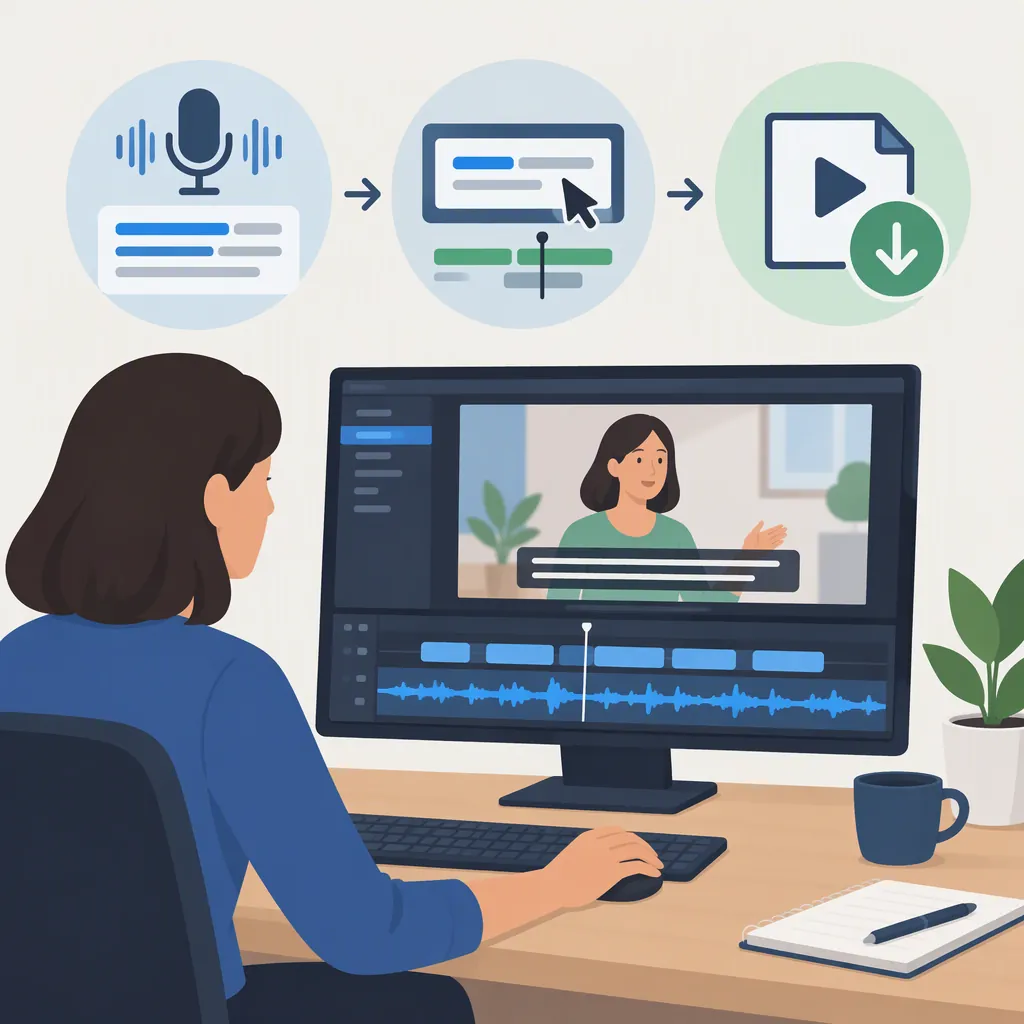
To generate automatic subtitles, load your video into a subtitle editor, select the spoken language, and run automatic transcription. Review the words and timing, then export either a video with visible subtitles or a separate subtitle file. Treat the generated text as a draft: the supplied guides include correction and timing-adjustment steps. [c1] [c2]
Choose the Output You Need
Before generating text, decide whether you need timed subtitles, a transcript, or captions that include meaningful sound information.
- Subtitles are timed on-screen text representing spoken dialogue, either in the original language or in translation. [c1]
- Captions can include speaker identification and non-speech audio, not just dialogue. Closed captions can be switched on or off; open captions remain visible. [c2] [c3]
- A transcript provides the speech as text. The supplied subtitle guides describe TXT as a transcript download option and SRT or VTT as separate subtitle-file options. [c1] [c2]
For a video intended to be understood without hearing the audio, plan a review of speaker changes and relevant sounds rather than checking dialogue alone.
Generate a Subtitle Draft
The supplied editor guides describe a workflow of uploading media, generating subtitles, editing the result, and exporting. One guide explicitly includes selecting the language being spoken. Interface labels and available options depend on the editor. [c1] [c2]
Use this sequence as a practical starting point:
- Load the version of the video you intend to publish.
- Open the subtitle or caption tool.
- Select the spoken language where the editor requests it. Do not confuse this with a translation target.
- Run automatic subtitle generation.
- Review the generated text alongside the video before styling or exporting it.
If you need another language, distinguish transcription from translation. The supplied translation workflow specifies the spoken language and a separate target language, followed by text and timing review. [c2]
Generation Setup Notes
Fill in before generation:
- Video filename and version: __________
- Spoken language: __________
- Desired subtitle language: __________
- Output needed: burned-in video / SRT / VTT / TXT
- Names and technical terms to check: __________
Review Wording and Timing
Automatic generation is not the final review. The supplied guides describe editing transcript text and adjusting subtitle timing; one specifically recommends correcting brand and industry terms. [c1] [c2]
For the wording pass, listen while reading. Check names, specialized vocabulary, numbers, and any wording that changes the meaning. If a phrase is unclear, replay it rather than guessing.
For the timing pass, watch when each subtitle appears and disappears. Adjust entries that arrive noticeably before the speech, linger after it, or move too quickly to read comfortably. The supplied timing guidance describes editing start and end times for individual subtitle lines. [c1]
If the goal is captioning, make a separate pass for speaker labels and meaningful non-speech sounds. Dialogue review alone does not cover those elements. [c2] [c3]
Subtitle Review Checklist
- [ ] Compare every subtitle with the audio.
- [ ] Verify names, terminology, and numbers.
- [ ] Replay unclear passages instead of guessing.
- [ ] Check subtitle start and end times.
- [ ] Watch the full video with sound off.
- [ ] Add speaker identification and relevant sound descriptions if captioning is required.
- [ ] Recheck any translated wording before export.
Export and Test the Result
The supplied editor guides describe exporting a video with hardcoded subtitles or downloading separate SRT, VTT, and TXT files. These are different delivery choices, not interchangeable outputs. [c1] [c2]
| Output | Intended Use | What to Check |
|---|---|---|
| Burned-in video | Text permanently visible in the picture | Placement, readability, and whether text covers important content |
| SRT or VTT | A separate subtitle track for a compatible player or platform | Destination support, synchronization, and caption controls |
| TXT | A text transcript | Wording and whether you also need timed subtitles |
Burned-in text stays visible, whereas closed captions can be turned on or off. [c3] Choose based on the destination and the viewing experience you need.
As a final quality check, preview the exported video or upload the subtitle file to the intended player. Check the beginning, a middle passage, and the ending. Treat successful export as a file-creation step, not proof that the destination displays everything correctly.
Keep Accuracy and Access Limits in View
The references are vendor feature pages, not independent comparative tests. They support the workflow described here but do not establish how accurately a tool will transcribe your particular recording. Their advertised accuracy figures are not used as benchmarks in this guide. [c1] [c2] [c3]
The pages also describe account-dependent access, including limits on free use, downloads, or automatic captioning. Do not assume that generating a draft includes every export option. Verify the requirements for your chosen output before committing to a workflow. [c1] [c2] [c3]
This guide does not establish legal accessibility compliance. A practical review of wording, timing, speaker identification, and sound information is useful, but it is not a compliance assessment.
FAQ
Are Automatic Subtitles the Same as a Transcript?
Not quite. Subtitles are timed text displayed during playback. A transcript is a text version of the speech. The supplied guides distinguish SRT and VTT subtitle downloads from TXT transcript downloads. [c1] [c2]
Do Automatic Subtitles Need Manual Correction?
Plan to review them. The supplied guides include text correction and timing adjustments, and one highlights brand and industry-specific terms. They do not establish that a particular recording will be error-free. [c1] [c2]
Can Subtitles Be Generated from Audio Without Video?
The supplied guides describe generating subtitles from audio files as well as video. If you only need written text, choose a transcript output; if you need timed text, check the available subtitle-file export options. [c1] [c2]
What Should I Do If Automatic Subtitles Are Out of Sync?
Compare each affected line with the speech and adjust its start and end times. The supplied timing guide describes this form of manual correction. Preview the result again after export. [c1]