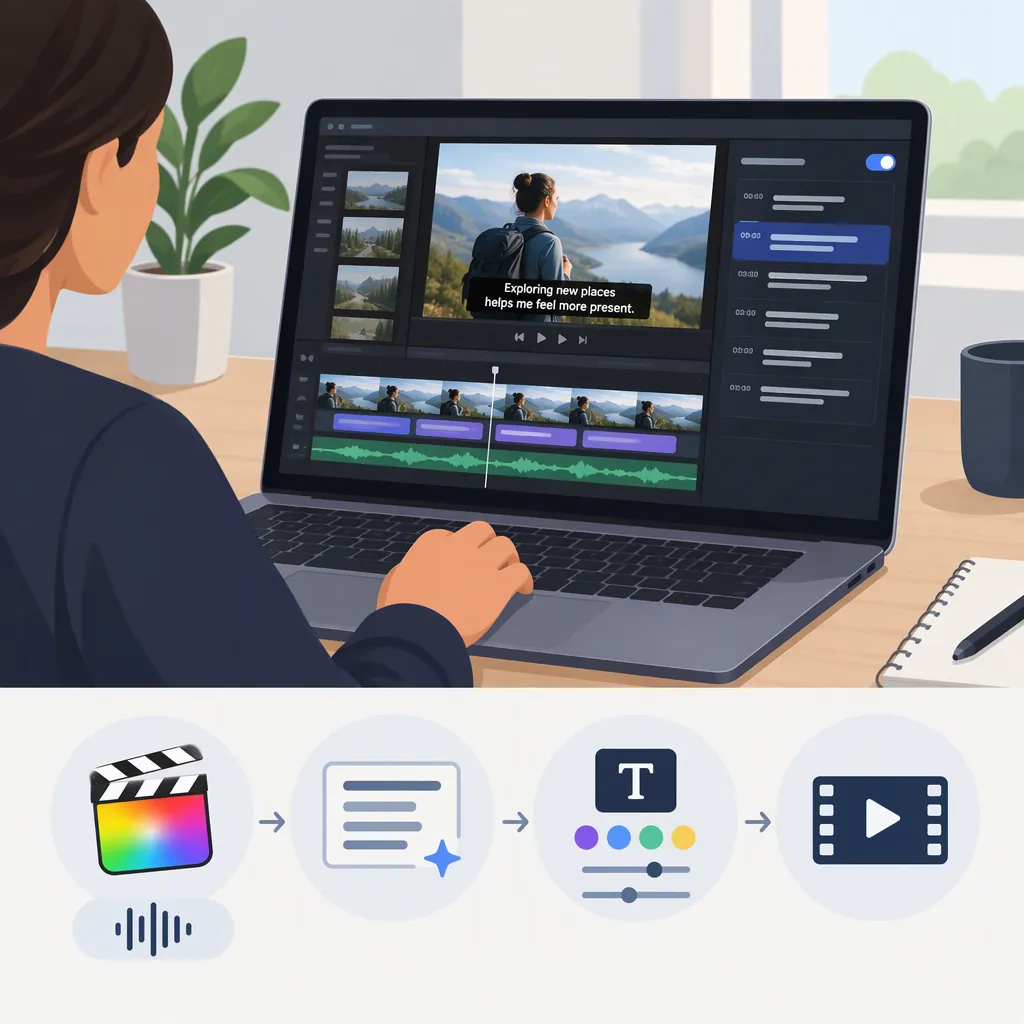
How to Generate Auto Captions in Final Cut Pro
In Final Cut Pro for Mac, select timeline clips containing speech, then choose Edit > Generate Captions > Subtitles for subtitle title clips, or Edit > Generate Captions > Closed Captions for iTT closed caption clips. Apple’s documented feature requires Apple silicon and supports U.S. English only. The first use requires an internet connection to download the language model. [apple-subtitles] [apple-closed-captions]
Check Requirements Before Generating Captions
Apple documents Generate Captions as an Apple-silicon feature available in U.S. English only. On first use, Final Cut Pro downloads a language model before generating the text; Apple says that download happens only once and requires an internet connection. [apple-subtitles] [apple-closed-captions]
The steps below follow the supplied Apple guides. Check the guide’s version selector against your installed Final Cut Pro version rather than assuming every release has identical menus. These references do not establish the earliest supported version.
As a workflow precaution, finish dialogue edits before caption review. Apple warns that changing dialogue clips after creating closed captions can put captions out of sync. [apple-closed-captions]
Choose Subtitles or Closed Captions
The Generate Captions menu offers two outputs with different editing controls:
- Subtitles: Final Cut Pro creates standard title clips using the default Subtitle title. The clips connect to their source clips and receive the Subtitles role. This route provides title-based appearance and animation controls. [apple-subtitles]
- Closed captions: Final Cut Pro creates iTT closed caption clips in a dedicated lane at the top of the timeline. Apple also documents closed caption formats including CEA-608 and SRT, with a separate conversion workflow. [apple-closed-captions]
Choose according to the required deliverable, not just the menu label. Subtitle title clips are not the same object as an SRT caption file. If delivery requires a separate caption file or a particular caption format, confirm the conversion and export requirements before treating generation as complete. This guide covers generation and review, not destination-specific export settings.
Generate Text from Timeline Speech
- Select one or more clips in the timeline that contain the speech you want to transcribe.
- For subtitle titles, choose Edit > Generate Captions > Subtitles, or press Shift-Command-S. [apple-subtitles]
- For closed captions, choose Edit > Generate Captions > Closed Captions, or press Shift-Command-C. [apple-closed-captions]
- Allow the first-use language-model download to finish if prompted.
- Inspect the resulting clips against the spoken audio.
You can also Control-click the selection or use the Enhancements pop-up menu below the viewer to access either generation option. Final Cut Pro transcribes each selected clip and connects the generated text clips to the clips they came from. [apple-subtitles] [apple-closed-captions]
For J-cuts and L-cuts, Apple describes caption connections to adjacent clips that overlap the transcribed audio. Pay particular attention to those edit boundaries during review. [apple-subtitles] [apple-closed-captions]
Review Text, Timing, and Appearance
Treat generated text as a draft to check against the recording. Apple notes that background noise, music, and overlapping dialogue can affect automatic caption accuracy and timing. It suggests trying Voice Isolation and Noise Removal to improve spoken-audio quality. That is a troubleshooting option, not a guarantee of correct transcription. [apple-closed-captions]
For closed captions, double-click a caption to edit its text. Drag its start or end point to change duration, or move it left or right to adjust synchronization. Moving a caption can overwrite adjacent captions, so inspect neighboring entries afterward. Captions that violate their format’s specifications turn red and show an inspector warning. [apple-closed-captions]
For subtitle titles, select subtitle clips and open the inspector with Command-4, then open the Title inspector. Apple documents animation styles including None, Fade, Scale, Highlight, and Fill, plus a Vertical Social Media Safe option for 9:16 video. Check the intended viewing layout rather than assuming that option guarantees clearance on every platform. [apple-subtitles]
Caption Review Checklist
- [ ] Listen to the full sequence while reading the generated text.
- [ ] Check names, technical terms, numbers, and punctuation against the audio.
- [ ] Verify caption starts and ends, especially around overlapping speech and edit boundaries.
- [ ] Inspect neighboring captions after timing changes.
- [ ] Resolve closed caption format warnings.
- [ ] Check subtitle readability and placement in the intended frame layout.
- [ ] Confirm the required delivery format before export.
Handle Unsupported Languages and Missing Options
If Generate Captions is unavailable, first compare your hardware, installed version, and menu layout with Apple’s documentation. The supplied guides establish the Apple-silicon and U.S. English restrictions, but they do not provide a complete diagnosis for every missing-menu case. [apple-subtitles] [apple-closed-captions]
For speech outside the documented language support, do not assume native generation will transcribe or translate it. Apple documents manual closed caption creation and importing closed caption files as alternative workflows. Language subroles organize caption versions; creating a subrole is not a documented automatic translation step. [apple-closed-captions]
FAQ
Can an Intel Mac Use Native Final Cut Pro Auto Captions?
Not according to the supplied Apple guides. They state that Generate Captions requires a Mac with Apple silicon. Manual closed caption creation and caption-file import are separately documented workflows. [apple-subtitles] [apple-closed-captions]
Does Generate Captions Create SRT Captions Directly?
Apple’s documented automatic closed caption workflow creates iTT captions, not SRT. Apple identifies SRT as another supported closed caption format and points to a separate conversion workflow. The Subtitles option creates title clips instead. [apple-closed-captions] [apple-subtitles]
Is an Internet Connection Required?
Apple explicitly requires an internet connection for the first-use language-model download and says that download happens only once. The supplied guides do not describe broader network or data-handling behavior, so they should not be used to infer additional privacy guarantees. [apple-subtitles] [apple-closed-captions]
Sources
-
[apple-subtitles] Generate subtitles automatically in Final Cut Pro for Mac - Apple Support
-
[apple-closed-captions] Create closed captions in Final Cut Pro for Mac - Apple Support