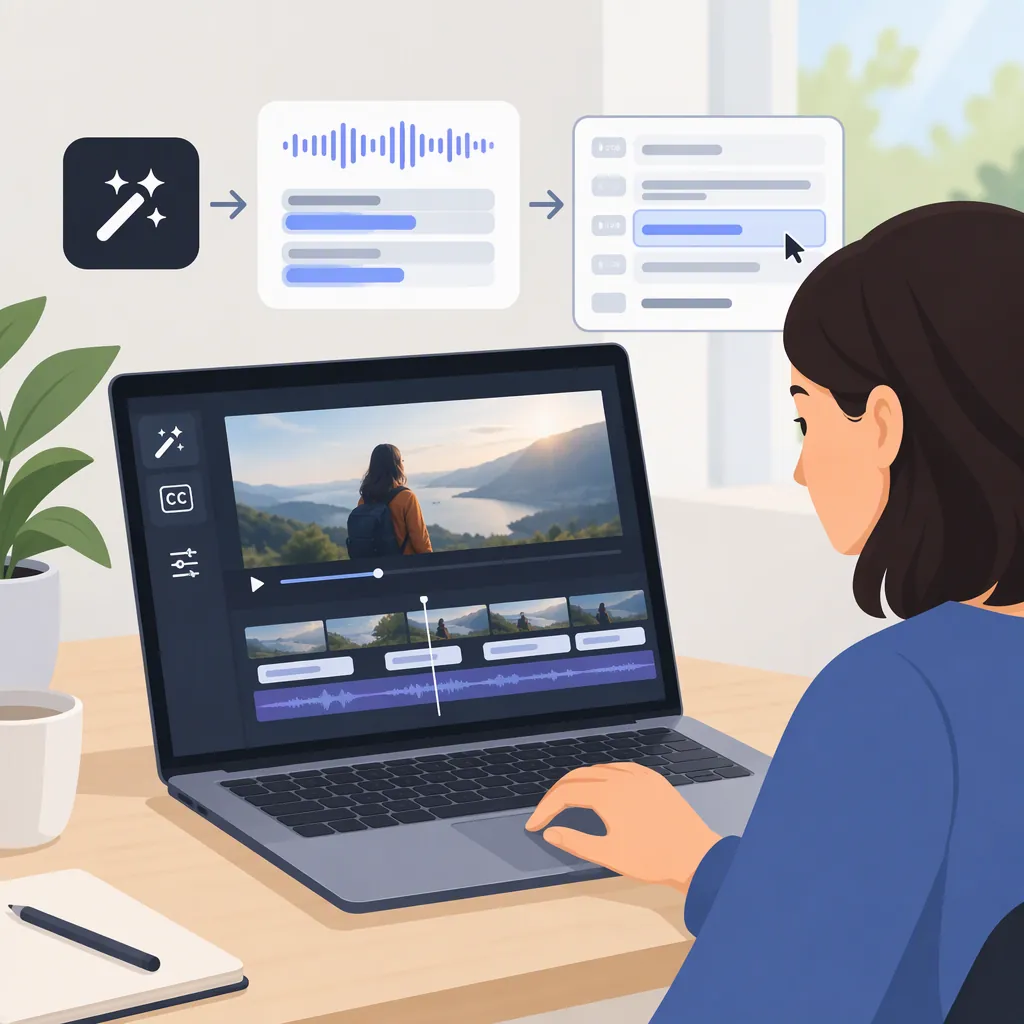
How to Generate and Review CapCut Auto Captions
To generate CapCut auto captions, import your video into a project, locate the caption controls under Text, select the language spoken in the video, and generate captions. Then review the text and timing before exporting. The provided third-party guide describes this workflow; it does not verify the exact controls or availability in your current version. [c1]
Generate an Initial Caption Draft
The supplied guide describes the following sequence for creating captions in CapCut. Treat it as a general workflow rather than a guaranteed match for every interface. [c1]
- Create a new project and import the video you want to caption.
- Open Text and look for Captions or Auto Captions.
- Select the language spoken in the recording.
- Start caption generation.
- Review the generated caption segments on the timeline.
If those labels do not match your screen, this reference alone cannot establish the correct path for your installation. It also does not establish current pricing, account requirements, or a complete supported-language list.
Correct the Words and Timing
Treat the generated captions as a draft. The guide recommends proofreading them and correcting timing; it also identifies background noise and accents as possible sources of transcription errors. [c1]
For a practical review, play the video in short sections while comparing the audio with each caption. Check names, numbers, technical terms, missing words, and punctuation. Preserve what the speaker actually says rather than rewriting the dialogue into a different meaning.
The guide describes selecting caption boxes to edit their text and dragging their edges to adjust timing. [c1] Check that each caption appears with the corresponding speech and does not remain over unrelated dialogue. If a phrase is unclear, listen again rather than guessing.
Caption Review Checklist
- [ ] Compare every caption with the spoken audio.
- [ ] Verify names, numbers, and specialized terms.
- [ ] Correct missing words and punctuation.
- [ ] Check the start and end of each caption segment.
- [ ] Replay unclear passages instead of guessing.
- [ ] Review the full sequence after making corrections.
Review Readability and Relevant Sounds
After correcting the wording, review how the captions look over the actual footage. The guide describes font, color, and background or shadow adjustments. [c1]
Choose a readable style and check it against both light and dark scenes. As a review practice, avoid placing captions over faces, demonstrations, or other details viewers need to see. Preview the video at the size you expect people to watch it.
The guide also recommends adding speaker labels and meaningful sound descriptions when needed. [c1] Use these selectively: identify a speaker when the voice would otherwise be ambiguous, and describe a sound when it contributes information not conveyed by the dialogue. Do not assume the automatic draft includes these details.
Check the Export and Its Limitations
The reference describes exporting a video with captions. [c1] After export, a useful final check is to play the resulting file and confirm the wording, timing, placement, and readability—not just the project preview.
Keep the output requirement separate from caption generation. A captioned video, a plain-text transcript, and a separate subtitle file are different deliverables. The supplied guide does not establish a current procedure for exporting a standalone transcript or subtitle file, so those capabilities should not be assumed.
Evidence limitation: This article relies on one third-party guide, titled for 2024 and marked as updated December 6, 2025. It is not official CapCut documentation and cannot confirm current feature availability, fees, or interface details. [c1]
FAQ
Do CapCut Auto Captions Need Manual Review?
Yes. The provided guide recommends checking and editing generated captions, particularly when audio contains background noise or accents. It provides no measured accuracy rate, so review the whole video rather than assuming the draft is correct. [c1]
Which Language Should I Select for Auto Captions?
Select the language spoken in the recording. The guide describes choosing a language before generation, but it does not provide a verified current list of supported languages. [c1]
Can I Use This Workflow to Export a Transcript?
This workflow covers generating and reviewing video captions. The supplied guide does not establish how to export a standalone transcript or subtitle file. Check the export options available in your version before relying on either output. [c1]