How to Get Subtitles from Video as Editable Text
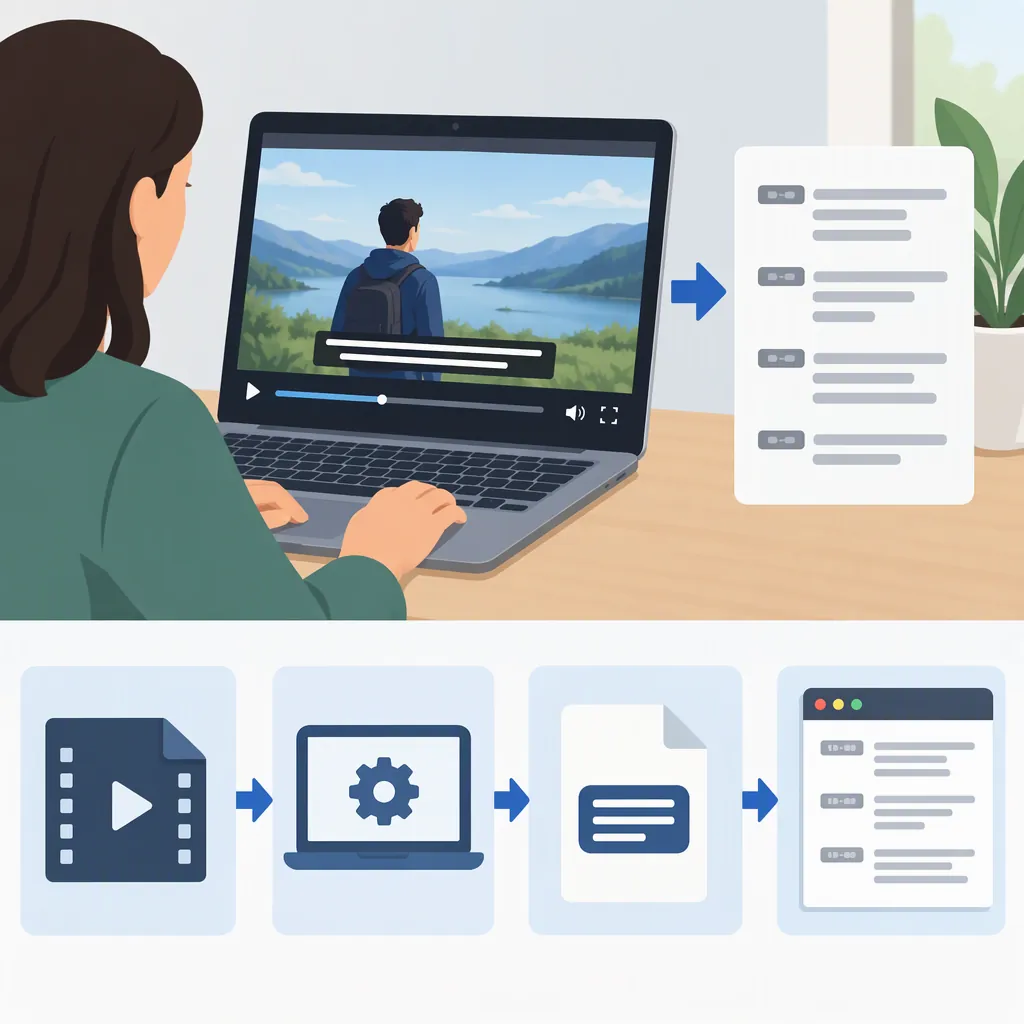
To get subtitles from video, first look for an existing subtitle file if you need the original caption wording. If no file is available and a new transcription is acceptable, import the video into a subtitle editor, generate subtitles from the audio, review the wording and timing, and download a separate file. SRT and VTT are timed subtitle options; TXT is an option for transcript text. Automatic transcription creates text from speech—it does not recover the original captions. [c1] [c2]
Start with the Right Extraction Path
The next step depends on whether you want existing captions, spoken words, or text visible in the picture.
If You Need the Original Subtitles
Use this decision flow before generating anything:
- Look for an existing separate file. Check the files supplied with the video and any caption-download options available to you in the publishing interface. If someone else owns the video, ask whether they can provide its subtitle file.
- If you find a file, save it directly. Check that its language and version match the video you are using. Open it to inspect the wording; if you need timed subtitles, test it against playback.
- Keep the original unchanged. Make a working copy if you need to edit the text or timing.
- If you cannot find a file, decide whether transcription is an acceptable substitute. If exact caption wording is essential, request the original file rather than replacing it with generated text. If you only need the spoken words, follow the transcription workflow below.
Not finding a separate file does not establish that the video has no subtitle track.
If You Need the Spoken Words
Use audio transcription when you want an editable record of the speech, regardless of whether the video already has captions. HappyScribe and Kapwing document generating subtitles through speech recognition, editing the result, and exporting separate files. [c1] [c2]
If You Need Text Visible in the Picture
Visible subtitles may differ from the audio—for example, when they are translated. HappyScribe describes hardcoded, or burned-in, subtitles as permanently embedded in the video. [c1]
Scope limit: The sources used here document subtitle generation, editing, export, and display. They do not establish a procedure for extracting an embedded subtitle track or recovering burned-in wording with optical character recognition. Neither procedure is covered by this guide.
Choose the File You Need
Choose the output before processing the full video.
| Goal | Output to Look For | What to Verify |
|---|---|---|
| Display subtitles during playback | SRT or VTT | The destination accepts the format, and the text appears at the correct times. |
| Read or edit the spoken words as a document | TXT transcript | The file contains the wording you need. |
| Preserve existing caption wording | The original separate subtitle file, if available | The language and version match your video. |
Kapwing documents separate SRT, VTT, and TXT downloads. Export options vary: Clipchamp’s subtitle-generator page lists SRT as its transcript download format. Check the available formats before starting. [c2] [c3]
For editable text, do not choose a video-only export. HappyScribe and Kapwing distinguish downloading subtitle files from exporting a video with burned-in subtitles. [c1] [c2]
Transcribe the Audio, Review, and Download
If a new transcription meets your needs, use this sequence:
- Confirm permission to process the video. For sensitive material, review the service’s current privacy terms before uploading.
- Import the video. HappyScribe and Kapwing describe file uploads and link imports. Check the supported import options rather than assuming every video URL will work. [c1] [c2]
- Select the spoken language where required. Treat this as a transcription setting, not a translation request. Clipchamp notes that its speech recognition detects one language at a time; review multilingual passages carefully. [c3]
- Generate the subtitle draft. Use the editor’s automatic subtitle or transcription function. HappyScribe and Kapwing describe this as speech recognition applied to the video’s audio. [c1] [c2]
- Correct the text and timing. Listen while reading. Check names, technical terms, numbers, punctuation, and unclear speech. For timed subtitles, check when each line appears and disappears. Both services document wording and timing adjustments. [c1] [c2]
- Download a separate file. Choose SRT or VTT for timed playback, or TXT when you only need transcript text and that option is available. Open the saved result and verify it before using it elsewhere. [c2]
Do not treat a published accuracy percentage as a guarantee for your recording. This guide makes no accuracy or processing-time promise.
A Source-Documented Interface Example
Kapwing’s guide provides one concrete path:
- Upload the video to its editor.
- Open Subtitles, then select Auto Subtitles.
- Review the transcript and fix wording or timing.
- Use the download icon above the subtitle editor to save a separate SRT, VTT, or TXT file. [c2]
In that documented interface, Export Project is the route for exporting a video with hardcoded subtitles—not the separate text-file download. These controls are specific to Kapwing’s guide, not a universal interface for all editors. [c2]
Final Review Checklist
- Confirm that the language and video version match.
- Check names, numbers, and specialized vocabulary against the audio.
- Flag unclear passages rather than guessing.
- For timed subtitles, check alignment at the beginning, middle, and end.
- Confirm that the download is a separate subtitle or text file.
- Open the saved file and test it in its intended destination.
- Keep an unchanged copy if you started with original captions.
Do Not Mistake Subtitle Display for Extraction
Look for an explicit subtitle-file or transcript-download option. A tool that displays captions does not necessarily export their text.
For example, Substital’s listing describes subtitle search, loading an SRT file, and manual synchronization during playback. It does not establish a subtitle-extraction or transcript-export workflow. [c4]
The useful final check is: Did you save an editable file containing the words, or only make subtitles visible over a video?
FAQ
Does Automatic Transcription Extract the Original Subtitles?
No—not by itself. The documented generation workflows use speech recognition to create new subtitles. If exact original wording matters, check for an existing subtitle file or request one from the owner before generating a replacement. [c1] [c2]
Which Format Should I Choose If I Only Need the Words?
Look for a TXT transcript download. Kapwing distinguishes TXT for transcript text from timed SRT and VTT files. Check export availability first: Clipchamp’s page lists only SRT for subtitle-transcript downloads. [c2] [c3]
What Should I Do If the Subtitles Are Out of Sync?
Compare the affected lines with playback and adjust their start and end times in the subtitle editor. HappyScribe and Kapwing document manual timing adjustments and synchronization features. Download the corrected file, then test it with the same video version rather than relying only on the editor preview. [c1] [c2]
Can This Workflow Recover the Exact Text of Burned-In Subtitles?
Audio transcription is not a verified recovery method for that wording. HappyScribe distinguishes permanently embedded subtitles from separate subtitle files. If you need the displayed text exactly, ask the owner for the original caption file; do not assume an audio-generated transcript will match it. [c1]
What If I Cannot Find an Existing Subtitle File?
First decide whether you need the original captions or simply a transcription of the speech. For original captions, request the file from the owner or publisher. If a new transcript is acceptable, generate and review one, then save it as a separate subtitle or text file using the documented export options. [c1] [c2]