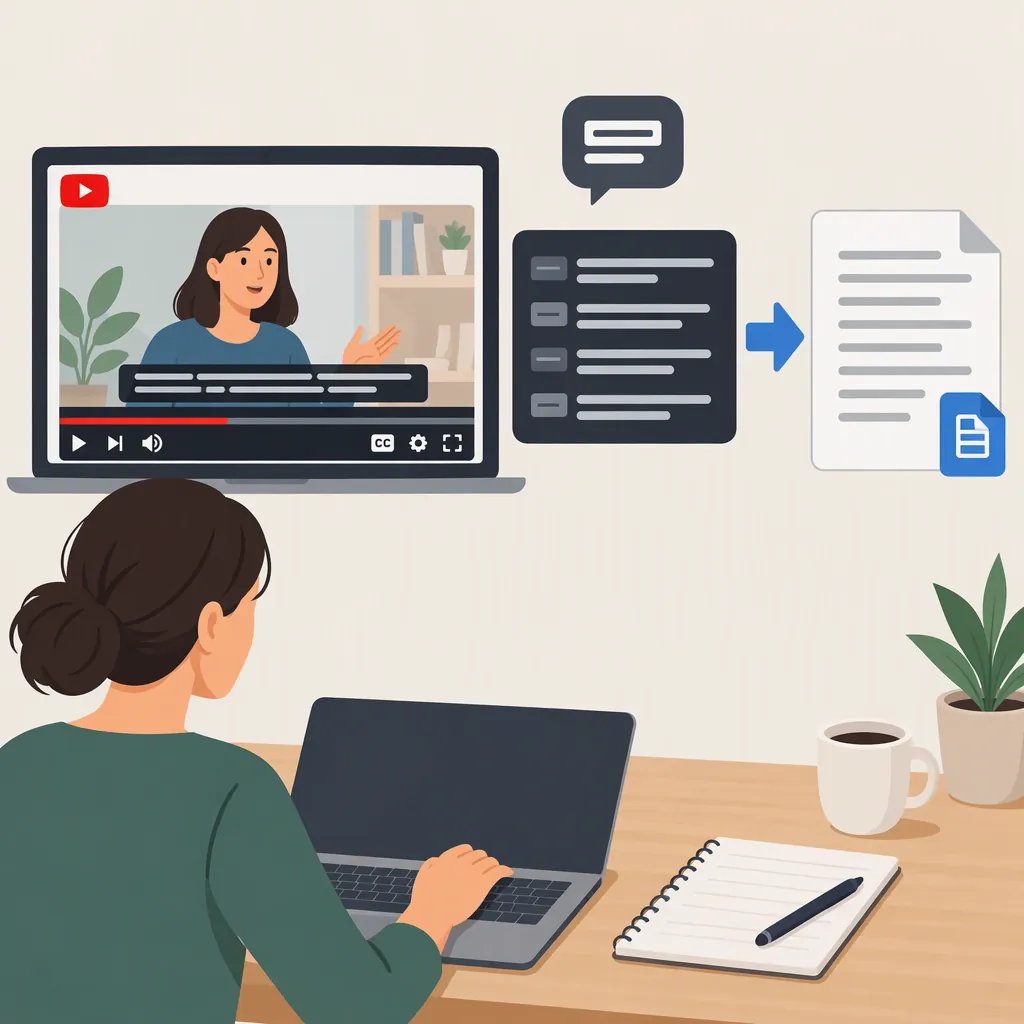
How to Convert YouTube Subtitles to Text
To convert YouTube subtitles to text, open the video's transcript when available, hide timestamps if that option appears, copy the transcript, and paste it into a text document. For a downloadable file, a subtitle extractor may offer TXT export. Choose TXT for reading and notes; keep SRT or VTT when you need timed captions. Available controls and subtitle tracks can vary, and the extracted text still needs review. [c1] [c2]
Copy an Available YouTube Transcript
For a single video, start with the transcript available on YouTube rather than a separate downloader.
- Open the video and check for captions using the CC control.
- Check the available subtitle languages in the player's settings.
- Look for the video's transcript option and open it.
- If the transcript panel offers a timestamp toggle, hide timestamps for a reading copy.
- Select and copy the transcript text.
- Paste it into a plain-text editor or document, then review the beginning and end for missing lines.
GoTranscript describes this copy-and-paste workflow, including a transcript menu and timestamp toggle. Its guide places the transcript option in a menu below the video; treat that location as guidance rather than a guaranteed current interface. The supplied evidence is a third-party guide, not current YouTube documentation. [c1]
Copying text into a document gives you an editable transcript. It does not, by itself, create a timed subtitle file.
Transcript Capture Checklist
- Record the video title and URL.
- Record the subtitle language selected.
- Copy the available transcript.
- Keep an untouched copy before editing.
- Check that the first and last spoken passages are included.
- Save the reading copy as a .txt file if plain text is the goal.
Choose Txt, SRT, or VTT
Choose the output according to what you plan to do with it:
| Output | Suitable Use | Timing |
|---|---|---|
| TXT | Reading, searching, notes, or a text draft | Choose a clean export without timestamps when available |
| SRT | Subtitle editing and workflows that accept SubRip files | Retains subtitle timecodes |
| VTT | Web players and WebVTT caption workflows | Retains caption timing |
GoTranscript distinguishes plain text from timecoded SRT files. YTVidHub's format guide presents TXT for readable transcripts, SRT for editing, and VTT for web playback. Check which format your destination accepts rather than assuming every editor supports every export. [c1] [c2]
If you need both notes and captions, keep two versions: a timed original and a cleaned reading copy. Do not discard timing from your only copy if you may need it later.
Distinguish Subtitle Extraction from Transcription
Before using an external tool, determine whether you want an existing subtitle track or a new transcript generated from speech.
Subtitle extraction retrieves an available caption track. YTVidHub describes extracting creator-uploaded or auto-generated subtitles and exporting them as SRT, VTT, or TXT. Its stated workflow is to paste a link, choose an available language, and select an export format. [c2]
Speech transcription generates text from spoken audio. NoteGPT describes its YouTube-to-transcript tool as AI transcription and says the result can be copied or downloaded. These are provider descriptions, not independent confirmation of accuracy or compatibility with a particular video. [c3]
If a video has no available subtitle track, extraction alone cannot supply that missing track. GoTranscript identifies automated transcription as a separate option for videos without subtitles. Do not assume a downloader also transcribes audio unless its documentation explicitly says so. [c1]
The supplied sources do not establish universal video access, current pricing, or guaranteed results. Check the actual output before relying on it.
Clean the Text Without Changing Its Meaning
Treat the extracted or generated transcript as a draft. GoTranscript recommends checking subtitle accuracy, while NoteGPT acknowledges that fast speech and slang may produce variations. Neither source justifies treating every transcript as an exact quotation. [c1] [c3]
For a readable text version, remove unwanted timestamps and join line breaks where they interrupt sentences. Then compare the text with the video, especially names, numbers, technical terms, and unclear passages.
Keep cleanup separate from rewriting. If you paraphrase or summarize, label that version accordingly rather than presenting it as a verbatim transcript. For uncertain wording, use a clear marker such as [unclear] instead of guessing.
Plain-Text Review Checklist
- Preserve the original extraction.
- Remove timestamps only from the reading copy.
- Join broken lines without changing word order.
- Check names, numbers, and technical terms against the audio.
- Mark unclear passages instead of inventing words.
- Verify any passage intended as a direct quotation.
- Label summaries and paraphrases separately.
Keep Access and Reuse Limits Visible
A downloadable transcript is not a copyright license. YTVidHub explicitly states that its tools grant no copyright license and that users must have lawful rights to access and use subtitle content. [c2]
Before sharing, publishing, or repurposing transcript text, check the permissions relevant to your intended use. Do not infer permission merely because a video is publicly viewable or a tool can extract its captions.
These references explain workflows but do not resolve the rights to a particular video. They also do not independently verify the providers' performance claims.
FAQ
How Do I Get YouTube Subtitle Text Without Timestamps?
If the transcript panel offers a timestamp toggle, turn timestamps off before copying the text. Alternatively, choose a clean TXT export from a tool that offers it. Keep a timed copy separately if you need captions later. [c1] [c2]
What If the Video Has No Subtitles?
There may be no existing track to extract. Speech transcription is a separate approach for generating text from audio; do not assume that every subtitle downloader provides it. Any generated transcript should be reviewed against the video. [c1] [c3]
Is a Txt Transcript the Same as a Subtitle File?
No. A clean TXT transcript is intended for reading and editing, while SRT and VTT retain timing for subtitle or caption workflows. Choose the format accepted by your editor or player. [c1] [c2]
Can I Use the Extracted Text as an Exact Quote?
Verify the passage against the video first. The references recommend accuracy checks and acknowledge possible transcription variations, so copied or generated text should not automatically be treated as verbatim. [c1] [c3]