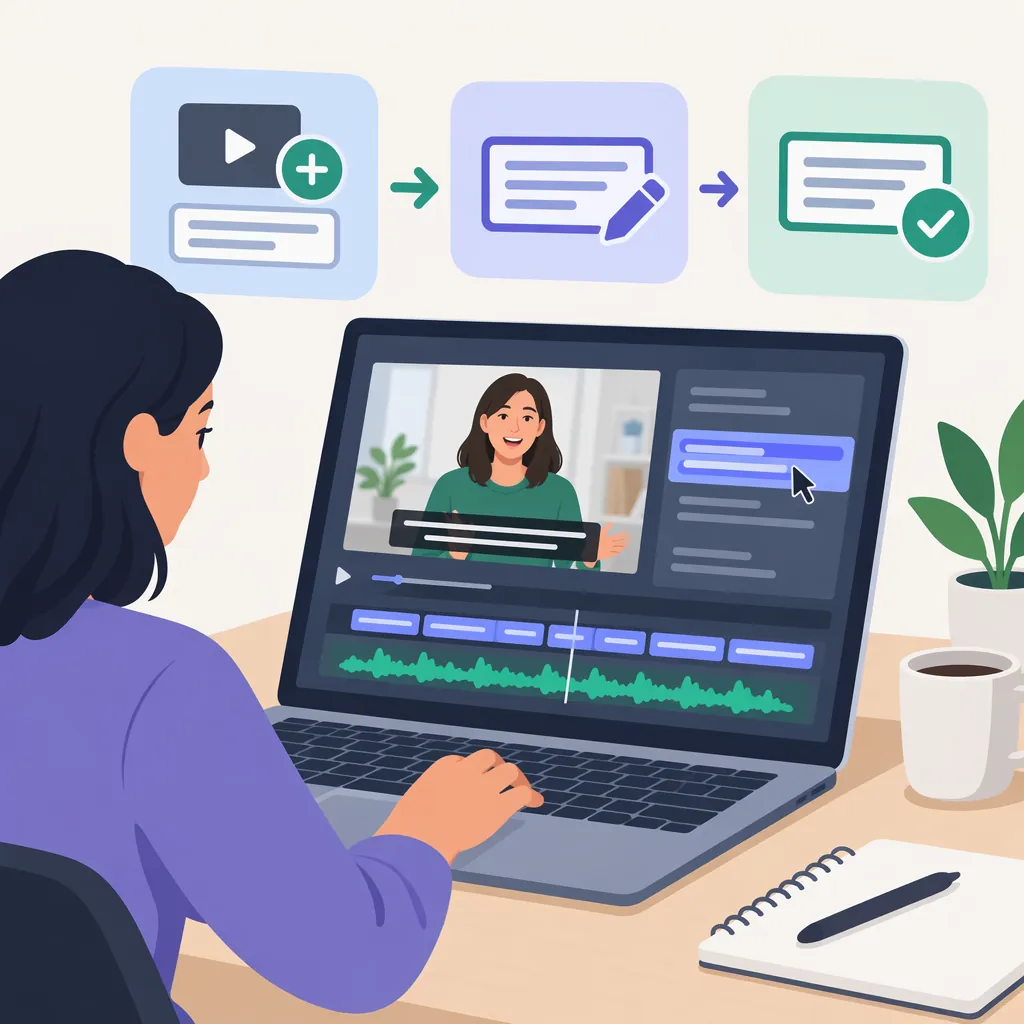
How to Add and Edit Veed.io Subtitles
To add subtitles using the workflow in VEED’s published guide, upload your edited video, select Auto-Subtitles, review the generated text, adjust its appearance and placement, then download the captioned video. Before exporting, check spelling and synchronization against the audio. The guide describes baked-in subtitles; it does not establish current button names, plan limits, or subtitle-file export options. [c1]
Prepare the Video Before Adding Subtitles
VEED’s TikTok subtitle guide recommends recording and editing the video first, leaving captioning until afterward. Its documented sequence begins with uploading that edited video. Although the guide focuses on TikTok, this article uses its subtitle workflow rather than its audience-growth claims. [c1]
For your own review process, prepare:
- The video version you intend to publish.
- A spelling list for names, acronyms, and specialist terms.
- The spoken language and any translation requirements.
- A clear delivery requirement: visible subtitles in the video, or a separate subtitle file.
Treat the steps below as a source-based workflow, not a verified walkthrough of the current interface. The supplied guide does not confirm current account requirements, upload limits, or pricing.
Generate Subtitles and Review the Text
The published guide identifies Auto-Subtitles as the control used after uploading a video. It describes generating text from speech and placing that text throughout the video. It also explicitly recommends reading the subtitles back to check spelling. [c1]
Use the resulting transcript as a draft. A practical review sequence is:
- Listen and compare. Play each passage while reading its subtitle text.
- Correct wording. Check names, numbers, negations, and technical vocabulary before polishing punctuation.
- Check timing. Watch whether each subtitle appears with the corresponding speech and disappears at an appropriate point.
- Review phrase breaks. Prefer readable phrases rather than breaks that separate closely connected words.
- Replay the corrected passage. Confirm that the correction still matches what viewers hear.
These are editorial checks, not claims about recognition accuracy. The supplied guide does not explain the current controls for editing individual text blocks or timestamps. If those controls differ from the guide, follow the labels shown in your project rather than assuming a particular menu layout.
Subtitle Correction Log
| Video Time | Text to Review | Intended Correction | Audio Checked | Timing Checked |
| --- | --- | --- | --- | --- |
| Enter time | Enter draft text | Enter corrected wording | Yes / No | Yes / No |

Work through each flagged passage, then replay it before marking the correction complete.
Check Readability and Any Translation
VEED’s guide describes customization of subtitle font, color, and placement, followed by an optional translation step. These are documented workflow elements, not confirmation that every option is available under every current plan. [c1]
When styling subtitles, prioritize reading over decoration:
- Preview the text against both light and dark scenes.
- Keep subtitles away from faces, demonstrations, and other essential information.
- Check the smallest screen size you expect viewers to use.
- Leave room for the destination platform’s interface.
- Watch the video without sound to assess whether the text remains understandable.
If you translate the subtitles, review the translated wording separately. Use a reviewer who understands the target language to check meaning, terminology, and whether each passage can be read within its allotted time. Do not treat the presence of a translation option as evidence that the translation needs no review.
Export and Check the Actual Deliverable
The guide’s final step describes downloading a rendered video with baked-in subtitles. That is the output documented by this source; it does not provide a separate subtitle-file export procedure. [c1]
Before relying on that workflow, confirm what your destination requires. If it requires a separate subtitle file, verify the available export format and access conditions in the current interface. Do not assume that downloading a captioned video also produces a subtitle file.
After export, open the downloaded file and review the beginning, a middle passage, and the ending. For final approval, watch the whole video and check text accuracy, synchronization, placement, and any accidental duplicate captions.
Evidence limits: This article relies on a public VEED tutorial, not firsthand testing. It does not establish current plan entitlements, export resolution, watermarks, processing times, or transcription accuracy.
Final Subtitle Review Checklist
- [ ] The exported video is the intended edit.
- [ ] Spoken words, names, and numbers have been checked.
- [ ] Subtitle timing has been reviewed against the audio.
- [ ] Text is readable across changing backgrounds.
- [ ] Placement does not cover essential visual information.
- [ ] Any translation has received a language review.
- [ ] The deliverable matches the destination’s requirements.
- [ ] The downloaded file has been watched from beginning to end.
FAQ
How Do I Add Subtitles in Veed.io?
VEED’s published guide describes uploading an edited video, selecting Auto-Subtitles, customizing the subtitles, and downloading the rendered video. Review the text and timing before exporting. Current interface labels and access conditions are not verified by this article. [c1]
Should I Review Automatically Generated Subtitles?
Yes. VEED’s guide explicitly recommends checking subtitle spelling. For a fuller editorial review, compare the text with the audio and check names, numbers, timing, and phrase breaks before approving the video. [c1]
Does the Documented Workflow Export a Separate Subtitle File?
The cited guide describes a rendered video with baked-in subtitles, not a separate subtitle-file export procedure. That omission does not establish whether separate exports are available today; verify the required format and access conditions in the current interface. [c1]