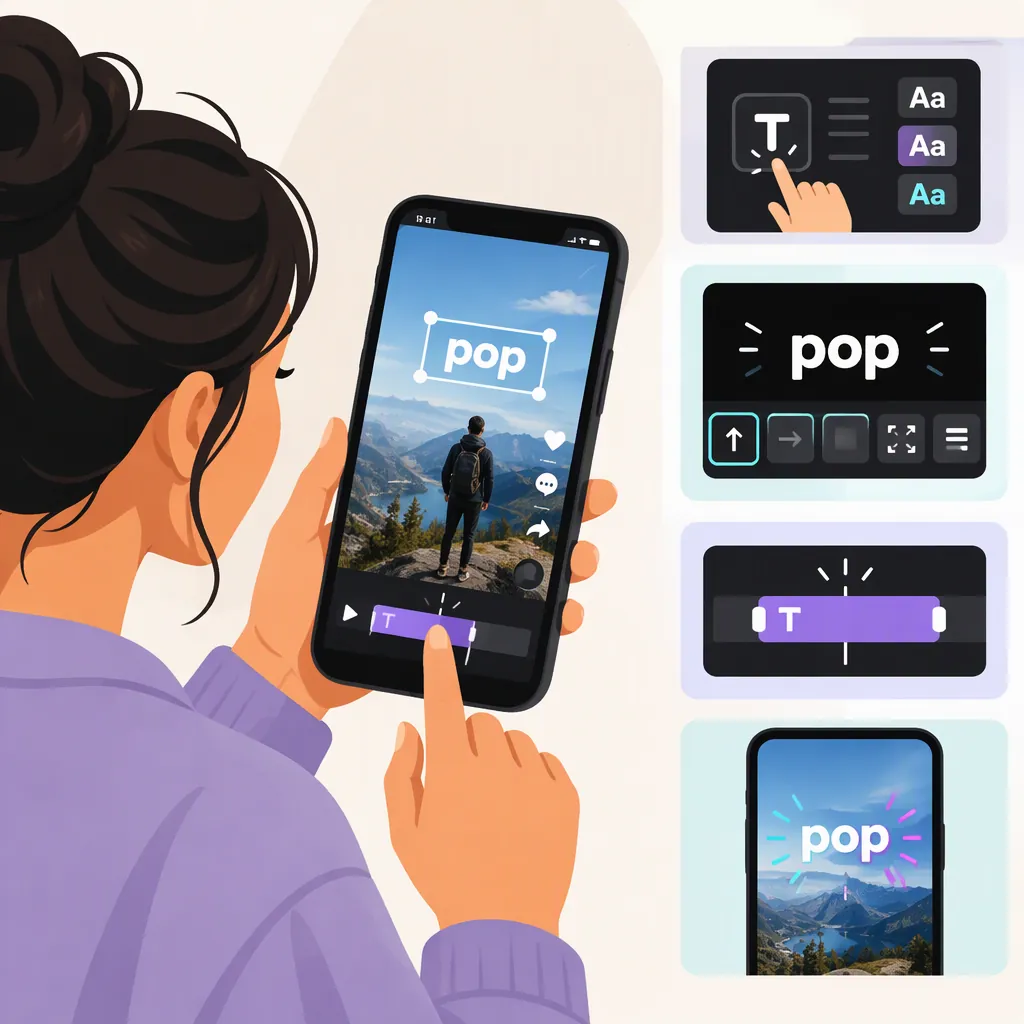
How to Get Text to Pop up on TikTok at the Right Moment
To make text pop up at a specific moment on TikTok, add a text box in the video editor, tap that box, and choose “Set duration.” Drag the timing handles to choose when it appears and disappears, then confirm and preview. Repeat for each message you want to show separately. This creates timed text overlays rather than spoken-word subtitles. The supplied third-party guide documents this workflow; your app’s controls may differ. [c1]
Use Text Overlays for Pop-Up Messages
For this task, “pop up” means that written text appears at a chosen point in your video and disappears later. Think of a title, a step label, or a short reveal—not a transcript of everything someone says.
The supplied guide describes adding text boxes and adjusting their display duration in TikTok. It also describes text-to-speech as a separate, optional control. You do not need that optional audio step for the timed-text workflow. [c1]
Setting duration controls when text is visible. The cited instructions do not establish how to add a bouncing, zooming, or other animated entrance. If that is the effect you mean by “pop up,” timing alone is not the same thing.
Add and Position Your Text
The supplied guide gives this sequence for adding text inside TikTok: [c1]
- Open TikTok and tap the + button to record or upload a video.
- Continue to the video-editing screen. The guide describes tapping Next after recording or choosing the clip.
- Select Text and type the message you want on screen.
- Choose the available font, color, and styling options.
- Drag the text box to the position you want.
As an editing recommendation, start with one short phrase. Place it where it does not cover the action viewers need to see.
These labels come from a third-party walkthrough, not a verified view of your current app. If your screen differs, look for the equivalent text control in the video editor.
Set When the Text Appears and Disappears
Once the text box is in place, adjust its timing: [c1]
- Tap the text box you want to time.
- Choose Set duration from its menu.
- Drag the beginning of the selected timing range to the moment when the text should appear.
- Drag the end of the range to the moment when it should disappear.
- Use the checkmark to confirm the timing.
- Preview the video to check the result.
For a reveal, align the start with the moment the relevant object or action becomes visible. For a step label, keep the text visible during that step. These are suggested editing choices, not fixed timing rules.
If the text flashes too quickly to read, extend its range or shorten the wording. If it gives away a reveal too early, move its start later.
Make Different Messages Appear in Sequence
Use a separate text box for each message, then set each box’s timing individually. The guide describes multiple text boxes appearing either in sequence or at the same time. [c1]
For a one-message-at-a-time sequence, check that the previous box ends before the next one starts. If two messages appear together unexpectedly, review their timing ranges for overlap.
The following is an illustrative plan for a nine-second clip. Adjust the intervals to fit your actual footage and reading pace.
Example Pop-Up Text Timing Plan
| Text Box | Suggested Text | Start | End |
|---|---|---|---|
| 1 | Before | 0 seconds | 2 seconds |
| 2 | Make the adjustment | 2 seconds | 6 seconds |
| 3 | After | 6 seconds | 9 seconds |

Create three separate boxes, assign each its intended range, and preview the full sequence. These times are an example, not a TikTok requirement.
Preview Before Posting
Watch the entire video after adjusting the text. The guide includes a preview step and warns that on-screen text is no longer editable once the video is live. [c1]
Use these checks before publishing:
- Timing: Does each message appear at the intended moment?
- Reading time: Can you comfortably read it before it disappears?
- Placement: Does the text avoid covering important details?
- Contrast: Is the lettering distinguishable from the footage?
- Sequence: Do boxes overlap only where you intend them to?
- Accuracy: Are spelling and wording correct?
This article relies on one supplied third-party guide. It does not verify the current interface across app versions or document animated text entrances.
FAQ
How Do I Make Text Appear Halfway Through a TikTok?
Add your text, tap its box, and choose “Set duration.” Move the start of its timing range to the halfway point, set the end, and confirm. Preview to check the placement in time. The supplied guide documents these duration controls, though your interface may differ. [c1]
How Do I Make Different Words Pop up at Different Times?
Create a separate text box for each word or phrase and set each box’s duration independently. To show only one at a time, avoid overlapping their timing ranges. The guide describes individually timed text boxes that can appear in sequence or together. [c1]
Does Set Duration Add a Pop-In Animation?
The cited guide describes Set duration as controlling when text appears and disappears, not as adding an animated entrance. Its instructions support timed overlays but do not verify a pop-in animation workflow. [c1]
Can I Change the Pop-Up Text After Posting?
According to the supplied guide, on-screen text is no longer editable after the video is live. Check wording, placement, and timing in the preview before posting. [c1]