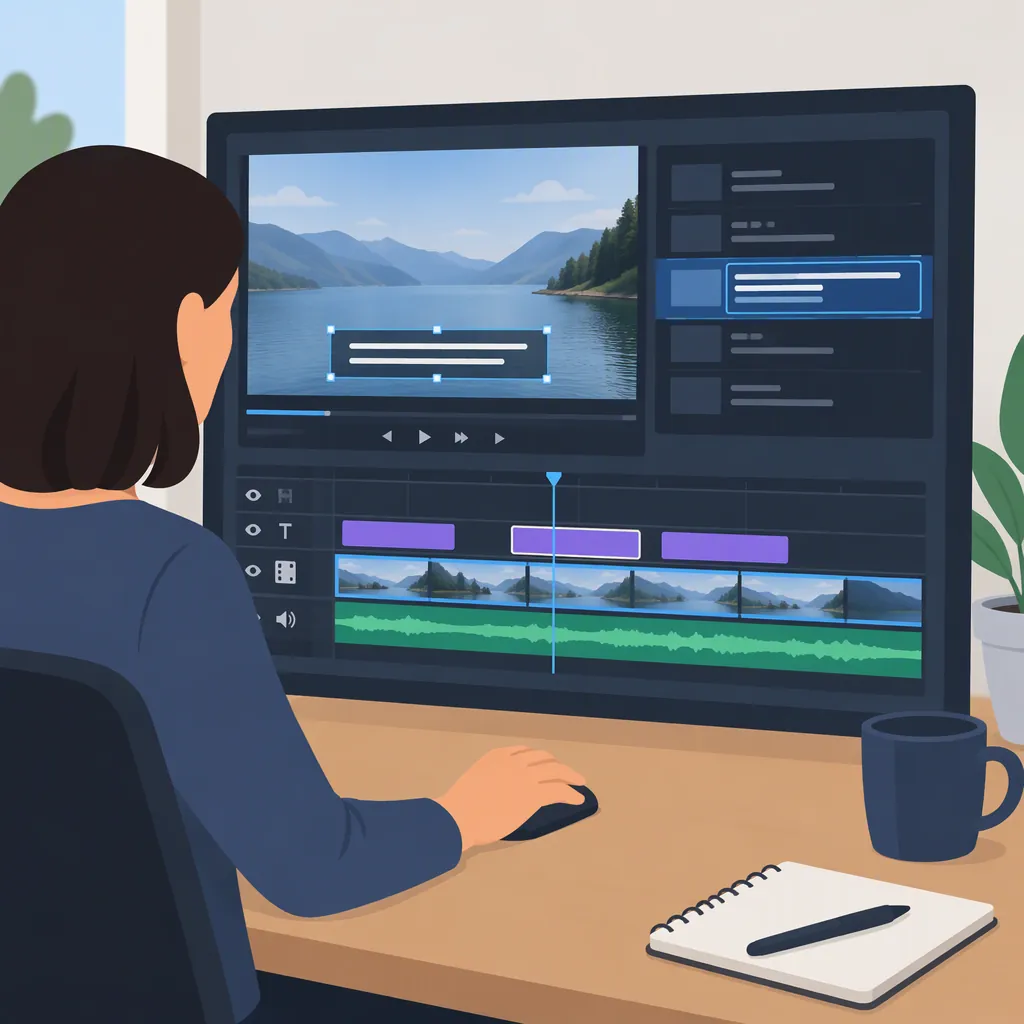
Kdenlive Subtitles: Adding and Editing Timed Text
To add and edit Kdenlive subtitles, start with either a transcript you will enter manually or an existing timed subtitle file. Add a short passage first, check its wording and timing against the video, then continue through the sequence. Finish by reviewing an exported sample in the intended playback environment.
Version note: This is a task-based workflow, not a verified menu-by-menu tutorial. A July 2024 KDE Discuss thread describes a user importing subtitles into Kdenlive, but it does not document subtitle creation, editing controls, supported import formats, or export settings. Check those details in the documentation for your installed release before proceeding. [ref_1]
Choose Your Starting Point
Use the path that matches your material:
- Manual entry: You have speech to transcribe, or text without timing.
- Import: You already have a subtitle file containing text and timestamps.
For either path, prepare one short passage as a test. Choose a section with clearly audible speech so you can judge whether the text and timing are correct.
Keep dialogue subtitles separate from plans for animated headlines or motion graphics. First get the wording and synchronization right; decide on visual effects afterward.
Add Subtitles Manually
The following steps describe the actions to complete using the subtitle controls documented for your Kdenlive version. They do not imply particular button names or keyboard shortcuts.
- Prepare the first passage. Listen to a short section and write down the spoken words. Check names and terminology; replay unclear speech rather than guessing.
- Identify its boundaries. Note the point where the speech starts and where it ends. These are your initial subtitle start and end times.
- Create a test entry. Locate your version’s subtitle-entry controls and enter the passage. Set its timing using the controls available in that release.
- Replay the surrounding video. Start playback before the passage and continue beyond it. Check that the text appears with the intended speech and remains visible long enough to read.
- Correct the test before continuing. Fix wording, start time, and end time separately. Once the result is suitable, repeat the process for the remaining passages.
If a passage feels crowded, try dividing it at a natural phrase boundary and reviewing each part against the audio. Treat this as an editorial choice, not a fixed line-length or timing rule.
Import an Existing Subtitle File
An imported-subtitle workflow is described in the KDE community thread, although the post does not establish a complete format list or import procedure. Verify that your installed version accepts your file type. [ref_1]
- Keep the original file. Work from a copy so you retain the original wording and timestamps.
- Check the file’s contents. Make sure it belongs to the video you are editing and includes the expected passages.
- Use the documented import procedure. Follow the instructions for your installed Kdenlive release rather than assuming that instructions for another version apply.
- Inspect several points in the video. Check a passage near the beginning, another in the middle, and one near the end. Look for missing text or timing that does not match the speech.
- Review individual entries. Correct wording and timing where needed, then replay each changed passage.
If several passages are out of sync, first check that the subtitle file and video represent the same edit. Avoid adjusting every entry individually until you understand whether the mismatch affects the whole sequence or only particular passages.
Edit Subtitle Text and Timing
Review wording and synchronization in separate passes. This makes it easier to identify what needs changing.
Pass 1: Correct the Text
For each subtitle entry:
- Compare the text with the spoken audio.
- Correct spelling, names, punctuation, and terminology.
- Remove accidental duplication or omissions.
- Review any phrase breaks for readability.
- Replay the passage after editing.
Keep the text faithful to the speech. Do not silently replace an unclear word with a confident guess.
Pass 2: Adjust the Timing
For each passage that needs correction:
- Locate the intended start of the speech.
- Compare it with the subtitle’s current start.
- Adjust the start using your version’s documented timing controls.
- Locate the intended end and adjust the subtitle’s end.
- Replay the passage together with its neighboring entries.
Watch for early appearances, late endings, rapid changes, and unintended overlaps. After changing a boundary, check the next subtitle as well.
Subtitle Correction Worksheet
Use this worksheet to keep track of unresolved passages:
| Item | Notes |
|---|---|
| Passage or entry | |
| Expected spoken words | |
| Text correction needed | |
| Desired start time | |
| Desired end time | |
| Problem during playback | |
| Result after correction |
Check the Output
Before processing the full video, review a short exported sample using the delivery settings documented for your release.
Check:
- Wording: Are the final corrections present?
- Timing: Does the text still align with the speech?
- Readability: Is the text legible against the picture?
- Placement: Does it obscure important visual information?
- Delivery: Does the sample behave as intended in the target player or publishing environment?
Decide whether viewers need text visible as part of the picture or a separate, selectable subtitle file. Verify how your chosen delivery method is handled by your Kdenlive version and destination. Do not assume the editing preview alone confirms the final result.
Optional: Styling and Animated Text
Animation is a separate requirement from adding and correcting dialogue subtitles.
In the July 2024 KDE Discuss reply, a respondent suggested converting subtitle files to ASS for styling, positioning, and animation, while warning that support depends on the player. The respondent also said Kdenlive did not directly support ASS subtitles at that time. That dated statement does not establish support in later releases. [ref_1]
For advanced effects or transitions, the same reply suggested treating the text as part of the video rather than as separate subtitles. This is community advice, not a verified current feature specification. Test one short example before committing to that approach, and retain an editable copy of the text and timing. [ref_1]
FAQ
Can I Start with an Existing Subtitle File in Kdenlive?
A user in the July 2024 KDE Discuss thread reported importing subtitles into a Kdenlive project. The thread does not provide import instructions or a complete supported-format list, so check your file type against the documentation for your installed release. [ref_1]
How Should I Correct Subtitle Wording?
Compare one entry with the audio, edit the wording through your version’s subtitle controls, and replay the passage. Check names, omissions, and punctuation before moving on to timing. This is a review workflow, not a version-specific interface procedure.
How Should I Fix Subtitles That Appear Too Early or Too Late?
Compare the entry’s start and end with the corresponding speech, adjust the relevant boundary using the documented timing controls, and replay the passage with its neighbors. If many entries are misaligned, check whether the subtitle file matches the video edit before making individual corrections.
Can I Animate Subtitles Directly in Kdenlive?
The cited discussion does not verify current direct animation support. Its July 2024 reply suggested ASS conversion or treating advanced animated text as part of the video, with player-dependent support for ASS styling. Verify your release’s capabilities and test the intended output before choosing either approach. [ref_1]