How to Add and Edit Subtitles in Inshot
How to Add Subtitles in Inshot
InShot offers two ways to put subtitles on a video: add text manually, or use Auto Captions to generate captions from speech and then review them. In the app, open a video project and look for Text for manual captions or Auto Captions for speech-to-text. InShot’s current US App Store listing describes both Auto Captions and text tools; its official site also describes generating and editing captions in multiple languages. (apps.apple.com)
The exact screens and labels can vary between app versions and devices. If a control below is not where expected, look for the equivalent text or caption tool in your project.
Add Subtitles Manually
Manual text works well for a short clip, a few key phrases, or wording you need to control precisely.
- Open InShot, choose Video, and select the clip or clips for your project.
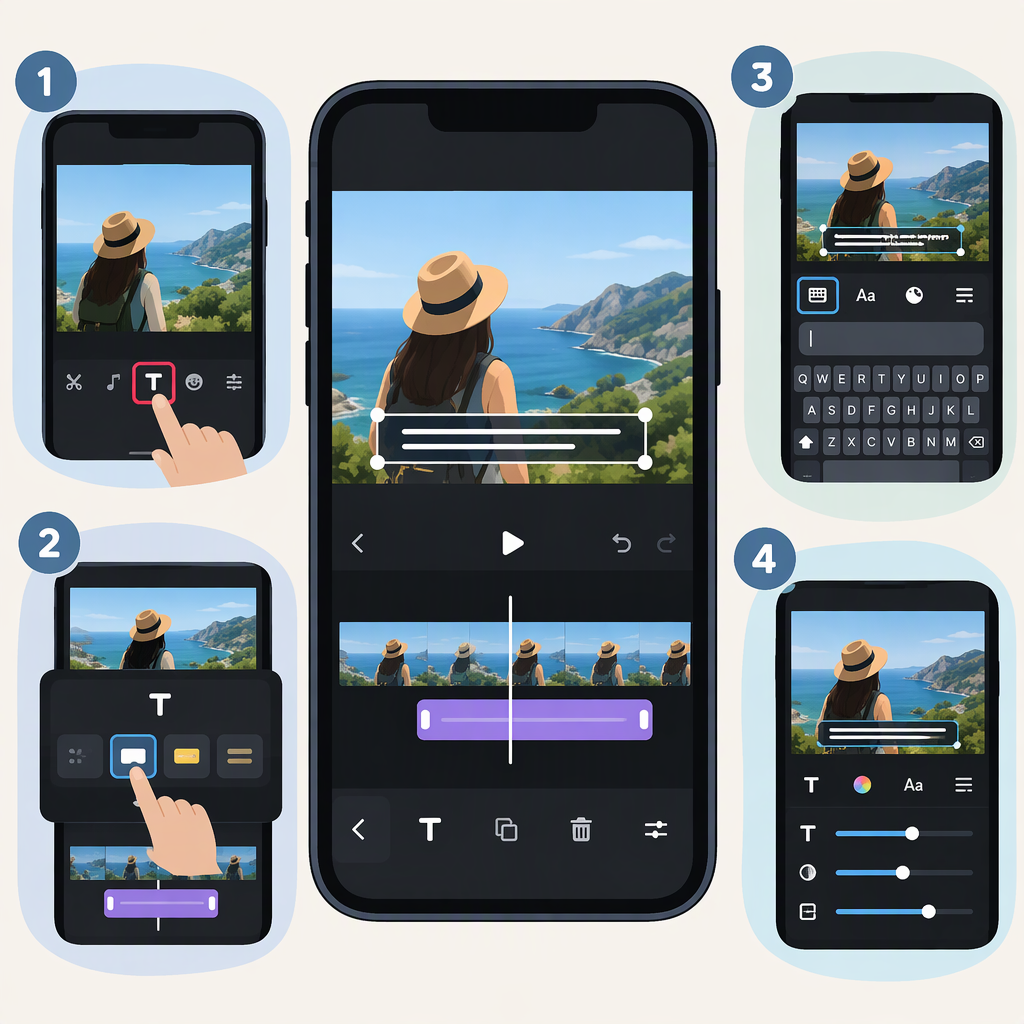
- In the editing toolbar, tap Text.
- Enter the first subtitle and confirm it. Position the text where it can be read without covering important on-screen content.
- On the timeline, adjust the text item’s start and end so it appears during the corresponding spoken line. Preview the section and adjust again if needed.
- Add another text item for each subtitle change. Keep the style consistent; InShot’s listing says its text tools include fonts, styles, and templates. (apps.apple.com)
Example: If a speaker says “We open at nine” from 00:02 to 00:04, make that text item begin around 00:02 and end around 00:04. This is a timing example, not a test of the app; use playback to match the actual speech.
Generate Captions with Auto Captions
InShot lists Auto Captions as an AI speech-to-text feature for generating subtitles. Its official channel promotes the feature for iOS and Android and advertises support for 99+ languages. The listing and promotion establish that the feature exists, but do not guarantee that every language or option appears on every device or version. (apps.apple.com)
- Open the video project and choose Auto Captions. If you do not see it, check the app’s text or caption tools and confirm that your app is up to date.
- Follow the prompts shown in your version to choose the audio or language options available.
- Generate the captions, then play the video while checking each line against the speech.
- Correct misheard words and adjust any caption that appears too early, too late, or for too long.
Automatic transcription is a starting point, not a substitute for review. Pay special attention to names, numbers, technical terms, overlapping voices, and speech over music or noise. If a generated-caption option is unavailable in your version, use manual text instead.
Edit Subtitle Wording, Timing, and Appearance
For a manual text subtitle, select its text item in the project to reopen it for wording changes. To correct timing, adjust the item on the timeline and replay the surrounding audio. For generated captions, select the caption or use the editing options provided in the Auto Captions workflow; exact controls can differ by version. InShot identifies text styling and caption editing as app features, but its public feature descriptions do not specify every control or screen. (apps.apple.com)
A useful check is to replay a few seconds before and after each edit. The text should appear with the spoken phrase and remain on screen long enough to read. Choose a readable size and strong contrast; avoid placing subtitles over faces, essential action, or other text.
Preview and Export the Finished Video
Watch the whole video once with sound and once muted. Check spelling, missing lines, timing, readability, and whether any subtitle overlaps important visuals. Then use the project’s Export or Save control, choose the output settings shown in the app, and wait for the export to finish before leaving. A third-party InShot tutorial describes exporting from the upper-right control and saving the rendered video to the device gallery; the exact label and destination may vary by device. (youtube.com)
After export, play the saved file—not just the project preview—to confirm that the subtitles appear as intended. The steps above describe visible subtitles in the video; they do not establish that InShot exports a separate subtitle file.