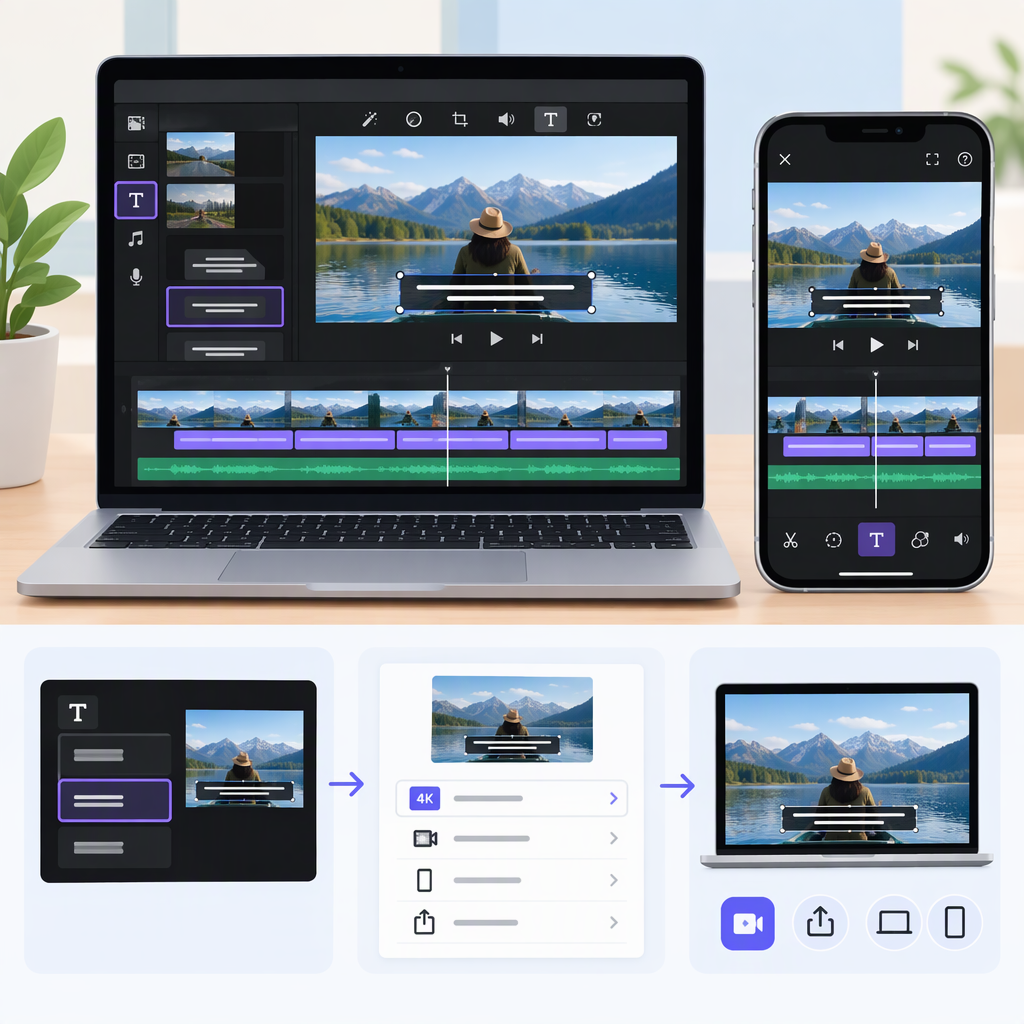
How to Add Subtitles in iMovie: Mac, iPhone, and Export Tips
Yes—you can add subtitle-style text in iMovie by adding and editing titles manually. Apple’s iMovie guides describe adding text to video clips and customizing it; they do not describe an iMovie workflow that automatically transcribes speech or creates a separate selectable subtitle track. So treat iMovie titles as text shown on the picture—not as captions viewers can switch on. (support.apple.com)
This guide covers the documented workflows for iMovie on Mac and iPhone. If you need captions that viewers can turn on or off, use a workflow that explicitly creates and delivers a caption track or subtitle file; don’t assume an iMovie title does that.
Add and Edit Subtitle Text on a Mac
- Open your movie in the timeline and click Titles above the browser.
- Choose a simple title style. Place the playhead where the line should begin, then double-click the title in the browser—or drag it above the relevant clip in the timeline.
- In the viewer, double-click the placeholder text, type your subtitle, and click Apply.
- Adjust the title bar in the timeline to set its timing. Drag either edge to lengthen or shorten it; drag the whole bar to move it. You can also select the title and enter a duration in Clip Information.
- Repeat for each line, then play the sequence to check the result.
Apple notes that a title placed near the start or end of a clip may be given a duration corresponding to that part of the clip; one placed in the center may span the whole clip. Check the title bar and adjust it if that default does not match the speech. Some animated or theme titles have formatting limits, so a simple style may be easier to read as dialogue. (support.apple.com)
Add and Edit Subtitle Text on an iPhone
- Open a movie project and tap the video clip or photo where the text should appear.
- Tap Titles in the inspector, then choose a title style.
- Tap the sample title in the viewer, tap Edit, enter the line, and tap Done on the keyboard.
- Drag the title in the viewer to reposition it. You can pinch to resize it, and use the title controls to change its style, font, or color.
- Preview the clip, then repeat for other dialogue sections.
On iPhone, iMovie associates the title with a selected clip. If you need a different subtitle for successive moments within one long clip, you can split the video at the relevant points and add a title to each resulting clip. Splitting is an editing step, so preview the joins and make sure the picture and sound still flow as intended. (support.apple.com)
Check Timing and Readability
Play the video while following the words—not just the timeline—and check that each line:
- appears with the spoken words and disappears before the next line needs to be read;
- is spelled and punctuated correctly;
- stays visible against the picture, without covering an important face, sign, or action; and
- is legible on a small screen as well as in the editor preview.
If a line appears too briefly, lengthen its title on Mac. On iPhone, check the clip boundaries and title for that segment. If the text is hard to see, try a simpler title style, a different position, or a more contrasting text color. These are practical editing checks, not a claim that a particular numeric accessibility standard is required.
What Happens When You Export?
iMovie exports a movie as a video file; Apple’s export instructions do not describe adding a separately selectable caption track through the title workflow. Because the text is added as a title over a clip, the practical expectation is that it will appear visibly in the exported picture rather than as a viewer-selectable caption. That is an inference from the documented title and video-export workflows, not a separate guarantee about every export or playback destination. (support.apple.com)
After exporting, play the exported file—not only the iMovie project—to confirm the text is present, readable, and synchronized. If viewers must be able to switch captions on or off, or if you need a subtitle file such as SRT, use a caption-authoring and delivery workflow that explicitly supports that output. iMovie title text alone should not be treated as a substitute.
Quick Choice
- Text permanently visible in the video: add and time iMovie titles manually.
- Automatic speech transcription: the iMovie title instructions describe manual text entry, not automatic transcription. Prepare or verify the wording separately before adding it.
- Selectable captions or a subtitle file: choose a workflow that explicitly supports caption tracks or subtitle-file export, then check that the final destination preserves them.
Sources
- Add titles in iMovie on Mac — Apple Support
- Modify titles in iMovie on Mac — Apple Support
- Add titles to a movie in iMovie on iPhone — Apple Support
- Add text to your iMovie project — Apple Support
- Export a movie, trailer, or clip as a file in iMovie on Mac — Apple Support
- Share your movie as a video file in iMovie on iPhone — Apple Support