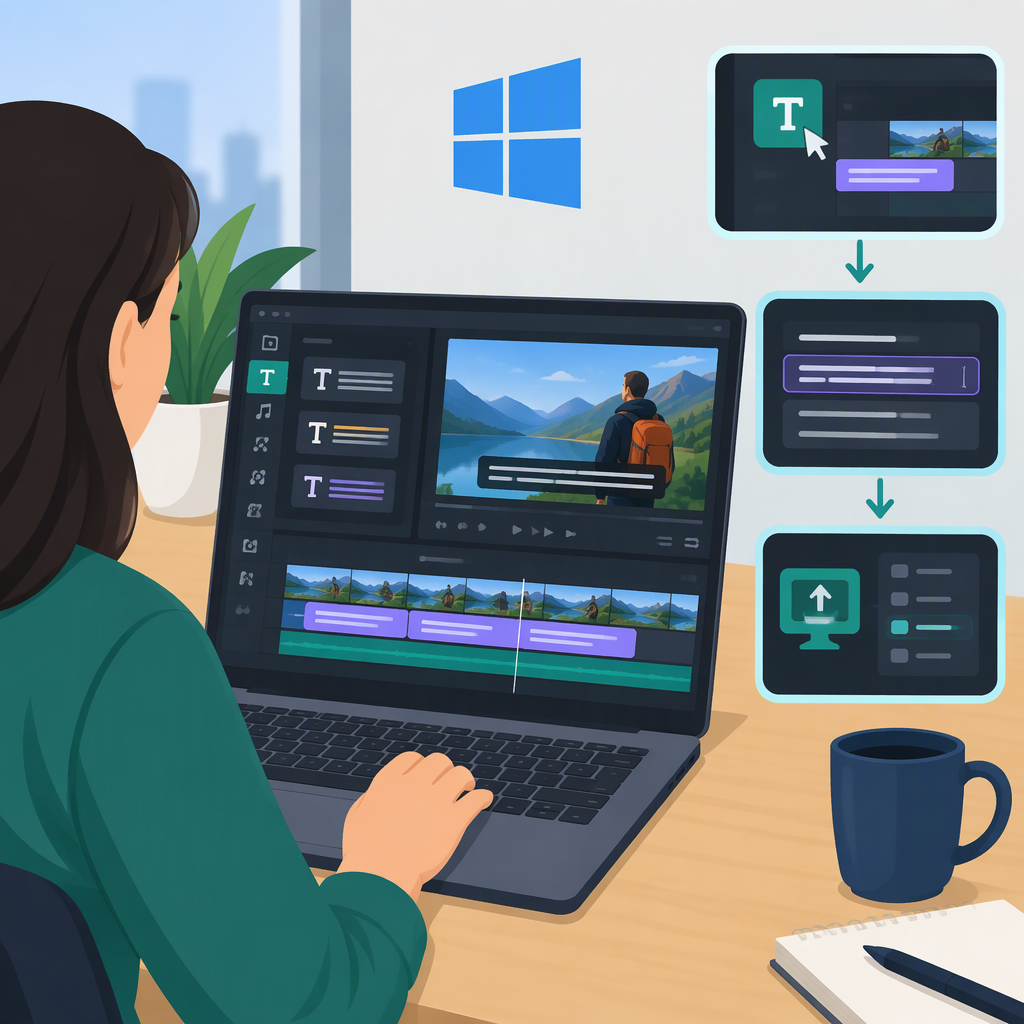
Filmora Subtitles: How to Add, Edit, and Export Captions on Windows
How to Add and Edit Subtitles in Filmora
In Filmora for Windows, you can generate subtitles from speech using Speech-to-Text, edit the caption text and timing on the subtitle track, and export the finished video. If you also need a separate subtitle file, Filmora’s support instructions describe exporting an .srt file from the timeline. Menu names can differ between Filmora builds: the current support instructions use Titles → AI Captions → Speech-to-Text, while the Windows user guide describes Tools → Titles → Speech to Text. Follow the route shown in your version. (support.wondershare.com)
Generate Subtitles from Speech
- Import your video into Filmora and place it on the timeline.
- Select the video or audio clip that contains the speech.
- Open Speech-to-Text. In the Filmora support instructions, the route is Titles → AI Captions → Speech-to-Text. If your version instead follows the Windows user guide, use Tools → Titles → Speech to Text.
- Choose the spoken language and start generating captions. The user guide describes choosing SRT as the output format and clicking Create; the newer support instructions say to click Generate.
- When the subtitle track appears, play the video and compare every caption with the audio. Correct names, punctuation, missed words, and speaker changes rather than assuming the transcription is error-free. Filmora says generated captions can be edited after creation. (support.wondershare.com)
Import Subtitles You Already Have
If you have a subtitle file prepared elsewhere, Filmora support describes importing an external .srt or .ass file into the media bin and dragging it onto the timeline. Once it is there, check that the subtitle text and timing match the video. This can be a useful alternative when you have already transcribed or edited the captions outside Filmora. (support.wondershare.com)
Correct Subtitle Text and Timing
On the timeline, double-click the subtitle track to open its editing controls. Filmora’s Windows user guide says you can revise the subtitle text and timecode, change styling, and add, delete, or merge subtitle strips. Filmora support also describes editing text in the preview window and adjusting caption timing by dragging. The precise controls may vary by build. (filmora.wondershare.com)
Use this review loop:
- Play from just before each caption begins and check that it appears with the spoken words.
- Correct the line’s wording, then adjust its timing if it appears too early or late.
- Check the end of the line as well as the start, especially where speech is quick or pauses are short.
- Watch the sequence at normal playback speed to catch lines that are difficult to read or overlap in quick exchanges.
For example, if a caption reads “we shipped it Tuesday” but the speaker says “we shipped it Thursday,” correct the text in the subtitle editor. Then replay that moment and adjust the caption’s timing until it follows the spoken line. This is an illustrative editing example, not a Filmora test.
Export a Video or a Separate SRT File
To export the video: with the subtitles in the timeline, use Filmora’s Export button and complete the regular video export. Then play the exported file—not just the timeline preview—to confirm the subtitles appear as intended. Filmora’s documentation describes generated subtitles as on-screen subtitles, but the output you need depends on your destination and workflow. (filmora.wondershare.com)
To export a separate SRT: locate the subtitle file on the timeline, right-click it, choose Export Subtitle File → Export Subtitle File (.srt), select a save location, and confirm. This produces a separate subtitle file; it is not itself the exported video. Keep the SRT with the video if your publishing or playback workflow expects separate captions. (support.wondershare.com)
Final Check
Before sharing, play the exported video from the beginning and spot-check sections with fast speech, names, or pauses. If you exported an SRT too, confirm that it opens and that its captions stay aligned with the same video. Filmora’s Windows guide and support pages provide the steps above; if a menu label is missing, your installed build may use the alternate wording noted earlier.