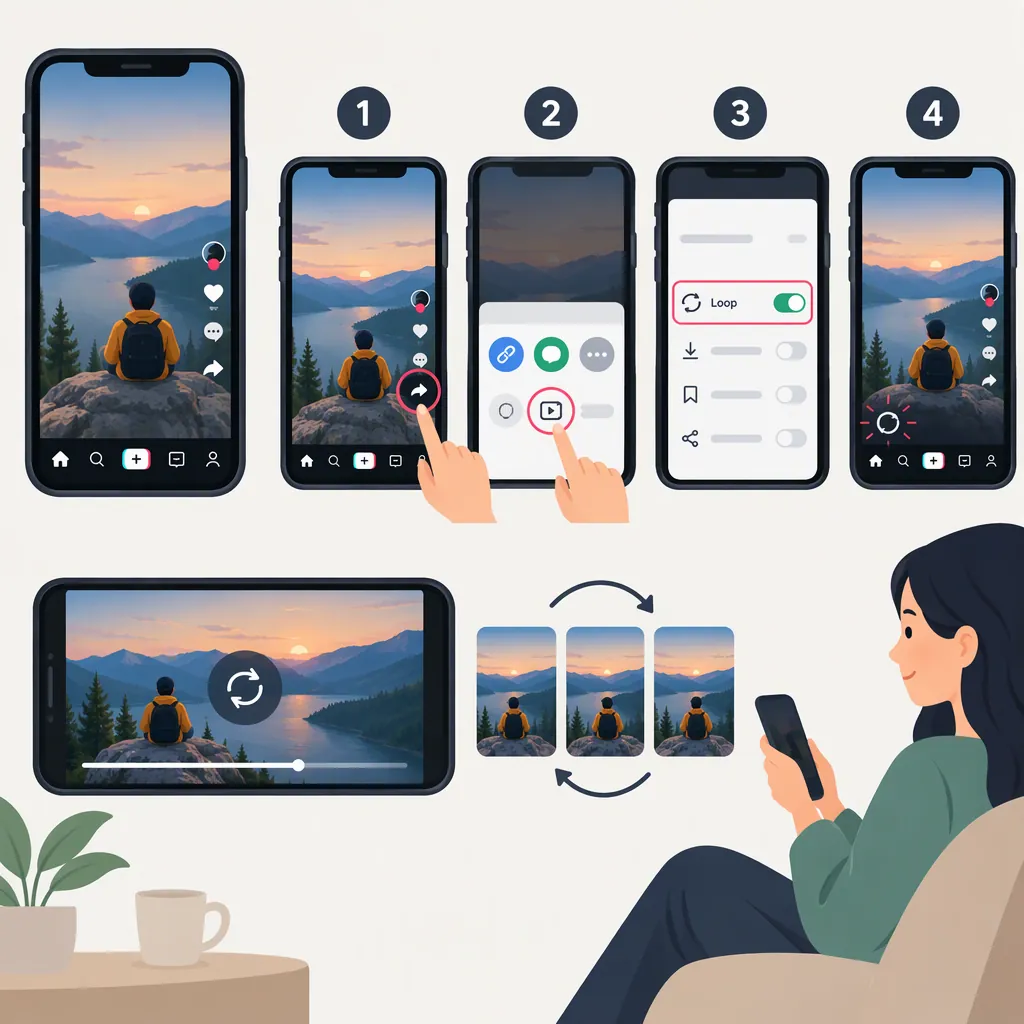
How to Loop a Video on TikTok
“Looping a video” can mean repeating playback or making the ending flow seamlessly back into the beginning:
- To repeat a video you’re watching: Socialize’s February 2023 tutorial says TikTok automatically replays videos. That source does not verify current behavior in every app version or viewing context, or provide a documented repeat-playback switch. [loop-guide]
- To create a seamless looping video: Plan a connected beginning and ending, split a short transition segment from before your chosen opening, move it to the end, and check the end-to-start join. [loop-guide]
The steps below explain the editing method, not current TikTok button names or menu locations.
Plan the Beginning and Ending Together
Decide how the final moment will connect to the opening before recording. Planning both ends together gives you footage designed for the restart, rather than leaving you to connect unrelated shots afterward. [loop-guide]
For an outfit or pose transition, start and finish in the same pose. Crossing your arms or hands across your body can provide a transition point for a change in outfit, hairstyle, or location. [loop-guide]
For a process video, the connection can be narrative rather than visually identical. For example, open a cooking video with the finished dish and end with the last step before the dish is complete. The restart returns viewers to the result. [loop-guide]
Loop Planning Worksheet
Use these prompts before filming:
- Opening image: What will viewers see first?
- Closing image: How will the last shot connect to the opening?
- Transition point: Which pose, movement, or process step will connect them?
- Matching details: What should remain consistent at the join?
- Review question: Will the restart feel intentional?
Trim and Rearrange the Transition Clip
The Socialize method uses a short segment from the beginning of a transition clip as the ending of the finished video. When playback restarts, that segment connects back to the footage that originally followed it. [loop-guide]
Understand the Timeline First
This is an illustrative layout, not a TikTok interface instruction:
- Original transition clip: unwanted lead-in → A → B
- After trimming the lead-in: A → B
- Finished edit: B → other shots → A
- At the restart: A → B
Here, A is the short segment immediately before your chosen opening, and B begins at that opening. Moving A to the end restores the original A-to-B sequence across the replay boundary. This illustrates the tutorial’s split-and-move method. [loop-guide]
Follow the Editing Steps
Use an editor that lets you trim, split, and rearrange clips:
- Choose the closing transition moment. In your initial outfit or pose clip, find the point where the short ending segment should begin.
- Trim away the unwanted lead-in. Remove footage before that point. In the example above, keep A → B; discard only the material before A.
- Choose the opening moment. Find the later point in the same clip where you want the finished video to start. This is the beginning of B.
- Split immediately before the opening. Separate the short preceding segment, A, from the remaining footage, B.
- Move A to the end of the timeline. Start the edit with B, place any other shots between them, and finish with A.
- Check the restart in TikTok. Watch whether the end connects naturally to the opening, then adjust the cut if needed. [loop-guide]
The key is the relationship between A and B: they come from consecutive parts of the same original action. Rearranging them places that connection at the end-to-start seam instead of inside the video.
Review the End-To-Start Seam
Watch the edited video in TikTok to check the transition. A seamless join may take trial and error, so refine the cut rather than assuming the first arrangement will work. [loop-guide]
End-To-Start Review Checklist
Use this suggested editing checklist; it describes review tasks, not TikTok features:
- Watch the final moment followed immediately by the opening.
- Compare the subject’s pose and position on both sides of the cut.
- Look for an unintended pause, repeated gesture, or abrupt jump.
- Listen for a distracting audio change at the restart.
- Adjust the trim or segment placement, then check the join again.
If the restart looks awkward, revisit the chosen split point and the footage retained in the closing segment. The goal is for the ending to lead into the opening—not simply to repeat the same pose twice.
FAQ
Do I Need to Turn on a Loop Setting in TikTok?
Socialize’s February 2023 tutorial says TikTok automatically loops videos. It does not document a loop toggle or confirm current replay behavior in every viewing context, so it cannot establish a verified settings path. [loop-guide]
How Do I Make a TikTok Video Loop Seamlessly?
Plan a beginning and ending that connect. For the split-and-move method, separate a short segment immediately before your chosen opening and move it to the end of the edit. Check how that ending flows back into the opening in TikTok. [loop-guide]
Do I Need a Template to Make a Looping Video?
No template is required for the method described by Socialize. It relies on planning the transition, trimming and rearranging footage, and checking the result. [loop-guide]
Do the First and Last Shots Have to Look Identical?
Not for every type of loop. Matching poses can help with outfit or pose transitions, while a process video can connect through its sequence—for example, ending with the final cooking step and restarting on the finished dish. [loop-guide]
Sources
- [loop-guide] How to Loop on TikTok