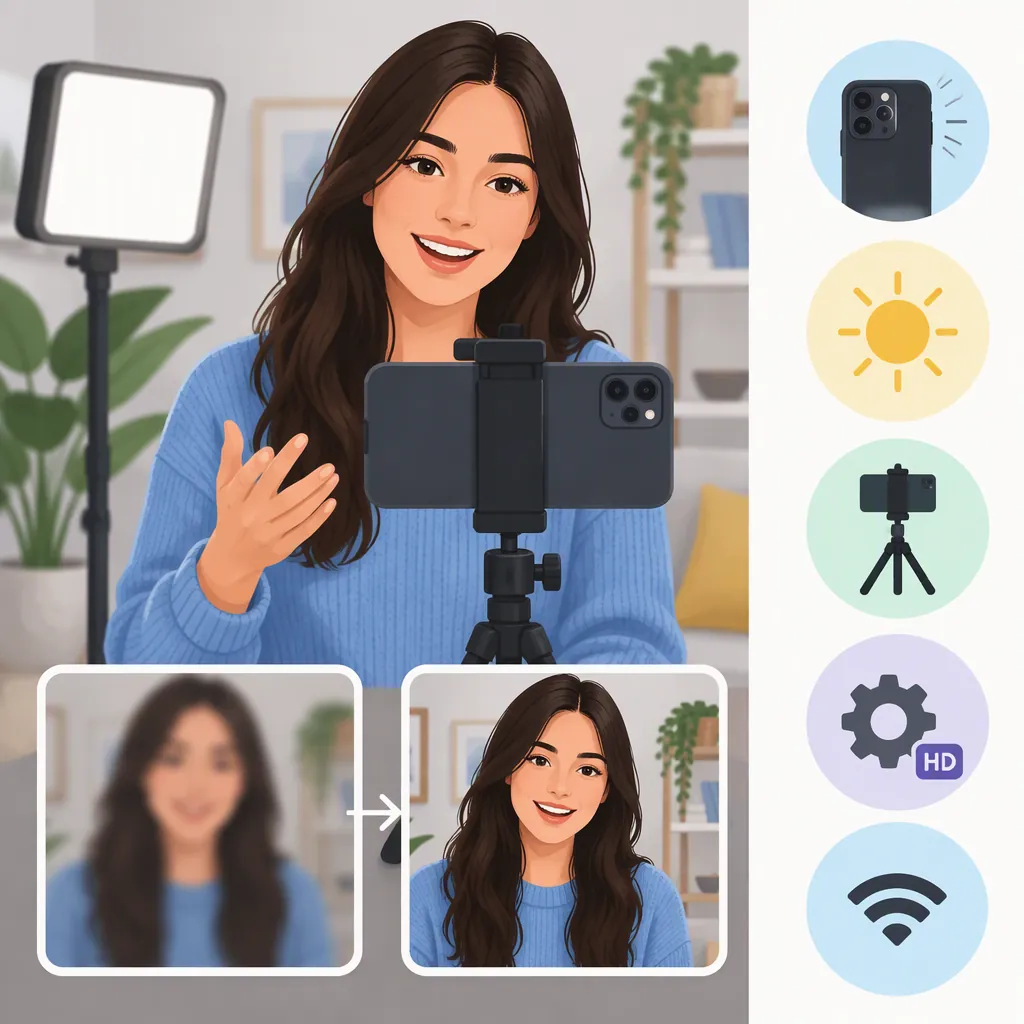
How to Make TikTok Videos Not Blurry
Compare your original recording, exported file, and TikTok playback to find where the blur appears. Start with a vertical 1080p export, enable high-quality uploads if that option is available, and compare playback with Data Saver off on a stable connection. These are troubleshooting steps, not a guarantee of unchanged quality. The supplied guidance dates to 2023, so current settings and limits may differ. [source_1]
Find Where the Blur Starts
Before changing upload settings, compare the same moment in three places: the original recording, the exported video in your device’s player, and the posted video on TikTok. Use a face, text, or another detailed area as your comparison point.
- Original recording looks blurry: Start by checking capture quality rather than upload settings. The reference identifies the camera and lighting as important to recording quality. [source_1]
- Original looks clear, but the export looks blurry: Inspect your editor’s resolution and framing settings before posting again.
- Export looks clear, but TikTok looks blurry: Test upload options and playback conditions. The reference notes that a video can appear blurry during cellular playback even when the uploaded video is not the underlying problem. [source_1]
Treat this comparison as a diagnostic method, not proof of a particular cause.
Use a Simple Export Baseline
For a troubleshooting export, start with 1080p, a 9:16 vertical frame, and MP4. The supplied reference recommends 1080p and 9:16 and lists MP4 among its supported upload formats. This is a practical starting point, not a verified current TikTok specification. [source_1]
Review the exported file before uploading. Check whether your subject has been cropped or enlarged to fill the vertical frame, and whether text remains readable. The reference warns that reframing footage to fit a vertical layout can reduce apparent clarity. [source_1]
If you already have a 4K recording, test a 1080p export rather than assuming that uploading the largest version will look best. The reference recommends a 1080p workflow, but its statement about TikTok’s 4K support dates to 2023 and should not be treated as a current universal restriction. [source_1]
The supplied evidence does not establish an optimal bitrate, codec profile, or frame rate for every upload. Avoid treating a single preset as a guaranteed fix.
Export Inspection Checklist
- Make a test export at 1080p in a 9:16 vertical frame using MP4.
- Open the export locally before uploading.
- Compare the same detailed moment with the original recording.
- Check for unwanted cropping, enlargement, or unreadable text.
- Keep the original recording and note the settings used for the test.
Check High-Quality Upload Options
The reference describes an Allow high-quality uploads option under More options on the posting screen. Look for that setting before posting and enable it if available. Its location, wording, or availability may differ from the 2023 instructions. [source_1]
Keep the export unchanged while testing this option. That makes the comparison more useful than changing resolution, framing, and upload settings together.
Do not assume that a file below a particular size will avoid compression. The reference gives device-specific file-size limits, but the supplied evidence does not verify those limits for current uploads or establish a compression-free threshold. [source_1]
Separate Playback Quality from Upload Quality
Turn off TikTok’s Data Saver, if available, and compare the posted video on a stable Wi-Fi connection. The reference recommends checking Data Saver and retesting playback over Wi-Fi when videos appear blurry. These checks help investigate viewing conditions; they do not prove that the stored upload has changed. [source_1]
If the local export is clear but mobile uploads consistently look worse, a browser upload is another comparison to try. The reference suggests this alternative, but it does not establish that browser uploads always preserve more detail. [source_1]
Compare the same file and the same scene each time. Record whether the difference appears during upload, playback, or both.
Know What These Checks Cannot Guarantee
The only supplied source is a MakeUseOf article published on June 2, 2023—not current TikTok technical documentation. Its upload limits, format restrictions, and interface instructions may have changed. [source_1]
Use these steps to isolate a problem rather than promise a perfectly sharp result. No current platform-wide bitrate recommendation, compression-free file size, or guaranteed upload method is established by the supplied evidence.
FAQ
Why Is My Video Clear Before Uploading but Blurry on TikTok?
The reference identifies upload settings, video specifications, Data Saver, and connection conditions as possible contributors. Compare the local export with TikTok playback, then test one setting at a time. A blurry playback view alone does not identify the cause. [source_1]
Should I Export in 1080P or 4K?
Use a vertical 1080p export as a troubleshooting baseline. The reference recommends 1080p, but its claim about TikTok’s 4K support is from 2023 and is not verified as a current restriction. Keep your original recording for comparison. [source_1]
Where Is the High-Quality Upload Setting?
The 2023 reference places Allow high-quality uploads under More options on the posting screen. Check your current posting options, but do not assume every app version has the same label or location. [source_1]