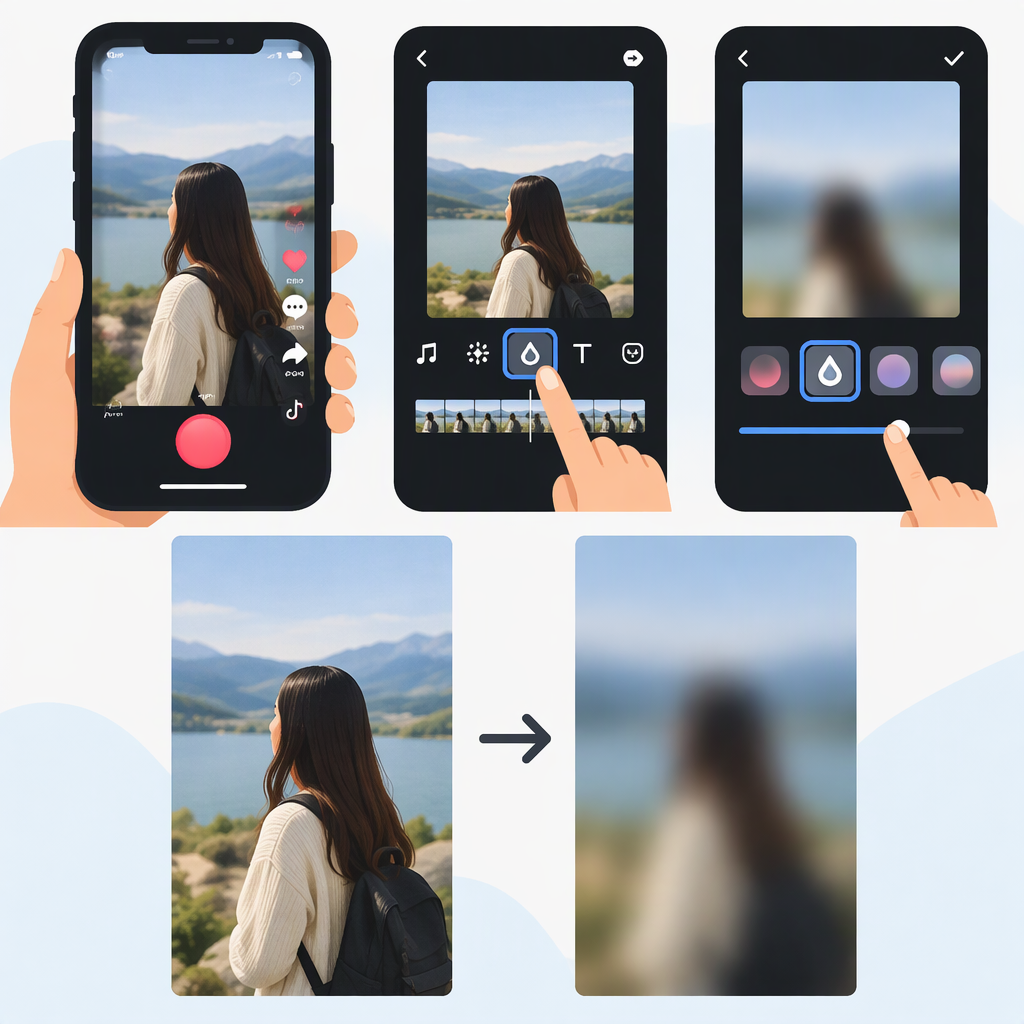
How to Make a Video Blurry on TikTok
TikTok lets creators add effects before or after recording, but its help pages don’t confirm that every account has a specific blur effect—or that one effect will blur the entire frame or a selected object. Try an available effect and inspect the preview. If it doesn’t blur the right area for the whole time you need, blur the video in an editor before uploading and check the result in TikTok before posting. (support.tiktok.com)
Try Blur in TikTok
- Open TikTok and tap Add post (+).
- To record with an effect, tap Effects on the camera screen and preview the available options. TikTok says an effect is applied to the screen when you select it; if you find one that gives the blur you want, record with it. (support.tiktok.com)
- If you already recorded or uploaded a video, look for an Effects control on its editing screen. TikTok says effects can be added after recording, and its editing guidance says effects can be added after recording or uploading. The exact controls and whether a suitable blur effect appears may vary; TikTok’s help pages don’t identify a universally available blur effect or give steps for applying one to an uploaded clip. (support.tiktok.com)
- Preview the video before posting. Check that the blur is visible in the intended place and lasts for every moment you need it.
Will TikTok Blur the Whole Video or Just Part of It?
Don’t assume either. TikTok’s public guidance explains how to preview and apply effects generally, but doesn’t establish whether a particular blur effect covers the full frame, targets a selected area, follows a moving object, or offers controls for blur strength and duration. Those details depend on the effect you can actually select. Judge its coverage in the preview rather than relying on its name.
If the In-App Effect Isn’t Enough
Use a video editor before uploading if you need a dependable full-frame blur or want to obscure a specific area. Apply blur to the full frame, or place it over the area you intend to hide; if that area moves, check whether the blur stays in position throughout the clip. Then upload the edited video to TikTok and preview it before posting.
For example, if a license plate moves across the shot, a blur that stays fixed in one spot may stop covering it. Review the whole clip and adjust the blur—or choose a full-frame blur—if the intended area isn’t covered continuously. This is a practical editing check, not a claim about a specific app’s tracking features.
Before You Post
- Play the video from beginning to end; don’t check only one frame.
- Confirm the blur covers the intended area and remains there for the needed duration.
- If you used a native effect, make sure the preview shows the result you want.
- If you edited before uploading, check the uploaded video’s TikTok preview before posting.