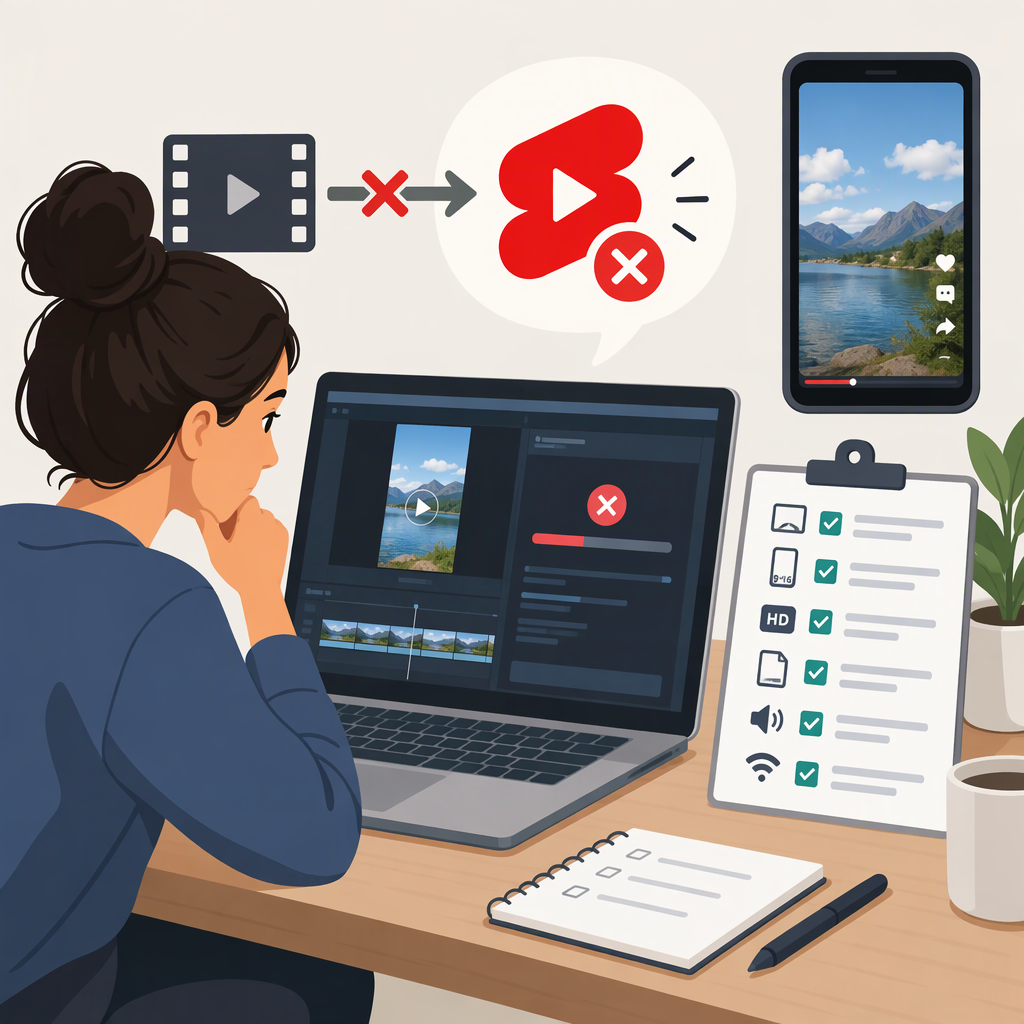
Can’t Export a Video for YouTube Shorts? Troubleshooting and Pre-Upload Checks
If you can’t export a video for YouTube Shorts, first identify what happened: the export never started, stopped partway through, showed an error, or finished without a file you can find. Note the exact error and your editing app and device, then check the export destination and available storage before trying again. These checks help narrow down the problem; they are not guaranteed fixes, and the right remedy can depend on your editor and device.
If a file was created, don’t assume export succeeded just because it appears in a folder. Open it and play it from beginning to end. Once it passes that check, review the framing, readability, picture, and sound before upload. Keep those general quality checks separate from YouTube’s Shorts criteria.
Troubleshoot the Export in a Safe Order
Before changing settings or removing anything, preserve your project and source media. If you retry, use a new filename or destination so you don’t overwrite a file you may need.
- Identify the symptom. Did export fail to start, stop at a particular point, show an error message, or appear to finish without a visible file? Record the exact message and, if relevant, where progress stopped. Don’t infer a cause from the symptom alone.
- Check the destination. In the export settings, note the selected folder or drive. Look there for the output file; it may not be in the folder you expected. If you can’t locate the destination in the editor, consult that app’s help rather than guessing at its controls.
- Check available storage. Check the space available on the drive selected for the export. If it is nearly full, avoid deleting project files or source media as a first response; choose a safe destination with sufficient space if one is available.
- Retry cautiously. If the project and source files are intact, you can try exporting again to a new filename. Change only one export setting at a time, so you can tell whether the result changed. If you use a custom preset in Adobe Premiere, Adobe’s guidance suggests trying a built-in preset that matches the desired output format. That instruction is Premiere-specific; other editors may work differently. (helpx.adobe.com)
A retry is an experiment, not proof that a particular setting caused the failure. If it fails again, stop changing settings at random and collect the details below.
Confirm the Exported File Is Complete and Playable
Find the file in the intended destination and check that it:
- Opens in a video player.
- Plays from beginning to end, including the final moments, without stopping early or freezing.
- Shows the expected picture throughout, without obvious missing sections, black frames, or missing media.
- Has audible sound where expected, without obvious dropouts or a noticeable mismatch between speech and picture.
These are practical checks for a creator, not a technical guarantee that every frame or audio detail is perfect. If the file does not open, ends early, or has an obvious playback problem, treat it as an unusable export and return to the editor-specific troubleshooting steps. If it plays through but something looks or sounds wrong, note the timestamp and what you observed before deciding whether to export again.
Review Quality and YouTube Shorts Readiness
General Pre-Upload Quality Review
Play the export on a screen where you can comfortably inspect it. Check that:
- The video uses the framing and orientation you intended, without important content accidentally cut off.
- On-screen text and key details are readable at a typical phone viewing size.
- The image looks acceptably clear, and brightness or color changes are not distracting.
- Speech and other important sounds are audible, with no obvious distortion or unintended silence.
- The entire video plays through as intended.
These are general viewing checks, not a promise that every viewer’s screen or connection will show the video identically. Avoid changing resolution, frame rate, or other technical settings just to chase a supposed universal “best” export: the right choices depend on the source footage and editing app.
YouTube’s Shorts Criteria
For regular channels, YouTube Help says that videos uploaded after October 15, 2024, with a square or vertical aspect ratio and a length of up to three minutes are categorized as Shorts. YouTube’s computer upload guidance likewise describes a Short as a short-form vertical video and lists an upload length of up to three minutes. These are platform criteria, not a diagnosis of why an export failed. (support.google.com)
Before uploading, compare your finished video with that guidance. If it is not square or vertical, or is longer than three minutes, it does not fit the criteria stated in that Shorts guidance. Do not change the project blindly: decide first whether the framing or length should change, and preserve the original project before making edits. YouTube may also update its guidance, so consult its Help pages if you need to confirm a rule for a different channel or upload situation.
If It Still Will Not Export
For the next support step, gather:
- Editing app and version.
- Device and operating system.
- The exact error text, if any.
- Whether export failed immediately, stopped partway through, or seemed to finish without a file.
- The selected export destination and whether the file appears there.
- What you tried and what happened after each attempt.
Share those details with the editor’s or device’s support resources. They make it easier to get relevant instructions without assuming an unverified cause or applying steps meant for a different app.