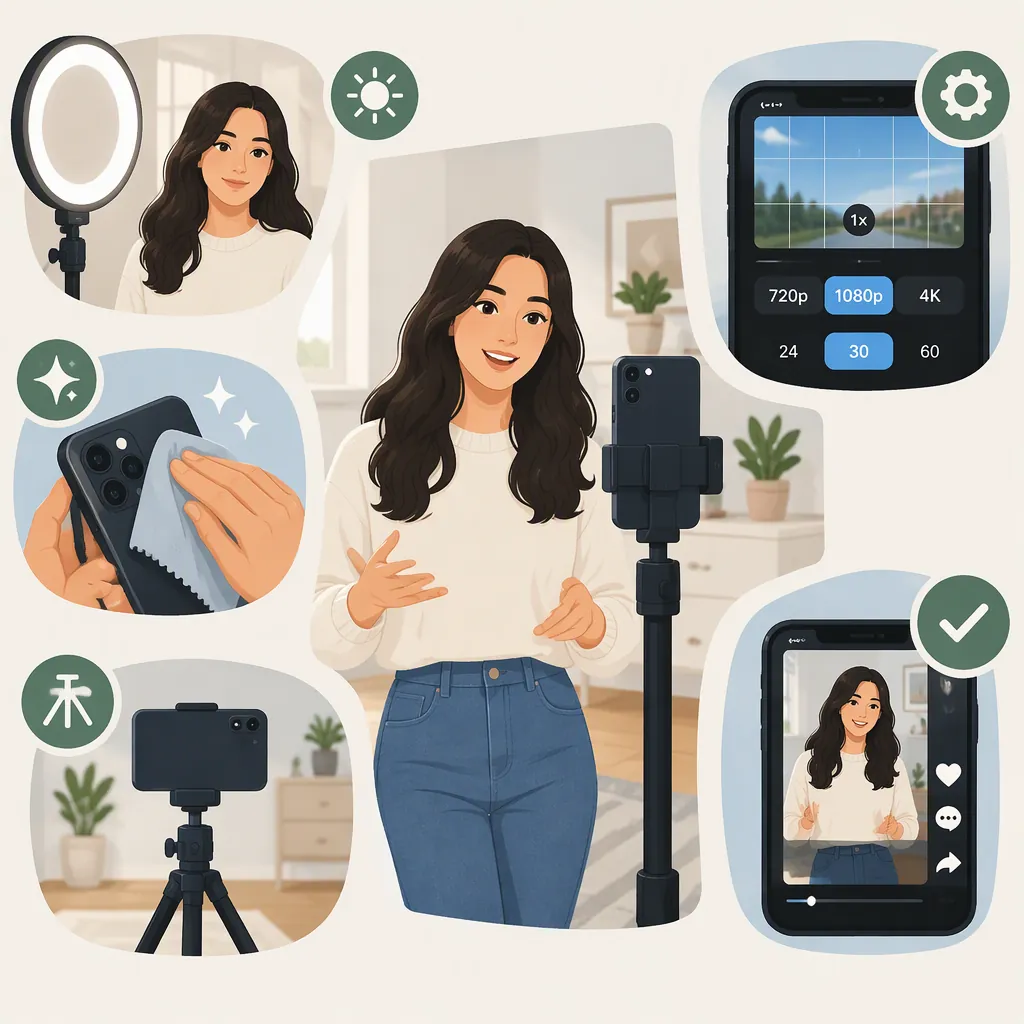
How to Get Clear TikTok Videos: Export and Pre-Publish Checks
Start with a clear source file, then export a vertical 1080 × 1920 video as an H.264 MP4. Use 30 fps, or retain 60 fps if that is how you recorded. Inspect the exported file before uploading, look for TikTok’s high-quality upload option, and check whether Data Saver is enabled. These are third-party recommendations, not a guarantee: TikTok recompresses uploads, so the posted result can still differ from your local file. [c1]
Find Where the Video Becomes Blurry
Before changing export settings, compare three versions: the original recording, the exported file, and the posted video. This separates a source problem from an export or upload problem.
- Original already looks soft: Check the recording first. The provided guide recommends a clean lens, good lighting, and using the main camera rather than the selfie camera. [c1]
- Original looks clear, but the export does not: Review resolution, frame rate, and bitrate against the starting settings below. Avoid upscaling a low-resolution clip just to reach a larger frame size. [c1]
- Export looks clear, but the posted video does not: Check upload options and compare the posted result with the original export. TikTok recompression can introduce softness or pixelation. [c1]
Keep the original recording and your final export available during troubleshooting. Change one setting at a time so the comparison remains useful.
Use a Practical Export Starting Point
The settings below come from the Clipchamp guide. Treat them as a troubleshooting baseline for vertical TikTok videos, not as verified official TikTok requirements or a promise of identical playback quality. [c1]
| Setting | Recommended Starting Point |
|---|---|
| Frame size | 1080 × 1920 pixels |
| Aspect ratio | 9:16 |
| Container and video codec | MP4 with H.264, high profile |
| Frame rate | 30 fps, or retain 60 fps if recorded at 60 fps |
| Target video bitrate at 30 fps | 8–12 Mbps |
| Target video bitrate at 60 fps | 10–15 Mbps |
| Audio | AAC, 44.1 kHz, 128–192 kbps |
| Color | SDR Rec.709 |
These values are recommendations from the supplied source. [c1] If your editor does not expose every setting, check the available resolution, frame rate, format, and color options rather than assuming a preset matches all of them.
Do not use a larger export size as a substitute for a sharp recording. The guide advises against upscaling and recommends a 1080p export. [c1]
Inspect the Actual Export Before Uploading
Open the exported file outside the editor and watch it from beginning to end. Do not rely only on the editing preview.
Inspect a fast-moving moment, a detailed background, faces, and any on-screen text. Ask whether the local file is sharp enough at normal phone viewing size. The source recommends large, high-contrast text because TikTok recompression can affect readability. [c1]
Also compare colors with the original. If an HDR workflow produces a washed-out posted result, the guide recommends recording in SDR or converting to SDR in an editor before export. This is a troubleshooting option, not proof that HDR caused every color mismatch. [c1]
Pre-Publish Quality Checklist
- [ ] Compare the original recording with the exported file.
- [ ] Confirm the intended vertical framing and export resolution.
- [ ] Review frame rate, codec, and bitrate where the editor exposes them.
- [ ] Play the entire export outside the editor.
- [ ] Check moving subjects and detailed backgrounds for visible breakup.
- [ ] Read every caption at normal phone viewing size.
- [ ] Check colors and brightness against the original.
- [ ] Upload the original export rather than a downloaded TikTok copy.
- [ ] Review the upload quality and Data Saver options available in the app.
- [ ] Compare the posted video with the saved export.
Check Upload Options and File Handling
The provided guide describes a high-quality upload control under More options on TikTok’s posting screen, and a Data Saver control under Settings and privacy. It recommends enabling high-quality uploads and disabling Data Saver while uploading. Treat those menu paths as source-described guidance; the supplied material does not establish that every account or app version has the same controls. [c1]
Preserve the export when moving it between devices. The guide recommends cable or cloud transfer rather than messaging apps, and recommends uploading the original file instead of a downloaded TikTok repost. [c1]
Use a stable connection for the upload. If the mobile result remains soft despite a clear local export, the guide suggests trying tiktok.com as an alternative upload route. Neither a different connection nor a desktop upload guarantees a sharper result. [c1]
Keep Quality Expectations Realistic
A clean export gives you a useful baseline, but it does not control TikTok’s processing. The supplied guide explains that compression reduces file size and can sacrifice fine detail. [c1]
If the local export is already blurry, revisit the source and export before testing upload settings. If only the posted version looks worse, keep the export unchanged while testing the available upload options. This approach helps narrow the problem without repeatedly changing unrelated settings.
Evidence limitation: This article relies on one third-party guide. The supplied references do not include official TikTok documentation confirming current encoding limits, universal availability of upload controls, or guaranteed quality improvements.
FAQ
Should I Export TikTok Videos in 1080P or 4K?
Use 1080 × 1920 as a practical starting point for vertical video. The supplied guide recommends 1080p and advises against upscaling. It does not establish that 4K uploads always look worse or that 1080p guarantees a clear result. [c1]
Should I Use 30 Fps or 60 Fps?
The guide recommends 30 fps, or keeping 60 fps if the footage was recorded at 60 fps. Its target bitrate ranges are 8–12 Mbps for 30 fps and 10–15 Mbps for 60 fps. Treat these as starting recommendations rather than official platform requirements. [c1]
Why Is My Export Clear but My TikTok Post Blurry?
TikTok recompresses uploads, so the published version can look softer than the local file. Compare the two, then check the high-quality upload option and Data Saver if available. The supplied guide recommends those checks, but they do not guarantee that compression artifacts will disappear. [c1]
Should I Upload a Downloaded TikTok Copy?
Prefer the original export. The supplied guide says downloaded TikTok reposts carry a watermark and undergo recompression. Uploading the original avoids using that already-processed copy as your starting file. [c1]