How to Choose a YouTube Clip Maker for Your Editing Workflow
Choose a YouTube clip maker by matching it to your task: cleaning up raw recordings, finding excerpts in long videos, or assembling clips with manual editing controls. The supplied vendor pages describe these different workflows, but they do not establish which tool performs best. Evaluate a representative video for selection accuracy, caption corrections, framing, audio, and export restrictions before choosing. [gling] [sendshort] [flixier] [clipchamp]
Define the Clip You Need
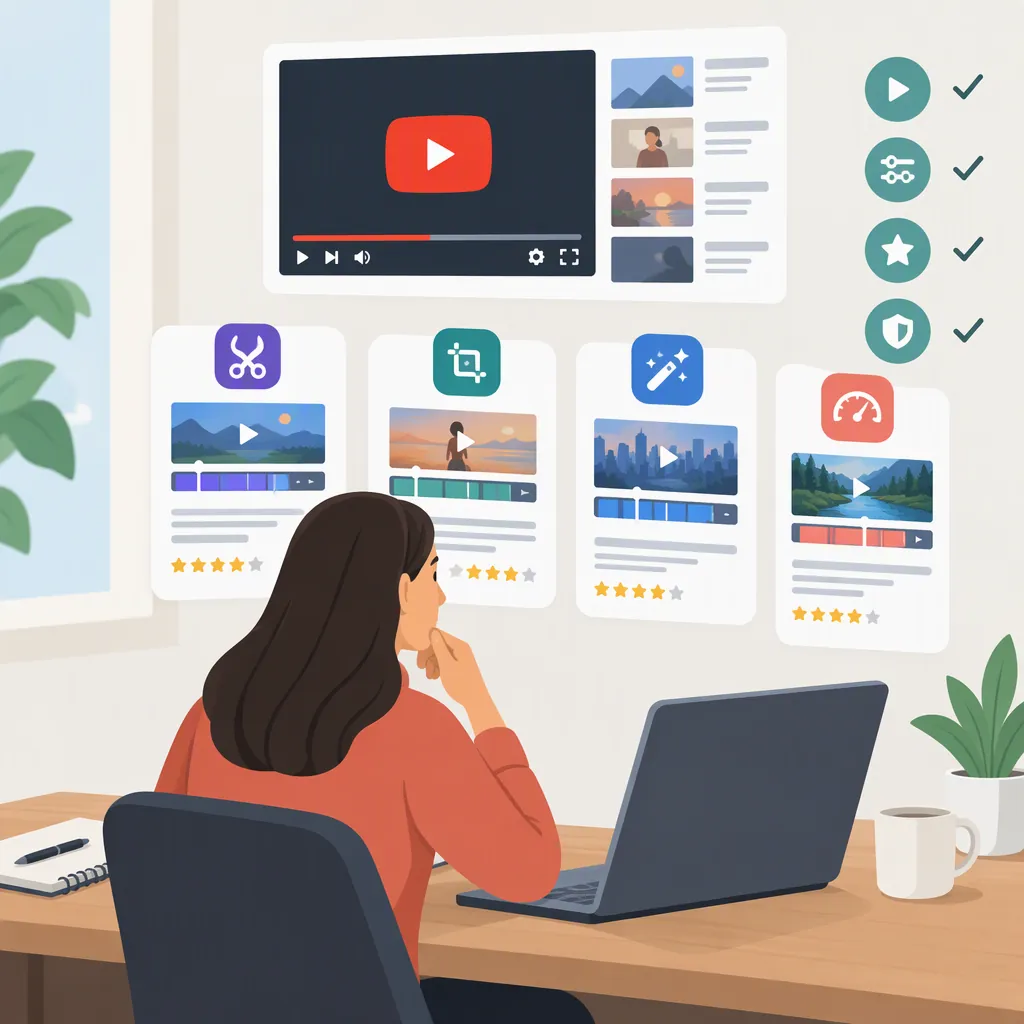
Start with the editing problem rather than the phrase “YouTube clip maker.” The supplied pages use that label for different workflows:
- Raw-recording cleanup: Gling's page describes transcript-based editing and removal of bad takes, silence, and filler words. [gling]
- Long-video excerpt selection: SendShort's page describes importing a file or YouTube link, requesting automatically selected clips, and manually selecting segments. [sendshort]
- Manual assembly and finishing: Flixier's page describes placing media on a timeline, cutting or cropping footage, and adding text, effects, and audio. [flixier]
- Broader video creation: Clipchamp's page presents recording, trimming, cropping, resizing, captions, and other editing tools. [clipchamp]
These are vendor descriptions, not independently tested results. Use them to identify workflows worth evaluating, not to infer editing quality or audience outcomes.
Write a short brief before comparing tools: identify the source footage, the intended message, the destination format, and the corrections you expect to make.
Clip Brief Template
Source footage: ___
Ownership or permission record: ___
Main message the clip should preserve: ___
Intended destination and format: ___
Editing approach: manual selection / automated suggestions / recording cleanup
Required finishing work: captions / reframing / audio / graphics
Required export and handoff options: ___
Compare Controls, Not Promises
Translate feature lists into questions you can answer with a sample project.
| Evaluation Area | What to Check |
|---|---|
| Input | Can you import your actual source file or authorized link? |
| Selection | Can you adjust the suggested start and end points? |
| Context | Does the excerpt preserve the speaker's meaning? |
| Captions | Can you correct wording, timing, and placement? |
| Framing | Can you keep relevant faces, demonstrations, and on-screen text visible? |
| Audio | Can you adjust levels and review any cleanup changes? |
| Export | Does the output meet your format, quality, and watermark requirements? |
| Handoff | Can you continue editing in another application if needed? |
For example, Gling's page lists SRT subtitle export and XML handoff to Premiere, Final Cut Pro, and Resolve. Flixier's page describes editable caption text and MP4 output. These listings identify checks to perform; they do not prove compatibility with your particular project. [gling] [flixier]
Do not treat claims about speed, “best moments,” or virality as comparative evidence. The supplied pages do not provide an independent, shared benchmark.
Comparison Record
For each candidate, record:
Input accepted: pass / fail / untested
Clip boundaries adjustable: pass / fail / untested
Caption corrections possible: pass / fail / untested
Framing acceptable: pass / fail / untested
Audio acceptable after export: pass / fail / untested
Export meets requirements: pass / fail / untested
Handoff works, if required: pass / fail / untested
Blocking limitation: ___
Evidence from the sample project: ___
Review One Representative Sample
Use footage that you own or are authorized to process. Choose a sample with the kinds of challenges your projects contain, such as pauses, technical vocabulary, multiple speakers, or a screen demonstration.
- Define the message first. Write what the finished excerpt should communicate before examining automated suggestions.
- Create a draft. Use manual selection or automated suggestions, according to the workflow you are evaluating.
- Restore missing context. Check whether the opening explains the topic and whether the ending completes the thought. Reject cuts that change the meaning.
- Correct captions. Review names, numbers, specialized terms, punctuation, and synchronization against the audio.
- Inspect framing and sound. Look for cropped demonstrations, obscured text, abrupt edits, and distracting audio changes.
- Review the exported file. Watch the entire output rather than relying only on the editor preview.
Record corrections and unresolved problems. Choose based on whether the workflow meets your requirements, not simply on how quickly it generates a first draft.
Final Clip Review Checklist
- [ ] The opening supplies enough context.
- [ ] The excerpt preserves the original meaning.
- [ ] The ending completes the intended thought.
- [ ] Captions match the speech and are readable.
- [ ] Relevant subjects and on-screen information remain visible.
- [ ] Audio and edit boundaries have been reviewed.
- [ ] The exported file meets the project requirements.
- [ ] Source permissions and unresolved issues are documented.
Check Access, Limits, and Permissions
Treat access and export restrictions as part of the decision. Gling's supplied page describes a desktop workflow and lists a watermarked export allowance for its free plan. SendShort and Flixier describe browser-based workflows, while Clipchamp describes browser access and a Windows application. Confirm current availability and plan conditions rather than assuming every listed feature is included. [gling] [sendshort] [flixier] [clipchamp]
For sensitive footage, review upload handling, retention, deletion, and any organizational approval requirements. The supplied marketing pages are not enough to establish whether a service meets a particular privacy or security requirement.
Keep technical access separate from permission to reuse content. As a conservative workflow rule, use your own footage or document authorization before processing someone else's video. Do not rely on a clip-maker's marketing FAQ as a legal determination about fair use.
The references also do not provide authoritative, current YouTube upload specifications. Treat destination-specific duration and format requirements as a separate verification step rather than adopting a vendor page's limits without checking.
FAQ
What Is the Best YouTube Clip Maker?
The supplied references do not establish an overall winner. They describe different workflows: Gling emphasizes recording cleanup, SendShort describes automated excerpt selection, and Flixier and Clipchamp describe broader editing controls. Compare candidates against your own sample footage and required exports. [gling] [sendshort] [flixier] [clipchamp]
Can I Make Clips from a YouTube Link?
SendShort and Flixier's supplied pages describe importing from YouTube links. Confirm that the particular source is accessible and that you are authorized to process and reuse it; a listed import feature is not permission to republish content. [sendshort] [flixier]
What Should I Check in a Free Clip Maker?
Check processing allowances, watermarks, export quality, caption editing, and whether essential features require payment. Gling's supplied page, for example, lists a limited monthly editing allowance and watermarked video exports for its free plan. Verify current conditions before depending on a free workflow. [gling]