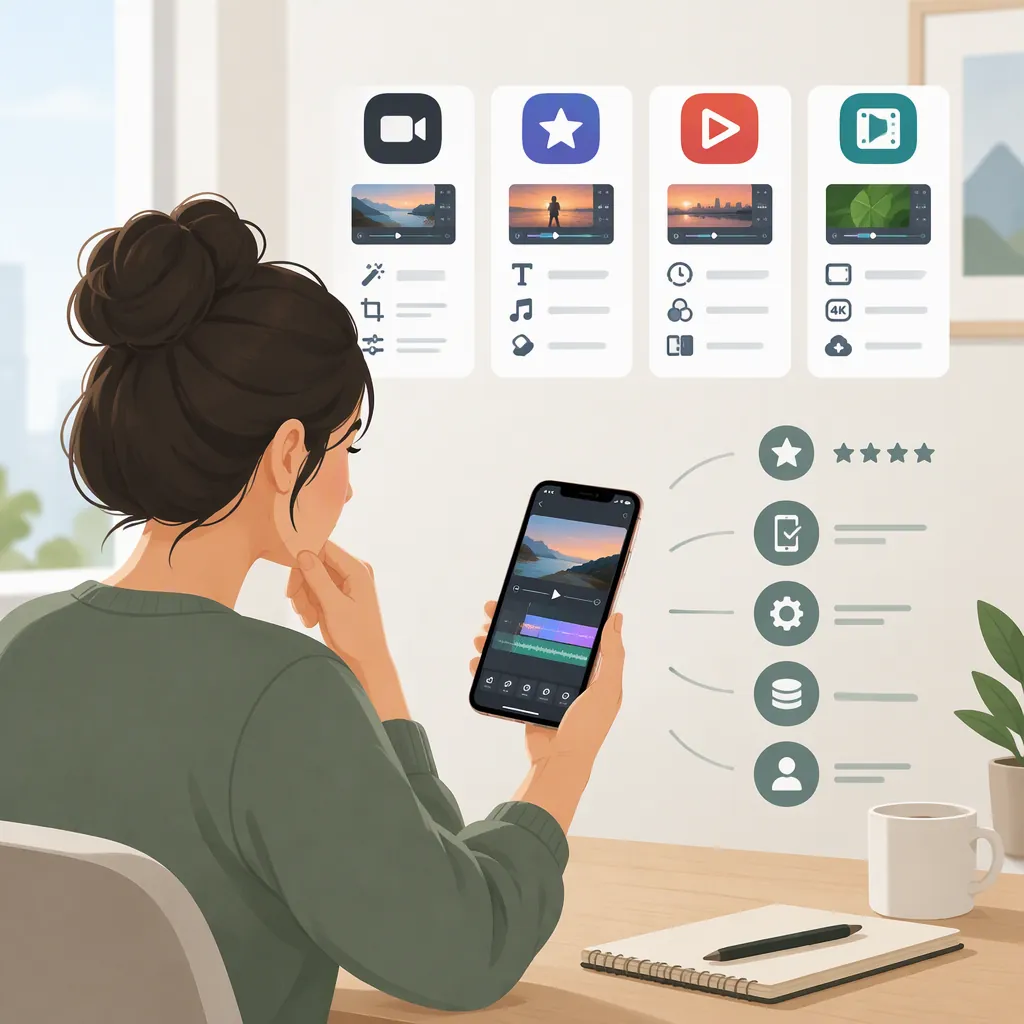
How to Choose a Video Maker for iPhone
Choose an iPhone video maker by matching it to your project: guided assembly, captions and overlays, or work across devices. The supplied sources describe iMovie’s guided projects, InShot’s caption and layering tools, and WeVideo’s cloud-stored projects. These are documented features, not independently tested performance results; check compatibility, paid access, and export restrictions before deciding. [c1] [c2] [c3]
Start with the Video You Need to Make
Before comparing editors, write down what the finished video must contain. A photo montage, a narrated tutorial, and a captioned interview require different controls.
Separate essential tasks from optional effects:
- Assembly: Put clips and photos in order, trim unwanted material, and set the pace.
- Text: Decide whether you need a few titles or subtitles throughout the video.
- Audio: Identify whether you need original sound, narration, music, or a combination.
- Layers: Decide whether another clip or image must appear over the main footage.
- Delivery: Specify the intended frame shape, resolution, and whether a watermark is acceptable.
Guidance can matter as much as the tool list. For example, iMovie’s App Store description lists Magic Movies, which assemble selected media with titles, transitions, and music, and Storyboards, which provide guided shot structures. Treat those as options to assess if you want help organizing a sequence. [c1]
Project Requirements Worksheet
Complete before comparing editors:
- Video purpose: ______
- Intended audience and viewing destination: ______
- Required frame shape: ______
- Approximate finished duration: ______
- Titles or full subtitles: ______
- Narration, music, and original audio needs: ______
- Required overlays or effects: ______
- Target export resolution: ______
- Watermark acceptable: yes / no
- Budget and subscription tolerance: ______
- Cloud storage acceptable: yes / no
Compare Documented Tools, Not Rankings
The supplied sources cover three editors. They support a feature-based shortlist, not a conclusion that one app is universally best.
| Editor | Tools Described in the Source | Questions to Resolve |
|---|---|---|
| iMovie | Magic Movies, Storyboards, customizable titles, narration, picture-in-picture, green screen, and split screen. [c1] | Does the available project layout suit your footage and intended presentation? |
| InShot | Trimming and merging, automatic captions, bilingual subtitles, voiceover, keyframe animation, and picture-in-picture layering. [c2] | Which required tools are included without a purchase, and can you correct captions conveniently? |
| WeVideo | Trimming and merging, multiple tracks, animated text, aspect-ratio changes, and cloud-stored projects. [c3] | Does cloud storage fit your workflow, and what does your plan permit? |
These descriptions establish what the sources list. They do not establish caption accuracy, editing speed, reliability, or ease of use on your particular iPhone. Do not interpret a longer feature list as proof of a better fit.
Check Export Limits and Paid Access
Check the finished-file requirements before investing time in a full edit. iMovie’s listing describes saving videos at up to 4K at 60 frames per second, with device requirements. InShot’s listing also describes 4K, 60 fps output. WeVideo’s page describes output from 480p to 4K, while noting that paid plans provide higher resolutions. A listed maximum is not a guarantee that every device, project, or plan can use it. [c1] [c2] [c3]
Pricing labels need similar care. The supplied iMovie listing is marked free. InShot is marked free with in-app purchases and contains advertising. WeVideo states that videos published with its free version contain a watermark and that paid plans remove it. The sources do not provide a complete, directly comparable account of all free-tier restrictions. [c1] [c2] [c3]
For each candidate, verify the current iOS requirement, the export choices available to your project, and any payment prompt attached to an essential tool. Confirm the exported file’s shape and resolution rather than relying only on the editing preview.
Evaluate Privacy and a Small Test Edit
Include media handling in your decision. WeVideo describes storing projects in the cloud. The iMovie and InShot App Store pages include developer-reported privacy disclosures; InShot’s disclosure identifies identifiers that may be used for tracking. These disclosures are not an independent privacy audit or a complete explanation of every feature’s data flow. [c1] [c2] [c3]
For sensitive footage, review permissions and storage arrangements before importing it. Do not assume that an AI feature processes footage only on the phone; the supplied feature descriptions do not establish that.
A small test project can answer practical questions without committing your entire edit:
- Use a few nonsensitive clips representative of your project.
- Trim and reorder them, then add the text and audio you require.
- If subtitles are essential, check wording, timing, and correction controls.
- Add any necessary overlay and inspect the framing.
- Export using your intended settings; check for watermarks, payment restrictions, and playback problems.
- Close and reopen the project to check whether you can continue editing.
Keep the original footage and a separate copy of the final export until you have verified your backup. This is a suggested evaluation process, not a report of hands-on testing.
FAQ
Which Video Maker Is Best for iPhone?
The supplied sources do not establish a universal winner. Compare iMovie’s guided projects, InShot’s listed caption and layering tools, and WeVideo’s cloud workflow against your requirements. Confirm compatibility and export access with a small test project. [c1] [c2] [c3]
Can I Edit Videos on iPhone for Free?
The supplied iMovie listing is marked free, and InShot is marked free with in-app purchases. WeVideo describes a free version whose published videos contain a watermark. Free access does not establish that every required feature or export setting is included. [c1] [c2] [c3]
Which Listed Editor Offers Automatic Captions?
InShot’s App Store description lists automatic captions and bilingual subtitles. The source does not establish transcription accuracy or complete free-versus-paid access, so check availability and review generated text before publishing. [c2]