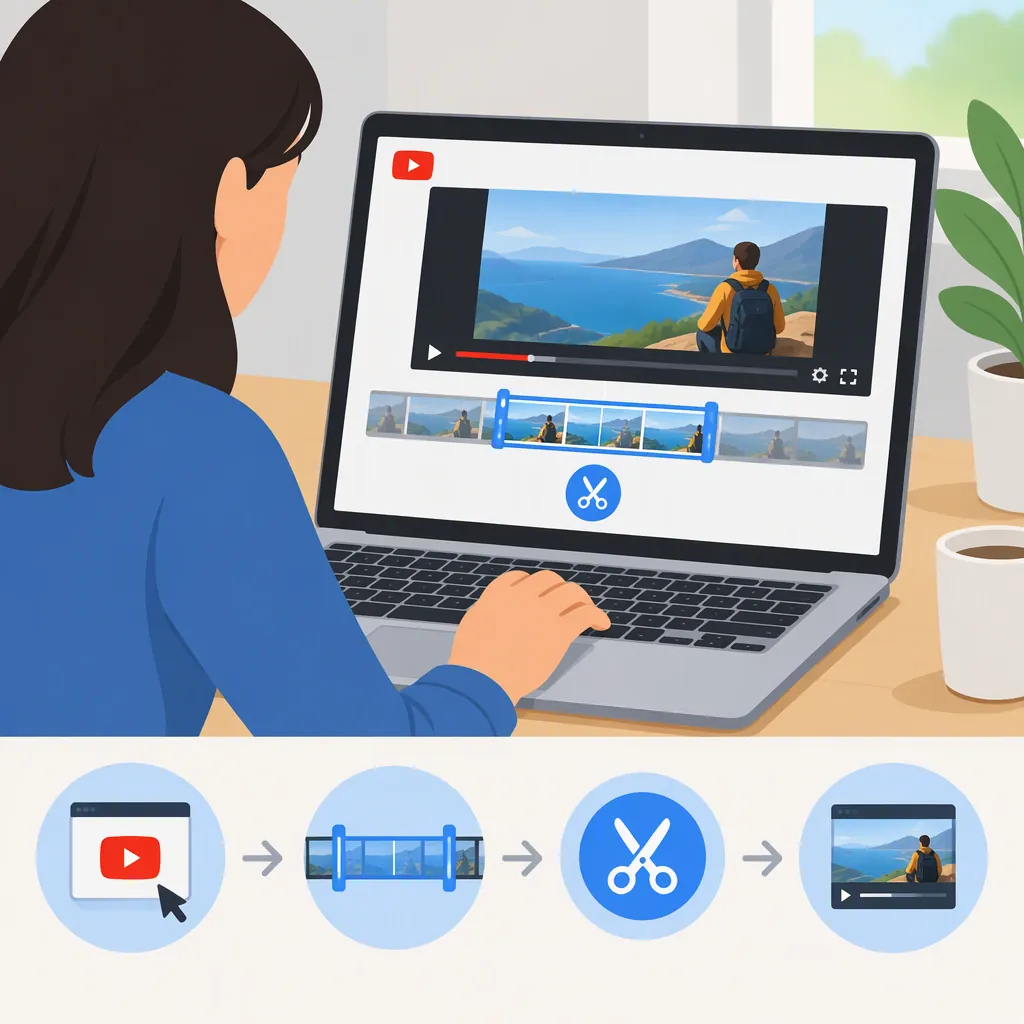
How to Cut a YouTube Video Clip Online
To cut a YouTube video online, use footage you own or are authorized to use, choose a file-based trimmer or a YouTube URL-based cutter, and set the start and end of the segment you want to keep. Preview the selection, export it, and check the saved file. The supplied guides describe both workflows, but their service claims are not independently verified here. [c1] [c2] [c3]
Choose Between a Video File and a YouTube Url
First, identify what you have: a video file on your device or only a YouTube link.
- File-based workflow: Open a video file in a browser-based trimmer, select a time range, and save the shorter clip. The Zebracat guide describes uploading a local file; the VidShift guide describes selecting a file for local browser processing. [c1] [c2]
- URL-based workflow: Provide a YouTube URL, select a time range, and request an exported segment. The AppsGolem guide describes this approach and says processing happens server-side. [c3]
A browser interface does not, by itself, tell you whether footage is uploaded. Before selecting a workflow, check the service's current processing, retention, and access requirements. These references are provider-authored descriptions, not independent privacy or compatibility assessments.
Check Permissions Before Preparing the Clip
Use your own recording or footage you are authorized to download, edit, and reuse. Do not treat a publicly accessible YouTube URL as evidence that you have permission to republish its contents.
The Zebracat and AppsGolem guides both advise respecting copyright and applicable YouTube terms. They do not establish whether a particular use is permitted. This article is not a legal assessment. [c1] [c3]
For a file-based workflow, prefer an existing authorized source file when available. Keep that source unchanged and plan to save the trimmed version separately. Also decide whether the result should be one continuous excerpt or several excerpts joined together; those are different editing tasks.
Set the Start and End of the Clip
For a single excerpt, the basic process is to mark the portion you want to keep and discard the footage outside that selection. The supplied trimming guides describe timeline controls or timestamp fields for this task. [c1] [c2] [c3]
- Load the authorized file or URL using the chosen workflow.
- Find the moment where the excerpt should begin.
- Set the start point, then set the end point after the last moment you want included.
- Confirm that the end is later than the start and within the source's duration.
- Preview both boundaries, listening for clipped words or an unfinished sentence.
- Export to a new file and inspect that file separately.
For example, a selection from 00:01:20 to 00:01:50 has a planned duration of 30 seconds. This is an illustrative calculation, not a required clip length.
If the goal is to remove a mistake from the middle while keeping both surrounding sections, look for a split-and-join workflow rather than assuming a single start/end selection will do it.
Clip Planning Worksheet
Source file or authorized URL: __________
Permission or ownership basis: __________
Start time: __________
End time: __________
Planned duration, end minus start: __________
Opening words or action to preserve: __________
Closing words or action to preserve: __________
Output filename: __________
Checks: opening reviewed; ending reviewed; audio reviewed; saved file played.
Check Export Quality and Cut Accuracy
Avoid assuming that every trim is lossless or frame-exact. The VidShift guide distinguishes stream-copy processing from re-encoding and explains that its stream-copy approach uses playback metadata to represent the selected start. The AppsGolem guide describes a fast mode that aligns cuts to keyframes. These descriptions show why cut behavior should not be generalized across tools. [c2] [c3]
When choosing export settings, consider:
- Cut accuracy: Does the saved file begin and end where intended?
- Playback compatibility: Does it open correctly in the player or editing application you will use?
- Picture and sound: Is the image acceptable, and does the audio remain aligned?
- Output type: Did you save a video with sound rather than an audio-only or silent file?
If an export starts too early or behaves differently between players, consult the tool's documented re-encoding or compatibility options. Recheck the result rather than relying on the preview alone. The references do not establish universal playback guarantees. [c2] [c3]
Separate Trimming from Cropping
Trimming changes the selected time range; cropping changes the visible picture area. The VidShift guide explicitly separates these tasks. Shortening a landscape recording is therefore not the same operation as reframing it vertically. [c2]
If the destination requires a different shape, plan a separate crop or resize check. Preview any reframing for faces, captions, slides, or other details that might fall outside the new frame.
This article does not specify a current YouTube Shorts duration limit. The supplied references include platform-length guidance, but no official YouTube documentation was provided to verify current requirements. Check the destination's current rules separately before finalizing the export.
FAQ
Do I Have to Download the Full YouTube Video First?
It depends on the workflow. The Zebracat guide requires a local video file, while the AppsGolem guide describes extracting a segment from a YouTube URL without first downloading the full video to your device. These are provider descriptions, not verified guarantees for every video or service. [c1] [c3]
Will Trimming Reduce Video Quality?
The processing method matters. The VidShift guide describes stream copying without re-encoding and a separate re-encoding mode that may change quality. Do not assume that all online trimming preserves the original streams; inspect the export settings and saved result. [c2]
How Do I Make Several Clips from One Video?
Plan a separate start and end time for each excerpt, then export each selection under a distinct filename. The Zebracat guide describes repeating the trim to extract multiple segments. Joining those excerpts into one file is a separate operation. [c1]
Does Online Trimming Always Upload My Video?
No single processing model applies to every browser-based tool. VidShift describes local browser processing, while AppsGolem describes server-side extraction. Check the current service documentation; the provided pages alone do not independently verify privacy or security. [c2] [c3]