YouTube Studio Video Editor: Tools, Limits, and Edit Planning
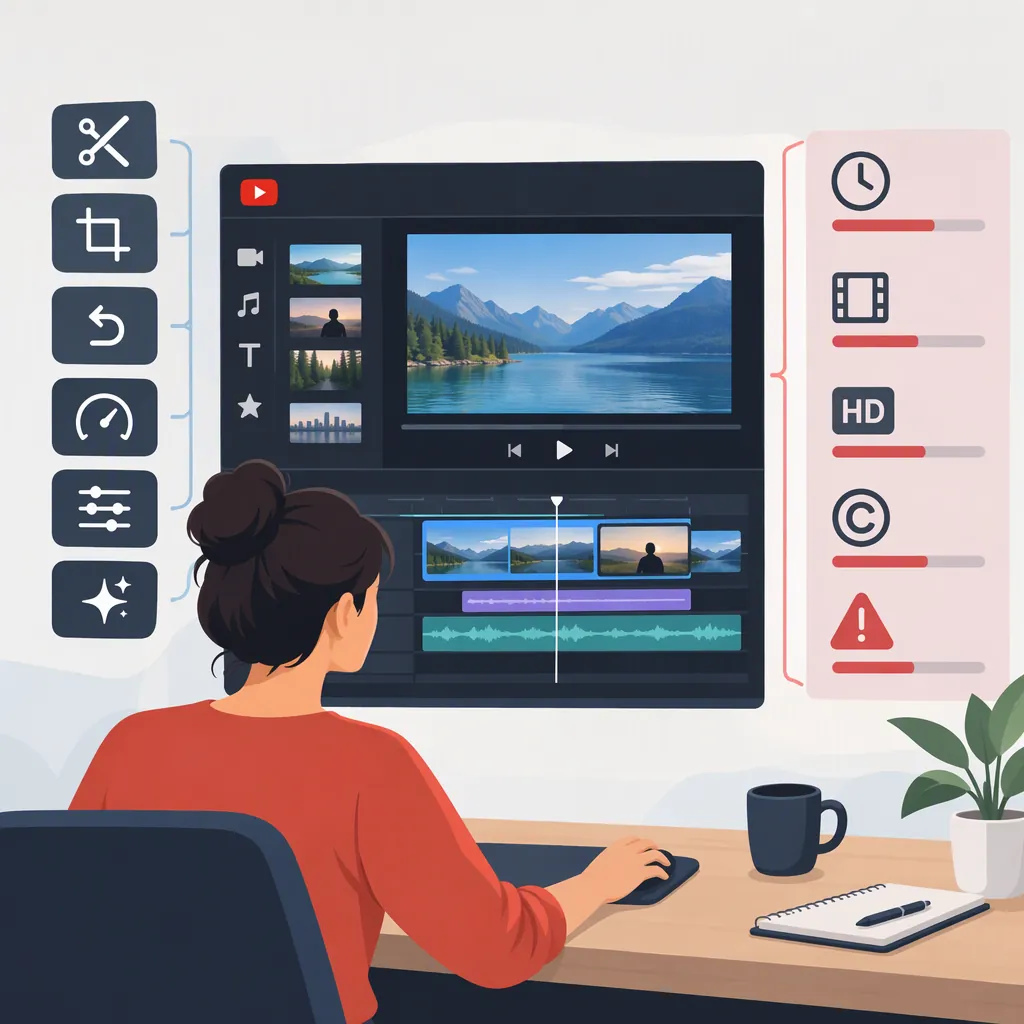
The YouTube Studio video editor provides a way to make limited changes to an existing upload rather than rebuild an entire video project. TechRadar’s November 2020 review describes trimming, adding background music, and blurring parts of the image without re-uploading the video. [editor-review]
This is a tool overview and edit-planning guide, not a current button-by-button tutorial. The editor descriptions below come from that 2020 review. YouTube’s official help page supports the video-settings workflow, but does not establish the editor’s current controls, eligibility rules, mobile availability, or save-and-recovery behavior. Check the options and warnings shown for your selected video before committing an edit. [editor-review] [video-settings]
Choose Between the Editor and Video Settings
Start by identifying whether you need to change the footage or the information attached to it.
- Remove a section or conceal something in the image: These match the trim and blur uses described in the 2020 editor review. [editor-review]
- Change a title, description, thumbnail, audience, or visibility: Use video settings. YouTube also documents captions, cards, and end screens there. [video-settings]
- Restructure the story or combine source footage: Plan the work in a separate editing project rather than assuming Studio can handle a full rebuild.
For example, removing a passage containing an error is a footage-editing decision. Explaining that error in the description is a settings change; it does not remove the passage from the video.
Video Settings Path on a Computer
YouTube documents the following route for changing an uploaded video’s details:
- Sign in to YouTube Studio.
- Select Content from the left menu.
- Click the video’s title or thumbnail.
- Change the relevant settings and select Save. [video-settings]
These steps change video settings; they are not instructions for trimming or blurring. If your goal is a footage change, inspect the selected video’s available Editor options and follow the instructions shown there. Do not use the settings page’s Save step as a substitute for the editor’s own preview and save process.
Editing Tools Described in the November 2020 Review
The following table summarizes historical editor capabilities, not a verified current feature list. [editor-review]
| Tool | Capability described in TechRadar’s November 2020 review | Suggested review check |
|---|---|---|
| Trim | Remove sections of a video. [editor-review] | Check both cut boundaries and whether the remaining content still makes sense. |
| Background music | Add music to the video. [editor-review] | Listen for speech clarity and check the chosen audio’s permissions. |
| Blur | Conceal an image region using rectangular or oval shapes, with movement tracking. [editor-review] | Review the entire interval in which the detail appears, including movement and scene changes. |
The checks below are editorial recommendations, not descriptions of current Studio controls.
Plan a Trim
Before using an available trim tool:
- Record the start and end timestamps of the material you want to remove.
- Watch a little before and after those timestamps. Look for a complete sentence, action, or explanation that needs to remain.
- Preview the proposed cut wherever the interface permits.
- Listen across the cut as well as watching it. Check for a clipped word or a confusing transition.
- After processing, review the affected section again.
As a hypothetical example, if you want to remove an aside from 1:20 to 1:35, first check whether the next sentence depends on that aside. A technically clean cut can still leave the remaining explanation unclear.
Plan a Blur
Before using an available blur tool:
- Identify every interval in which the detail appears—not just the first frame.
- Check whether it moves, changes size, leaves the frame, or appears again.
- Preview the affected interval wherever possible.
- After processing, inspect the result for any frames where the identifying detail remains visible.
For privacy-sensitive material, do not assume that selecting a region or enabling tracking is sufficient. Review the result across the full interval.
Review Background Music
If a music option is available for your video, consider what it needs to accomplish before selecting audio. Check permissions, then listen to the result for speech clarity, abrupt entrances, and distracting changes in level. The historical review does not establish today’s music selection or audio controls. [editor-review]
Check Save Warnings and Review the Result
TechRadar’s 2020 review describes editing an existing upload without re-uploading as an advantage of Studio. It also reports lengthy processing after trims and blurs. Those observations are not a current processing-time estimate or a guarantee about a particular edit. [editor-review]
Before committing a change, keep an independent copy of your source material and read the interface’s save, processing, and recovery warnings. Do not assume a saved edit can be reversed.
Pre-Edit and Post-Edit Checklist
- Confirm the channel and video selected.
- Describe the intended change in one sentence.
- Record the relevant start and end timestamps.
- Keep an independent copy of the source material.
- Read the current save, processing, and recovery warnings.
- Preview the proposed change wherever available.
- After processing, review the affected section and both boundaries.
- Check captions, chapters, and description timestamps for consistency.
Keep Related Video Details Consistent
After a footage change, review captions and timestamped references rather than assuming they still match the result.
Chapters belong in video settings, not the trim-or-blur workflow. YouTube documents manually entered chapter titles and timestamps, along with automatic chapters when available and eligible. Manual chapters override automatically generated chapters. [video-settings]
For an explanatory correction, YouTube documents an English Correction: or Corrections: label in the description, followed by a timestamp and explanation on a separate line after any chapters. The feature is unavailable when a channel has active strikes or the content may be inappropriate for some viewers. A description correction does not remove footage. [video-settings]
FAQ
Can I Edit a YouTube Video After Uploading It?
Yes for video details: YouTube documents changing them after upload. For footage changes, TechRadar’s November 2020 review describes trimming and blurring published videos. Check the Editor options available for your video rather than treating that historical description as a current eligibility rule. [video-settings] [editor-review]
Can the YouTube Studio Editor Keep the Same Video Url?
TechRadar’s 2020 review describes editing without re-uploading while retaining the existing URL, views, and comments. Verify the current operation and its warnings before relying on that behavior for a particular edit. [editor-review]
Is YouTube Studio a Full Video Editing Tool?
The 2020 review describes a limited editor with trim, background-music, and blur tools, rather than a full production workflow. For a substantial rebuild, plan a separate editing project instead of assuming Studio supports the work you need. [editor-review]
How Long Do Studio Video Edits Take to Process?
There is no current processing-time estimate established by the evidence used here. TechRadar’s 2020 review reported lengthy processing after trims and blurs, but that is not a present-day benchmark. Follow the status and messages shown for your video, then review the result after processing. [editor-review]
Sources
-
[video-settings] Edit video settings - Computer - YouTube Studio App Help Center
-
[editor-review] YouTube Studio review | TechRadar