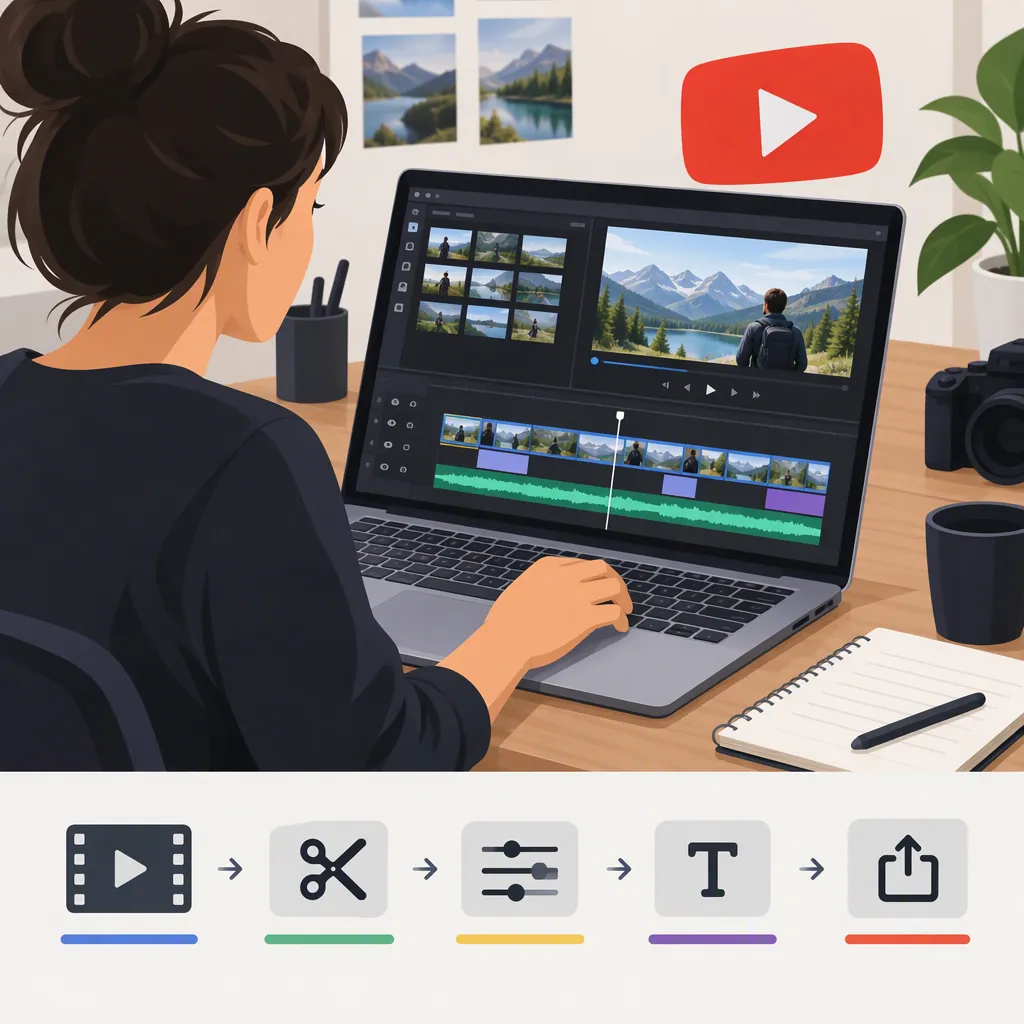
How to Choose and Use a YouTube Video Editor
A YouTube video editor helps prepare footage for publication through tasks such as trimming clips, arranging scenes, adjusting audio, adding captions, and changing the frame shape. The supplied sources describe these editing categories, but they do not establish a single best tool. Choose based on your device, the edits you need, and the limits of the finished export—not promises of faster growth. [c1] [c2] [c3]
Define the Editing Job First
Before comparing editors, write down what the finished video must communicate. A tutorial might need readable screen details and carefully placed explanations. A talking-head video might need tighter cuts and clearer speech. A short excerpt needs enough context to make sense without the original recording.
Use a simple editing brief:
- Purpose: What should the viewer understand by the end?
- Material: Which video, audio, images, and screen recordings will you use?
- Structure: What belongs at the beginning, middle, and end?
- Deliverables: Do you need one full-length video, separate short clips, or both?
The supplied editor pages describe both general editing and workflows for turning longer recordings into short clips. Treat those as different jobs when evaluating an editor, rather than assuming one automatic cut will suit both. [c1] [c2]
Evaluate Features with a Small Test Project
The sources describe trimming, cropping, audio tools, captions, and resizing among their editing functions. These are useful categories for a test, not proof that every editor implements them equally well. [c1] [c2] [c3]
Use a short piece of your own footage to answer these questions:
| Area | What to Check |
|---|---|
| Cuts | Can you split a clip, remove a section, and revise the cut easily? |
| Audio | Can you keep speech clear while adjusting music separately? |
| Text and captions | Can you correct words, change timing, and keep text readable? |
| Framing | Can you reposition the subject when changing the frame shape? |
| Export | Does the downloaded file meet your intended quality and watermark requirements? |
| Workflow | Can you save the project and return to revise it? |
Also check device compatibility, file handling, account requirements, and upload expectations. If you intend to use unpublished or sensitive footage, review the tool's privacy terms before uploading it. The supplied promotional pages are not a complete privacy or licensing assessment.
Build the Video in Deliberate Passes
A practical approach is to separate structural decisions from polish. The following workflow is editorial guidance, not a tested performance claim about any tool.
- Organize the material. Keep original recordings separate from exports. Give clips descriptive names and note which takes you want to use.
- Make a rough cut. Arrange the essential scenes first. Remove repeated takes and material that does not support the video's purpose.
- Review meaning and pacing. Check that cuts preserve the speaker's intended meaning. Keep pauses that help an explanation land.
- Adjust audio. Listen for uneven speech levels, distracting noise, and music that competes with the voice.
- Add supporting visuals. Use labels, images, or additional footage when they clarify what is being explained.
- Review captions. Check names, technical terms, punctuation, and timing against the actual speech.
- Export and inspect. Watch the exported file rather than relying only on the editing preview.
For a separate short clip, repeat the structure review. Check whether the excerpt introduces its subject, preserves necessary context, and ends at a sensible point.
Pre-Export Review Checklist
- [ ] The opening establishes the video's subject.
- [ ] Cuts preserve meaning and do not leave unexplained references.
- [ ] Speech remains understandable when music is present.
- [ ] Captions match the spoken words and timing.
- [ ] Text and important visual details remain readable.
- [ ] Music, images, and footage have been checked for permitted use.
- [ ] Export settings and any watermark are acceptable.
- [ ] The exported file has been watched from beginning to end.
Treat AI Edits as Drafts
The supplied sources describe automation for tasks such as captions, silence removal, first-draft editing, and short-clip selection. The available tasks differ across the sources, and some features are described as region- or language-limited. [c1] [c2] [c3]
If you use automation, review the result rather than treating completion as approval:
- Listen across each removed pause or take to check continuity.
- Compare captions with the recording, especially for names and specialized vocabulary.
- Check whether a selected highlight still makes sense outside the original conversation.
- Inspect reframing so that important people, demonstrations, or screen details remain visible.
- Review generated imagery and text for accuracy and relevance.
These are quality-control recommendations. The references do not independently verify accuracy, time savings, audience growth, or the quality of automatic selections.
Keep Pricing and Publishing Limits Visible
This guide uses two vendor tool pages and a Google Play app listing. It is not a hands-on comparison or an independent ranking. Vendor descriptions can identify features worth checking, but they do not establish which editor is best for your project. [c1] [c2] [c3]
Be particularly careful with the word free. The supplied Vizard page includes free-use language alongside a warning that free-version exports may contain a watermark. Its publishing descriptions also differ: one passage describes direct publishing, while another distinguishes finished-file delivery from scheduling and auto-posting. These passages do not establish a single, unambiguous workflow or entitlement. [c2]
Before relying on an editor, confirm the current export limits, watermark policy, feature availability, and publishing steps for your account. Do not infer YouTube upload requirements or post-upload editing rules from these sources; no YouTube Help documentation was provided.
FAQ
What Is the Best YouTube Video Editor?
The provided references do not support a single winner. Use a small test project to compare cutting, audio adjustment, caption correction, reframing, and export results. These feature categories appear in the sources, but the sources are not independent comparative tests. [c1] [c2] [c3]
Can I Edit YouTube Videos for Free?
The supplied vendor pages advertise free editing or a free starting option. That does not establish unrestricted exports: the Vizard page also notes that free-version videos may contain a watermark. Confirm the current conditions before depending on a free workflow. [c1] [c2]
What Should I Check for Mobile Editing?
Check device requirements, available storage, caption languages, and whether you can make precise cuts on your screen. The supplied YouTube Create listing specifies Android 8.0 or later and at least 4 GB of RAM, and it notes language and country restrictions for certain features. That listing does not establish availability on every device or in every region. [c3]