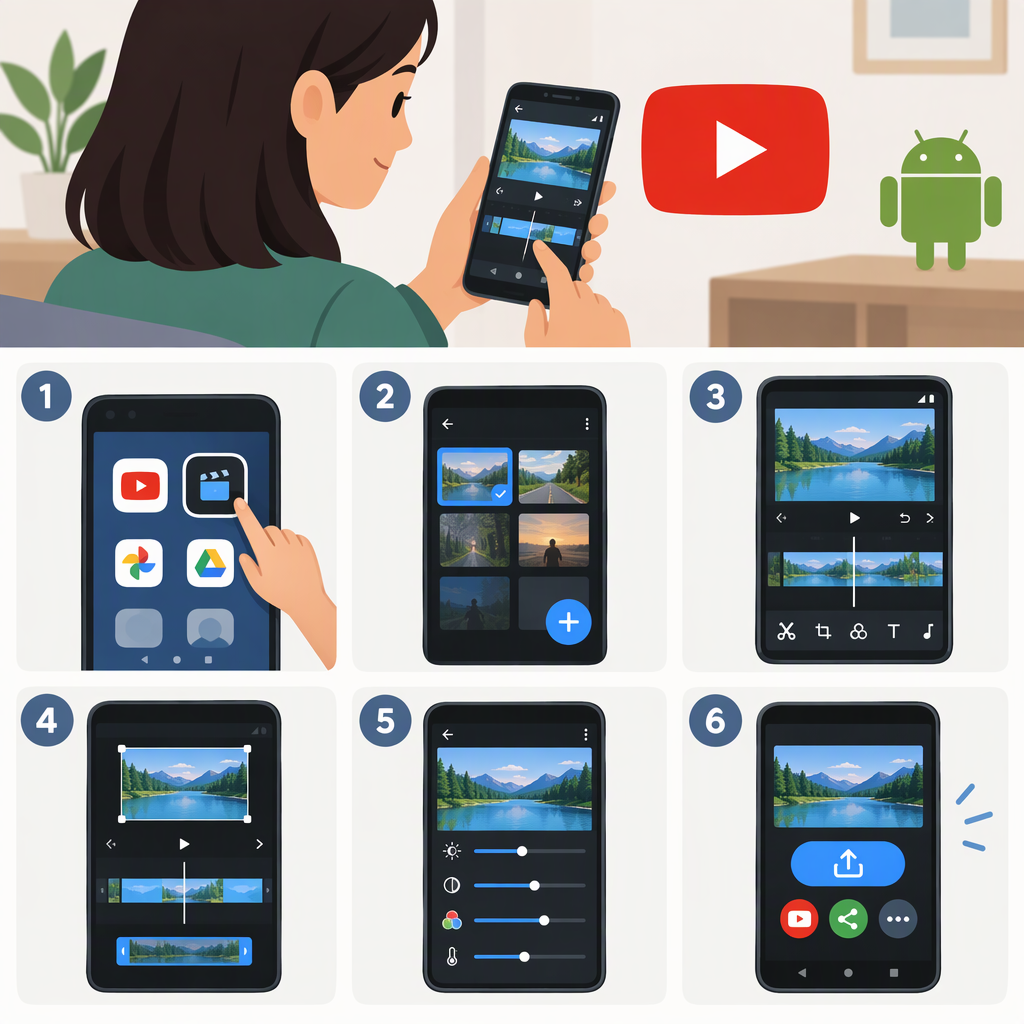
How to Edit a YouTube Video on an Android Phone
You can edit a video on an Android phone before uploading it, then select the saved edit in the YouTube app. For a straightforward single-clip edit, Google Photos can trim the beginning or end, crop or rotate the video, and save an edited copy. If the video is already published, that’s a different task: YouTube Studio on Android lets you edit video details, but YouTube’s documented trim-and-cut workflow is for a computer. (support.google.com)
Edit a Video Before Uploading
These steps use Google Photos on Android for a basic edit to one video. Available tools can vary by device and app version; the steps below cover trimming and cropping, which Google documents for Android.
- Open the footage. In Google Photos, open the video you want to edit.
- Trim the start or end. Open the video’s editing controls. Drag the trim handles to choose the portion to keep. Play the selection to check that it starts and ends where you want.
- Make a framing adjustment if needed. Choose Crop to change the frame, or use the rotate control if the video is sideways. Check the preview so important parts of the image aren’t cut off.
- Save the edit. Tap Save. Google Photos says this saves a copy with your edits, so you can keep the original as well. (support.google.com)
- Review the saved copy. Play it from your gallery or Photos library. Check the beginning and end, framing, and audio before uploading.
For example, if a 40-second clip has 3 seconds of setup at the start and 2 seconds at the end, move the trim handles inward to keep the 35-second section, preview it, and save the copy. This is an illustrative example—not a test of the app.
Upload the Edited Video from Android
- Open the YouTube app and tap Create (the + button), then Video.
- Select the saved edited copy and tap Next.
- Add the video’s details, set its visibility, choose the audience setting, and tap Upload video when ready. YouTube’s Android upload instructions note that a square or vertical video that is 3 minutes or less will be uploaded as a Short. Check the preview and format before proceeding if you intend to publish a regular video rather than a Short. (support.google.com)
If the Video Is Already Published
Use the YouTube Studio app on Android to manage details such as a video’s title or other settings. That is different from changing the video footage itself. (support.google.com)
If you need to trim or cut footage in a published video, YouTube’s documented Editor steps are for YouTube Studio on a computer. YouTube says those edits can retain the existing video URL, views, and comments, but saving an edit can’t currently be undone with Revert to original. Review the preview carefully before saving. (support.google.com)
You also can’t replace an uploaded video with a new file while keeping its URL: YouTube says a new upload gets a new URL. If you upload a corrected version, decide what to do with the original separately; deleting a video is permanent. (support.google.com)
Before You Publish
- Play the saved file and confirm the edit looks and sounds right.
- Confirm you selected the edited copy, not the original footage.
- Check whether a short square or vertical video will upload as a Short.
- Review the title, visibility, and audience setting before uploading.