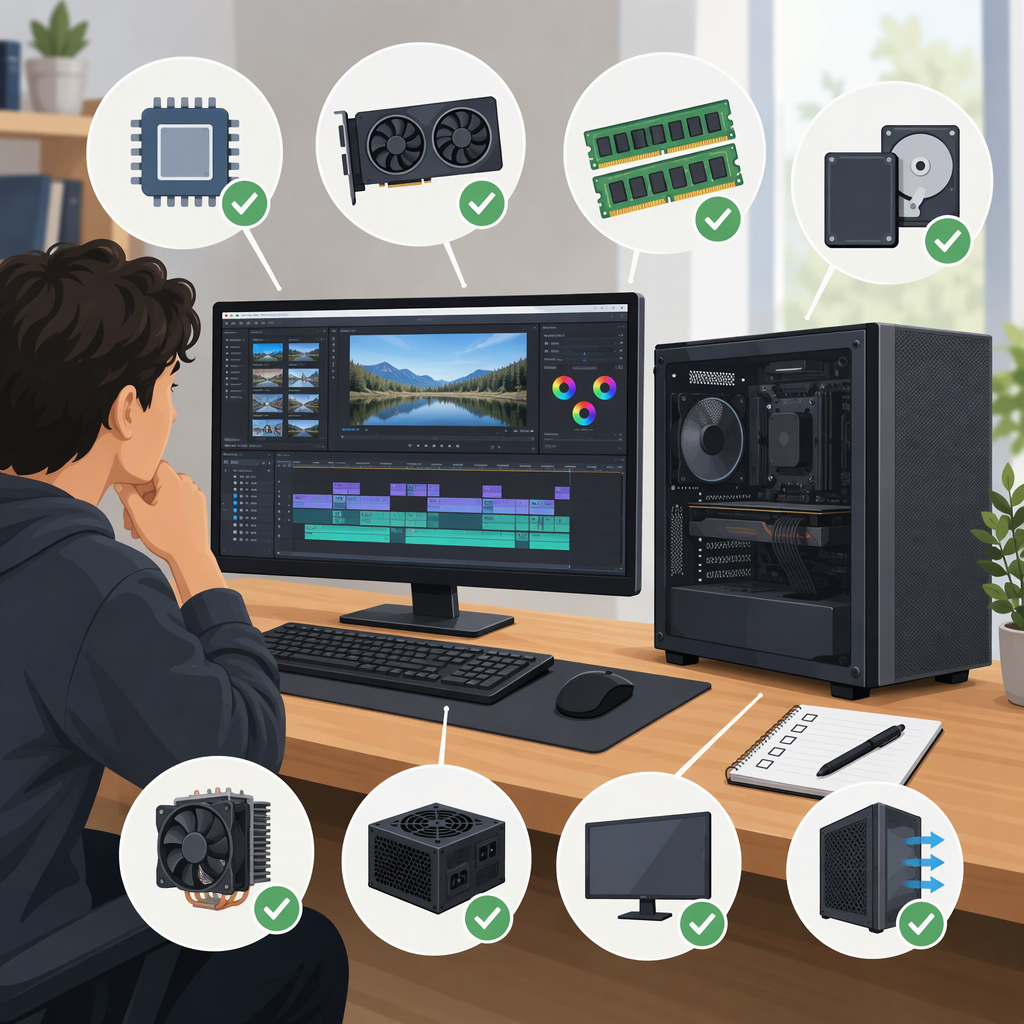
Budget Video Editing PC: What to Check Before You Buy
Budget Video Editing PC: Start with the Workload, Not a Price Tag
There is no single budget or configuration that suits every video editor. First identify your editing software and version, the footage you work with, and whether your budget is for a tower or a complete setup. Then compare exact systems against the software maker’s requirements and the costs you actually need to cover.
No current price bands are given here. The buying market is not specified, and comparable, dated prices and build inclusions have not been established. A locale is not enough to assume a US-dollar budget. Treat any number you see elsewhere as a starting point only if its date, currency, parts, and exclusions are clear.
Make the Budget Comparable
Before comparing a do-it-yourself build with a prebuilt PC, write down what the total must cover:
- The PC: processor, graphics, memory, storage, case, power supply, and any other included components.
- The rest of the setup: monitor, keyboard, mouse, and other peripherals you need to buy. Keep these separate from a tower-only quote.
- Software and operating system: include them only if you need to purchase them; confirm the license and version you intend to use.
- Project storage and backup: account for where active media, cache, and backups will live.
- Checkout costs: note taxes, shipping, assembly, and any warranty or service charges that apply to the quote.
For a fair comparison, make both options cover the same items. Check the prebuilt system’s exact component list rather than judging by its product name or a broad label like “creator PC.” For a custom build, compare the complete parts list and account for any assembly or operating-system costs relevant to you. A cheaper headline price is not necessarily a cheaper complete setup.
Match the PC to Your Software and Footage
Requirements vary by editing application and version. As one specific example, Adobe’s requirements page for Premiere version 27.0 distinguishes minimum requirements for HD editing from recommended specifications for HD, 4K, or higher-resolution work. Its Windows recommendations include 16 GB of RAM for HD media and 32 GB or more for 4K and higher; it lists 8 GB of GPU memory in the recommended column. These are Adobe’s recommendations for that software version—not a universal guarantee of performance in every editor or workflow. (helpx.adobe.com)
Use the following checklist to assess the exact software and work you have in mind:
- Processor (CPU): Check the software’s supported processor and operating-system requirements. Do not assume that a higher core count alone predicts timeline or export performance. If performance is important, look for a benchmark that matches your application and workflow; a result from different footage, effects, or settings may not transfer.
- Graphics (GPU): Check the application’s minimum and recommended GPU requirements, memory, and driver guidance. Adobe says Premiere uses the GPU for tasks including accelerated decoding, timeline rendering, effects, and some exports; what matters depends on which features and media you use. (helpx.adobe.com)
- Memory (RAM): Compare the amount installed with the requirement for your footage and work. Meeting a minimum means the software can meet its stated baseline; it does not establish that a system will feel fast for a particular project.
- Storage: Confirm the internal drive meets the application’s needs, then plan room for active media and project files. Adobe recommends a fast internal SSD for Premiere installation and cache, plus an additional high-speed drive for media. (helpx.adobe.com)
- Operating system and drivers: Verify the exact Windows version and that suitable graphics drivers are available. Requirements can change between software versions, so check the page for the version you intend to install.
A simple storage-planning example: if your camera records at an average 200 megabits per second, one hour of footage is about 90 GB before allowing for other files. Calculation: 200 megabits/second × 3,600 seconds ÷ 8 bits per byte = 90,000 megabytes (about 90 decimal GB). Actual file sizes depend on the footage’s bitrate; projects, proxies, cache, and backups need additional space.
A Practical Buying Process
- Write down your workload. Note the editor and version, operating system, footage resolution and codec, and whether you use effects, multiple video layers, or 4K-and-higher media.
- Open the official requirements for that version. Record the minimum and recommended CPU, GPU, RAM, storage, and operating-system details separately. Do not treat the minimum as a performance target.
- Set a complete budget. Decide whether it includes just the tower or also peripherals, storage, software, taxes, shipping, and assembly. Use the same inclusions for every option you compare.
- Check exact specifications. Confirm the listed processor, GPU and its memory, installed RAM, drive capacity, ports you need, and any stated upgrade limits. If a detail is missing, do not assume it is included or upgradeable.
- Look for relevant tests when performance is the deciding factor. A useful comparison identifies the software version, hardware, footage or benchmark, and test conditions. Puget Systems describes its Premiere benchmark as running in Premiere and testing real-world codecs and effects; benchmark results still apply to their stated test setup, not automatically to every project. (pugetsystems.com)
- Compare the final totals and trade-offs. A build-versus-prebuilt decision should account for the same components and costs. Prefer the option whose exact configuration and included services suit your needs and budget; no generic label or component name can guarantee compatibility or editing speed.
Before You Buy
- Have you confirmed the software version and its current requirements?
- Does the PC meet the requirements for your footage—not just the software’s minimum to install or run?
- Is the price for a tower or a complete setup, and are the inclusions identical across options?
- Have you verified the exact RAM, storage, GPU memory, ports, and upgrade details?
- If a seller or review claims better performance, does its test match your software and type of work?
For a budget video-editing PC, the dependable starting point is a clearly defined workload and a like-for-like total—not an unverified price band or a one-size-fits-all spec list.