How to Make and Save a Video with Videoshow
How to Make a Video with Videoshow
VideoShow refers to more than one product, so first confirm you have the mobile video editor. This guide covers the VideoShow app listed on Google Play as Video Editor & Maker VideoShow and on Apple’s App Store as VideoShow AI Video Editor. The company’s site links to both stores. The steps below describe a basic mobile editing workflow; button names and available options can vary by device and app version. (play.google.com)
Before You Start
Have the video clips or photos you want to use on your phone, and allow the app to access them when prompted. Decide where the finished video will be watched or posted; that helps you choose an aspect ratio and export quality later. You can make a simple edit without adding music, effects, or other extras.
This guide is for the mobile app—not the separate VideoShow.AI website, VideoShow Lite or Pro listings, or Windows apps with similar names. Those may have different workflows. (ai.videoshowapp.com)
Make and Edit a Basic Video
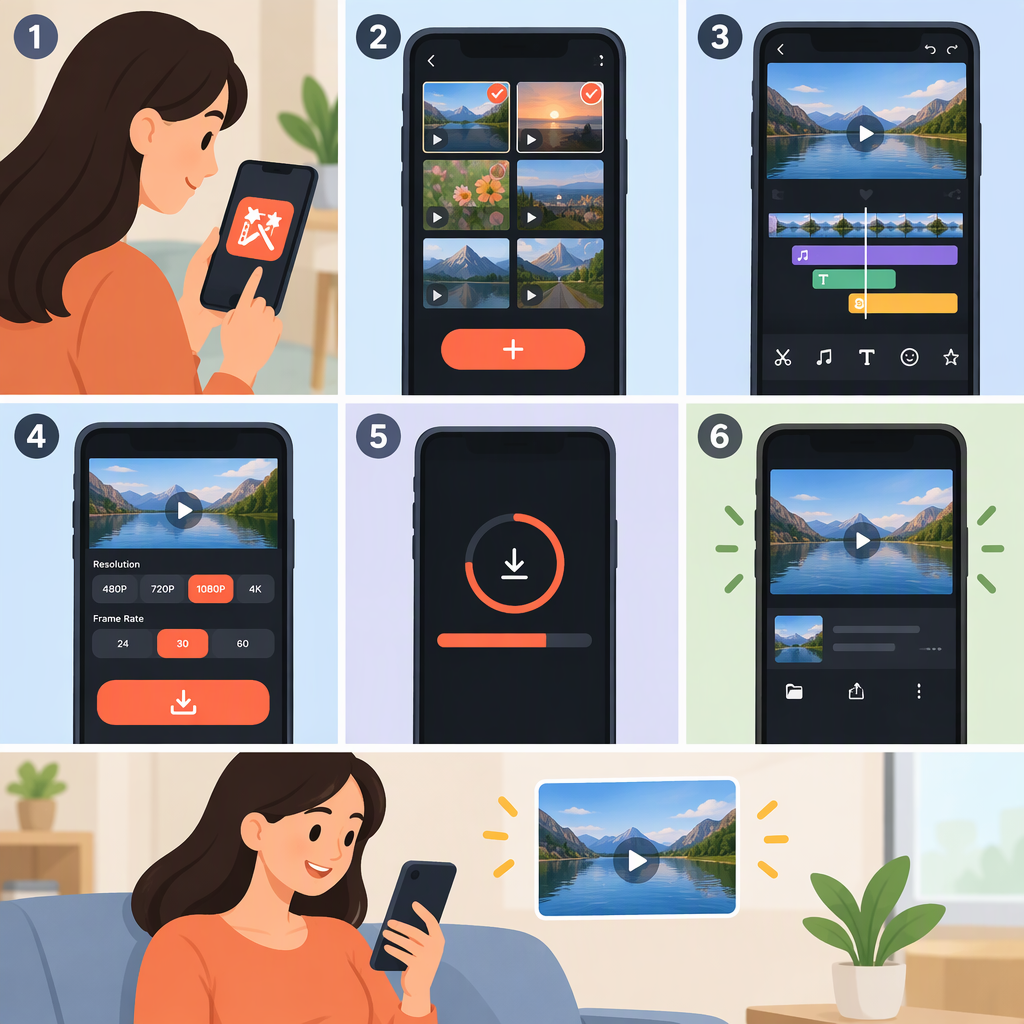
- Open VideoShow and start a video-editing project. The app’s help page refers to the editing entry point as Video Edit. If your version uses different wording, choose its standard video-editing option rather than a template or AI-generation tool. (m.videoshowapp.com)
- Select the clips or photos you want to include and proceed to the editor. Put them in the story order you want. For a short example, choose two clips: an establishing shot first, then the main action.
- Trim the clips. Remove unwanted footage from the beginning or end so the sequence gets to the point. VideoShow’s current store descriptions list trimming and splicing among its editing tools. (play.google.com)
- Add only the finishing touches you need. For example, add a short title or background music. The store descriptions list text and music options; the app’s help also explains how to import your own music and then open Video Edit. Keep music low enough that speech remains clear. (play.google.com)
- Preview the whole sequence. Check that the clips are in the right order, the trims make sense, text is readable, and the audio is suitable. Make any corrections before exporting.
Export and Check the Saved Video
Choose the app’s Export option when the edit is ready, then select an available output quality. The current Google Play listing advertises video export up to 4K; Apple’s listing describes 720p, 1080p, and 4K export. These are store-listed capabilities, not a guarantee that every option appears on every device, version, or project. For a basic shareable video, choose a resolution that suits the intended destination and your source footage; a higher resolution can mean a larger file. (play.google.com)
Follow the app’s save or share prompt, then open the resulting video from your device’s Photos or Gallery app to confirm it plays and includes the full edit. If you cannot find it, return to VideoShow and check the export result or prompt before exporting again. Exact destination labels and save behavior can differ by platform and app version, so this guide does not assume a particular folder or button sequence.
Quick Checklist
- You opened the mobile VideoShow editor you intended to use.
- The clips or photos are in the right order and trimmed as needed.
- The preview looks and sounds right from beginning to end.
- You selected an available export quality and confirmed the resulting video plays.
In short: use the mobile app’s video-editing option, select and arrange media, trim and preview, then export and check the saved result. Because the two app-store versions and app updates may present different controls, follow the labels shown in your own installation rather than relying on a platform-specific button sequence.