How to Edit Tiktoks: A Simple Step-By-Step Guide
How Do You Edit Tiktoks?
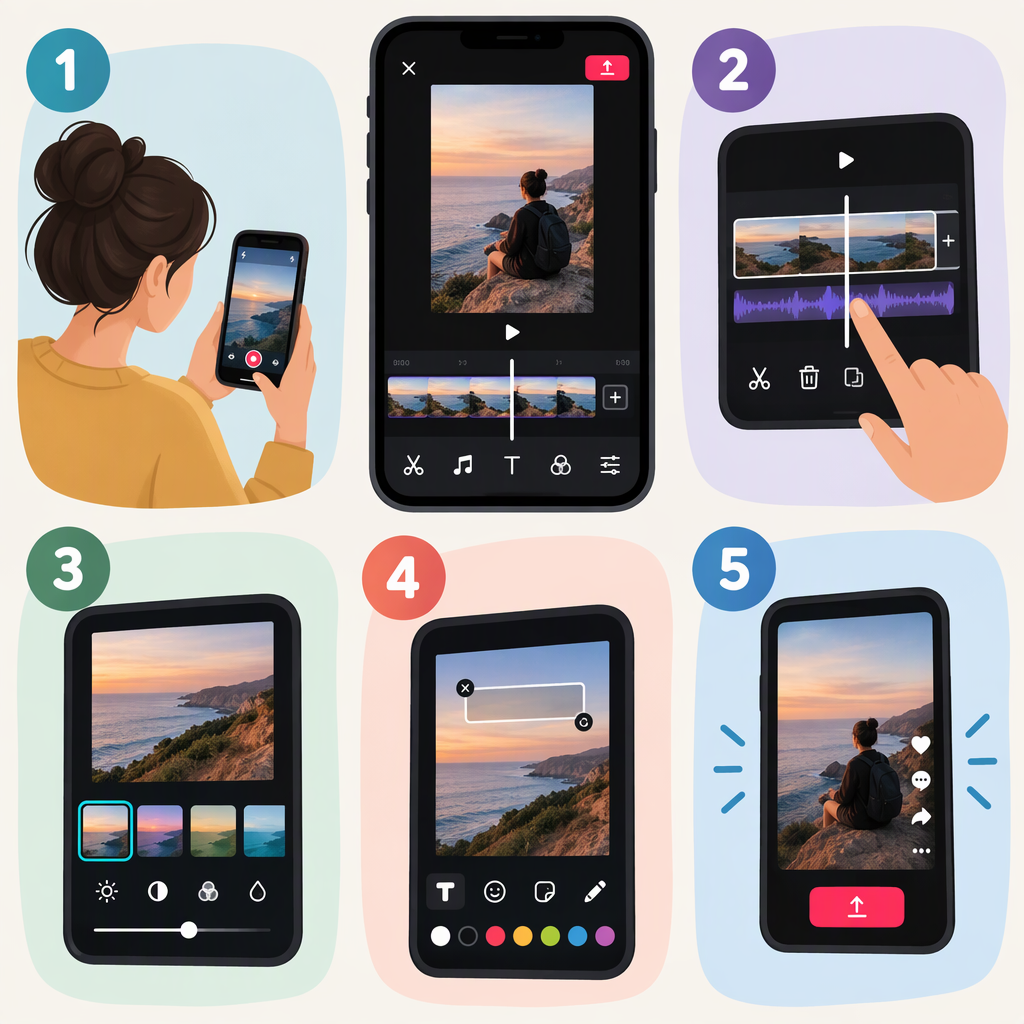
In the TikTok app, start a post by recording a video or choosing footage to upload. Use the editing tools to trim or split clips, arrange them, and add sound or on-screen text if you want. Preview the full video, then save it as a draft or publish it. TikTok’s editing tools include controls for clips, sounds, text, overlays, and speed, though the options you see may depend on the editing flow you use. (newsroom.tiktok.com)
1. Start a Video
- Open TikTok and tap Add post (+).
- Record a clip, or choose existing video footage to upload.
- Continue to the editing or preview screen. For a video recorded in TikTok, the Help Center says to tap Continue after recording to edit. (support.tiktok.com)
You can make a straightforward edit in TikTok. If you have already assembled a video in another editor, you can upload that finished file instead; adding another app is optional, not required for the basic in-app workflow.
2. Cut and Arrange Your Clips
Open the clip-editing controls if they appear. TikTok describes its enhanced editing tools as supporting stacking, trimming, and splitting clips. Use those controls to remove unwanted footage or break a clip into sections; arrange the sections in the order that makes the video easiest to follow. (newsroom.tiktok.com)
Example: If a clip shows you preparing a recipe, you might trim a long pause, split out a brief step you want to move, then preview the sequence to check that the action still makes sense. This is an illustrative workflow, not a tested result.
Play the edit from beginning to end before moving on. Check that it starts where you intend, that cuts do not remove information viewers need, and that the ending does not feel abrupt. If the timeline or a particular control is not available in your editing screen, skip that adjustment rather than assuming the same controls appear in every flow.
3. Add Sound or Text, If Useful
To add a TikTok sound: TikTok’s instructions say to tap Add sound on the recording screen, preview a sound, and select one. You can also add a sound while on the editing screen. The Edit control lets you adjust the sound clip. (support.tiktok.com)
To add text: After recording or uploading, tap Text, enter your words, and position them on screen. TikTok also describes options for changing the font, color, alignment, and size. Preview the video to check that the text appears at the right moment and is readable against the footage. (support.tiktok.com)
Keep optional elements purposeful: for example, a short label can clarify a step, while music can sit behind spoken instructions. Check playback with the sound on—and, if the message depends on narration, check whether the main point remains clear when muted.
4. Preview, Then Save or Publish
Before finishing, watch the whole video and check the clip order, sound, text placement, and whether anything important is hard to see or hear. If you are not ready to publish, TikTok says you can tap Drafts from the post page. Drafts are saved to the videos tab on your profile and are only visible to others if you post them. TikTok also cautions that drafts may be removed if you uninstall and reinstall the app or move your account to another device; drafts cannot be transferred between accounts. (support.tiktok.com)
If you are ready to share, finish the post flow and publish. Before posting, you can choose a cover frame from the video using Select cover on the post screen. (support.tiktok.com)
What If the TikTok Is Already Published?
A draft and a published post are different situations. TikTok’s public help instructions cited here explain how to edit before posting and save a draft, but do not establish that you can re-edit the video itself after it is live. So, do not assume you can replace its footage or redo its sound and on-screen edits in place.
If you need to change the video itself, keep the original footage or project, make a corrected version, and review it before deciding whether to publish it separately. That is a practical workaround, not a guarantee about what post-editing options your account will show. Check the options on the post in your own app before deleting or replacing anything; deleting a post is a separate action, not an edit. (support.tiktok.com)
Quick Editing Checklist
- Trim pauses or footage that does not help the video.
- Check that the clips are in a clear order and the cuts make sense.
- Make sure sound does not make speech difficult to hear.
- Keep text readable and on screen long enough to follow.
- Watch the full preview before saving the draft or publishing.