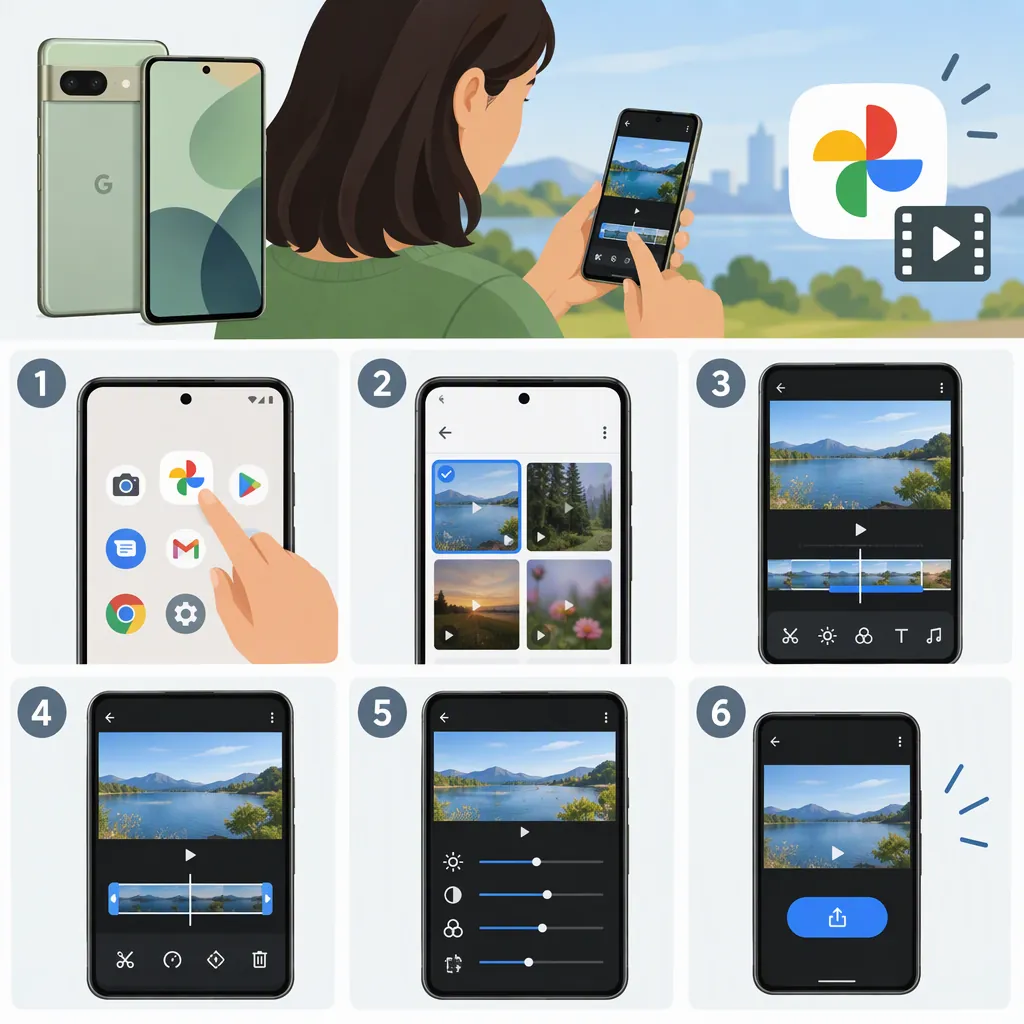
How to Edit Video on Google Pixel with Google Photos
To edit a video on Google Pixel, open it in Google Photos, drag the trim handles to shorten it, and use the available tools to crop, rotate, stabilize, or adjust its appearance. Tap Save to save a copy with your edits. Some tools have device requirements; Google documents the Audio controls for Pixel 8 and newer. [gp-video]
Open Your Video and Trim It
Google Photos provides video-editing tools on Android. Google's current instructions describe a refreshed editor with a scrollable action bar; this guide follows those documented controls rather than assuming an older editor layout. [gp-video]
- Open Google Photos on your Pixel.
- Open the video you want to edit.
- Touch and hold a trim handle, then drag it to choose where the retained footage begins or ends.
- Tap Save at the top to save a copy with your edits. [gp-video]
A useful editing order is to trim first, then adjust framing and appearance. This is a suggested workflow, not a required sequence. Before saving, review the beginning and ending so you do not cut off speech or an important action.
Crop, Rotate, and Stabilize
Use Crop to change the framing. Within that tool, Aspect ratio changes the shape of the frame, Rotate turns the video 90 degrees, and the dial above Rotate makes smaller straightening adjustments. Mirror flips the video horizontally. Automatic straightening is also documented, but its availability depends on the video. [gp-video]
For automatic appearance adjustments or stabilization, tap Auto, then choose Enhance to improve color and lighting or Stabilize to stabilize the video. Tap Save to keep a copy with the changes. [gp-video]
As a review step, check that cropping has not removed a face, caption, or other important detail. Compare the result before and after stabilization rather than assuming every clip needs it.
Adjust Appearance and Add Text
Tap Adjust, select an adjustment, and move its dial. Documented options include Brightness, Contrast, Highlights, Shadows, Saturation, and Warmth. Tap Done when finished; deselect an adjustment or tap Cancel to undo it. Google lists at least 3 GB of RAM and Android 8.0 or later as requirements for adjustments. [gp-video]
Under Filters, choose a filter and move the dial to change its strength. Choose None to undo the filter. Google lists the same RAM and Android requirements for filters and effects. [gp-video]
To add text, tap Text, then Edit text. Use Fonts and Colour to change its appearance, then tap Done. Tap an existing text box to edit it, or Delete to remove the box. Save a copy when finished. [gp-video]
For a restrained result, make small appearance changes and review a few different moments in the clip. Check that added text remains readable against both light and dark backgrounds.
Change Speed and Check Audio Availability
To change the saved video's speed, tap Speed, drag the handles to select a portion, and choose 2x or 4x to speed it up, or ¼x or ½x to slow it down. Tap Save to save the edited copy. Changing More → Playback speed instead changes playback without editing the video. [gp-video]
Google's audio-editing instructions are explicitly limited to Pixel 8 and newer: open the video, tap Audio, then use Mute or Audio Eraser. Do not assume this documented Audio workflow is available on every older Pixel. [gp-video]
The guide also describes adding music through Audio → Add music, or Music farther along the action bar. For downloaded music, Google Photos needs music and audio access in settings. Choose On device, select a song and its section, then tap Done. The Music controls include changing the section, adjusting video-audio and soundtrack volume, and removing the song. [gp-video]
Review and Save Your Edited Copy
Google repeatedly describes Save as saving a copy of the video with your edits. After saving, review that copy rather than relying only on the editor preview. [gp-video]
The checklist below is a suggested quality check, not a list of additional Google Photos features. If a control is missing, consult the documented requirements rather than assuming that every Pixel has every tool. The supplied source does not provide a complete model-by-model availability table.
Edited Video Review Checklist
- Check the first and last moments for accidental cuts.
- Confirm the crop keeps important subjects visible.
- Review color and brightness across several moments.
- Check any added text for readability.
- Listen to the result if you changed audio or added music.
- Confirm that any speed change covers the intended portion.
- Open the saved copy and review it once more.
FAQ
Does Saving Create an Edited Copy?
Yes. Google's video-editing instructions describe tapping Save to save a copy of the video with your edits. [gp-video]
Can I Save a Still Image from a Video?
Yes. Open the video in Google Photos and tap Export frame to export a frame from it. [gp-video]
Why Might an Editing Tool Be Unavailable?
Some tools have explicit requirements. Google lists at least 3 GB RAM and Android 8.0 or later for adjustments, filters, and effects. Its Pixel Audio instructions apply to Pixel 8 and newer, and automatic straightening depends on the video. These limits do not establish availability for every tool on every Pixel model. [gp-video]