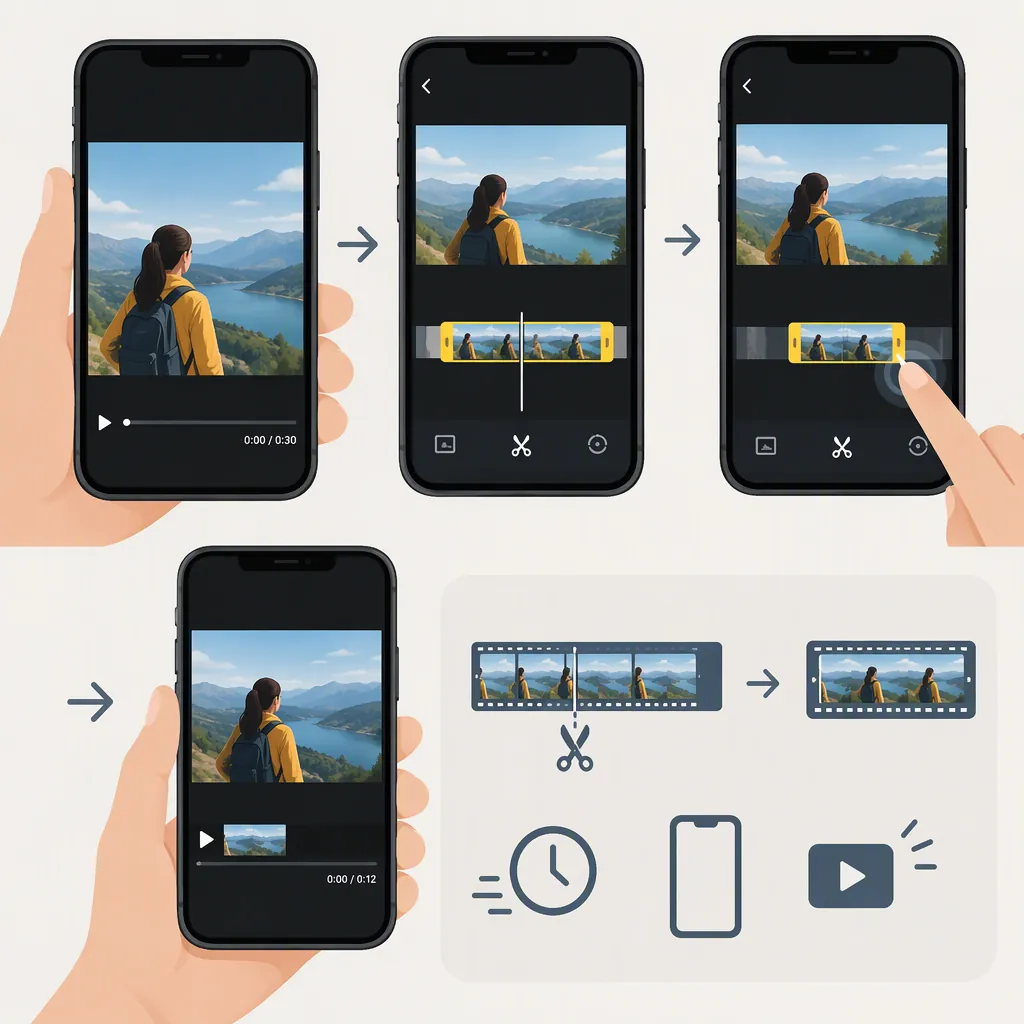
How to Shorten a Video on iPhone
To shorten a video on iPhone, open it in Photos and tap Edit. Drag the beginning or end of the video timeline inward to keep only the portion you want, then tap Done. Choose Save Video as New Clip if that option appears and you want to keep the original separately. To remove a section from the middle, use iMovie to split the video and delete the unwanted segment. [src_1]
Choose Between Trimming and Cutting
Start by deciding which part of the video you want to remove:
- Extra footage at the beginning or end: Use the trim controls in Photos.
- An unwanted section in the middle: Use iMovie to split the video and remove that section.
The supplied guide describes Photos for trimming either end and iMovie for splitting and deleting portions within a video. [src_1]
Source limitation: The guide was last updated on October 18, 2022. These steps reflect that walkthrough, not independently verified instructions for the latest iOS or iMovie release. Treat button names and locations as a guide rather than a guarantee of what your screen will show. [src_1]
Trim the Start or End in Photos
Use this workflow when the footage you want to keep is one continuous section:
- Open the video in Photos. Find the recording you want to shorten.
- Tap Edit. The reference places this button in the top-right corner.
- Adjust the beginning. Drag the timeline’s starting handle inward to exclude footage before your chosen start.
- Adjust the ending. Drag the ending handle inward to exclude footage after your chosen finish.
- Review your selection. Check that you have not cut off a needed word, movement, or moment.
- Tap Done. Choose the available save option that matches how you want to keep the edit. [src_1]
You only need to move the boundary you want to change. For example, leave the starting boundary in place if you only want to remove footage from the end.
Before-Saving Checklist
- The selected start includes the first moment I need.
- The selected end includes the last moment I need.
- I have reviewed the retained footage.
- I have decided whether to keep a separate original.
Save a Separate Trimmed Clip
The reference describes two save choices after trimming in Photos: Save Video and Save Video as New Clip. It states that saving as a new clip keeps the original video as well. [src_1]
If preserving the full recording is important, choose Save Video as New Clip when it is offered. After saving, check that you can find both the shorter clip and the original before deleting anything.
Do not assume every save choice behaves identically. The supplied guide is dated, and its wording about restoring edits is unclear; this article does not rely on it to promise that every saved version can be restored.
Remove a Middle Section with iMovie
Dragging the outside boundaries inward is not the workflow for keeping both the beginning and ending while removing footage between them. The supplied guide uses iMovie’s split and delete tools for that kind of edit. [src_1]
- Create a movie project in iMovie and import the video.
- Select the clip and position the playhead where the unwanted section begins.
- Split the clip at that point.
- Move to the end of the unwanted section and split again, isolating it from the footage you want to keep.
- Select and delete the unwanted segment.
- Preview the join between the remaining parts, then export the finished video to your photo library. [src_1]
Review the exported result, especially the moment where the two retained sections meet. If you only need to shorten one end, the Photos workflow above avoids the extra splitting steps.
FAQ
Can I Shorten an iPhone Video Without Using iMovie?
Yes, for trimming the beginning or end. The supplied guide describes using the built-in Photos app: open the video, tap Edit, move the timeline boundaries inward, and tap Done. [src_1]
How Do I Keep the Original Video After Trimming?
Choose Save Video as New Clip if that option is available. The supplied guide says this keeps the original alongside the shorter clip. Check both copies after saving; the guide's interface instructions date from 2022. [src_1]
How Do I Cut Out the Middle Without Losing the Start and End?
Use the split-and-delete workflow described for iMovie. Split at the beginning and end of the unwanted section, delete the isolated segment, then preview and export the remaining footage. [src_1]