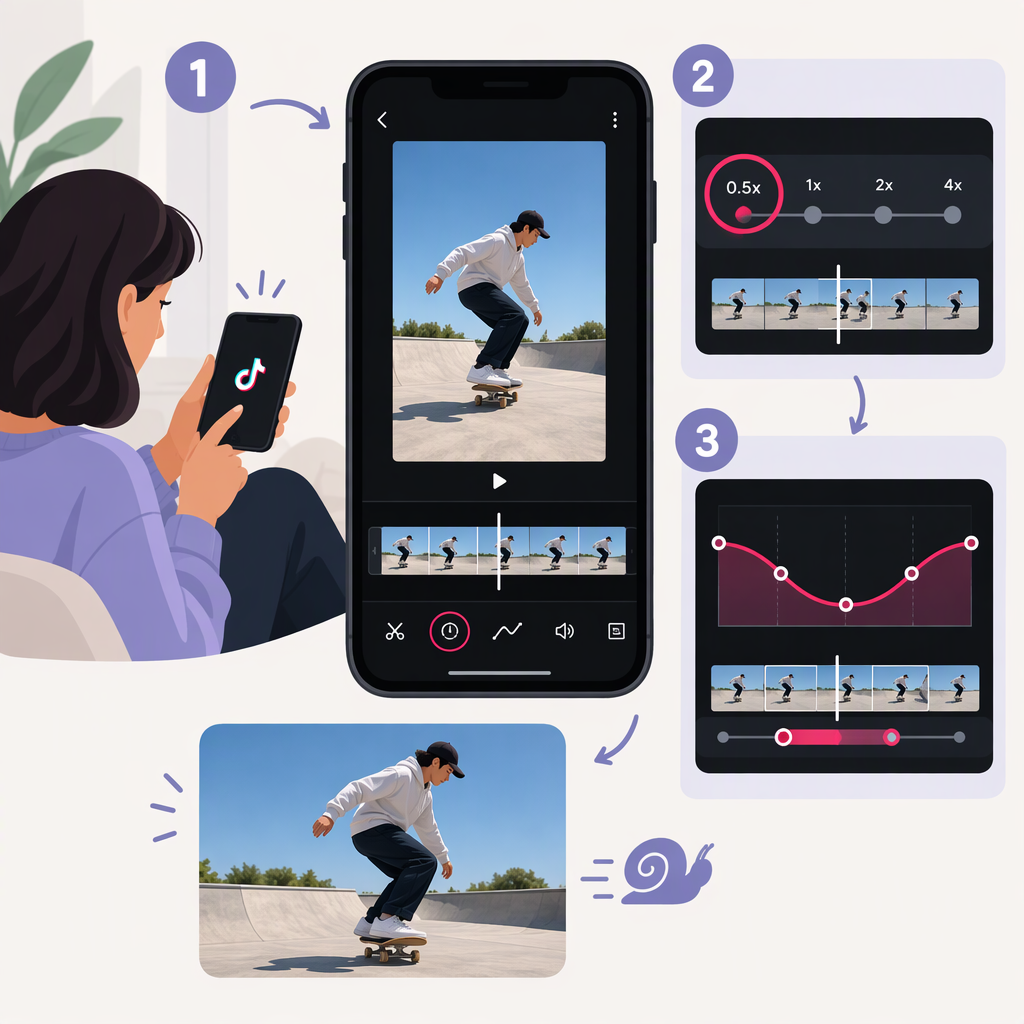
How to Slow a Video on TikTok (and Use Curve Speed)
Quick Answer
To slow a clip as you record it, tap Add post (+), choose Speed, and select 0.5x or 0.3x before recording. To slow footage you’ve already recorded or uploaded, open TikTok’s editing screen, select the clip, tap Speed, choose Normal or Curve, then choose an offered speed and exit to save. TikTok’s Help Center documents both recording-speed controls and a Curve option in clip editing. (support.tiktok.com)
Use a uniform speed change when you want the whole selected clip to play more slowly. Choose Curve when you want the pace to vary within the clip. TikTok’s help page confirms the Curve option, but does not specify its curve presets, detailed controls, or numeric speed choices for editing.
Slow a Video While Recording
- Open TikTok and tap Add post (+).
- Tap Speed on the side panel.
- Choose 0.5x or 0.3x to record at a slower speed. TikTok lists 1x as standard and 2x and 3x as faster options.
- Record your clip, then continue to editing or posting.
These are the speed choices TikTok lists for recording. They are not necessarily the full set of choices shown when you adjust a clip after recording. (support.tiktok.com)
Slow an Existing or Newly Recorded Clip
- Tap Add post (+) and record a video, or tap Upload to choose an existing video from your device.
- Open the editing screen. For an upload, TikTok’s instructions say to tap Next, then Edit. For a recorded video, tap Edit on the side panel; you may need to tap Continue first.
- Tap the clip you want to change, or tap Edit at the bottom.
- Tap Speed at the bottom.
- Choose Normal for a uniform speed adjustment or Curve for a curve option, then select an available speed.
- Tap the exit button to save the speed change to that clip.
TikTok says speed adjustment is available for video clips and that you can add only one speed option to each clip. Its help page does not list the numeric choices in the editing screen, so use the options actually displayed in your app rather than assuming they match the recording controls. (support.tiktok.com)
Normal Speed or Curve?
- Normal: Choose this when you want one speed treatment for the selected clip—for example, to make an entire action play more slowly.
- Curve: Choose this when you want speed to vary within the clip. TikTok’s instructions confirm that Curve is available in the editing flow, but don’t explain the presets or how to shape the curve. Follow the controls displayed in the editor; don’t assume a particular set of curve patterns or speeds.
The editor applies a speed option to the clip you selected. If you need different treatments for separate moments, TikTok’s editing instructions also describe splitting a clip. You can then select a segment and adjust its speed. The help page does not explain how speed changes interact with audio, so preview the finished edit to check both pacing and sound before posting. (support.tiktok.com)
Check the Result Before Posting
Play the edited clip from the beginning. Confirm that the intended moment is slow—or that the pace changes where you intended if you used Curve—and listen for any audio changes you don’t want. If the speed control isn’t visible, check that you’ve opened the editing screen and selected a video clip; TikTok’s documented steps place Speed there. The cited instructions do not establish differences by device, region, account, or app version, so they should not be taken as a guarantee that every interface looks identical.