How to Edit Seconds on TikTok: Adjust Clip Length and Timing
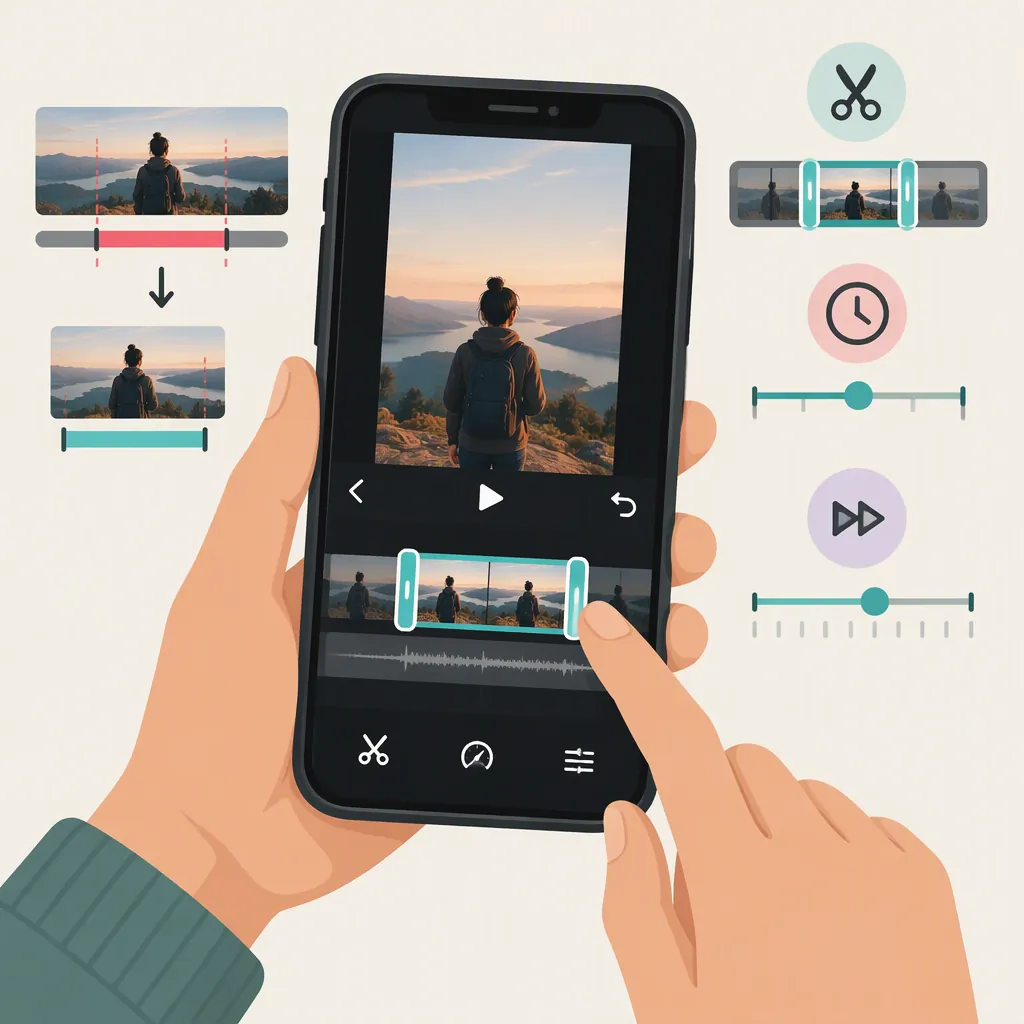
To edit the seconds in a TikTok draft, open Profile, select the draft, and look for Edit. Select the video clip in the timeline, drag its trim handles to change the start or end, and save the adjustment. To set a recording duration instead, open the camera with the plus button and choose an available duration option before recording. These workflows come from a third-party guide; the exact controls available in your app may differ. [c1]
Choose Which Seconds You Want to Change
Before editing, separate two tasks:
- Trim existing footage: Choose which part of a clip to keep by moving its start and end boundaries.
- Choose a recording duration: Select a time range before filming rather than trimming footage afterward.
The supplied guide describes both draft timeline trimming and recording-duration selection. A recording preset is not the same as choosing the exact start and end of an existing clip. [c1]
For a timing plan, subtract the desired start time from the desired end time. For example, keeping footage from 2 seconds through 9 seconds gives you a 7-second segment. This is an illustrative calculation, not a claim that TikTok provides exact numeric time entry.
Clip Timing Worksheet
Original clip duration: ____ seconds
Keep from: ____ seconds
Keep until: ____ seconds
Planned retained duration: end time minus start time = ____ seconds
Preview checks: opening intact; ending intact; speech not cut off; audio timing acceptable.
Trim the Start or End of a TikTok Draft
The reference describes this draft-editing sequence: [c1]
- Open TikTok and go to Profile.
- Open Drafts and select the video you want to adjust.
- Look for Edit and select the video in the timeline.
- Move the trim handles or sliders to choose the portion you want to keep.
- Save the adjustment using the available save control.
As a practical editing check, preview the retained footage before proceeding. Listen for clipped words and watch for an ending that stops mid-action. If the editor displays a duration, compare it with your target rather than judging length only by the width of the timeline.
Scope limitation: The reference gives these steps for a draft. It does not establish a universal workflow for every newly uploaded clip or an in-place trimming method for an already published post. Treat the labels as guidance, not a guarantee of your current interface.
Set a Duration Before Recording
If you mean “change how many seconds I can record,” use the recording controls rather than the draft trim handles.
The supplied guide says to open TikTok's camera with the plus button, choose a displayed duration option, and begin recording. It describes the recording stopping when the selected time is reached. [c1]
Choose from the options actually shown in your app. This article does not treat the guide's listed presets as a verified, current set for every user, nor does it use them to establish TikTok's maximum upload length.
If your goal is a specific retained segment, plan its start and end separately. Selecting a recording duration does not itself identify which portion of existing footage you want to keep.
What to Do If You Cannot Adjust the Length
First, check whether you are trying to change a recording duration or trim an existing draft. Those are different workflows in the reference. [c1]
The guide also lists very short clips, long clips, certain effects, and app glitches as possible obstacles to trimming. These are third-party troubleshooting suggestions, not verified universal restrictions. In particular, the supplied evidence is insufficient to establish a current minimum clip length or maximum editable duration. [c1]
If the needed trim controls are unavailable, a fallback is to prepare a shortened file in a separate video editor before uploading. The reference demonstrates a split-and-delete workflow: import the footage, split around the desired portion, delete unwanted segments, and export the retained video. [c1]
For that approach, use this editing checklist:
- Keep an unchanged copy of the source footage.
- Mark the desired start and end times.
- Remove only the unwanted sections.
- Preview the exported file, including its opening, ending, and audio.
The available evidence is a vendor-authored tutorial, not TikTok documentation. It supports the workflows above but does not verify every current interface label, format requirement, or troubleshooting explanation.
FAQ
Can I Set a TikTok Clip to an Exact Number of Seconds?
The supplied guide describes timeline sliders, but it does not establish that TikTok offers numeric duration entry. Use the displayed timing information if available and preview the result. For a planned segment, subtract its start time from its end time. [c1]
Can I Trim a TikTok After It Has Been Posted?
The supplied reference explains draft editing and editing a file before upload. It does not verify an in-place trimming workflow for published posts, so this article cannot confirm that option. [c1]
What If I Do Not See Edit or Trim Handles?
The guide describes those controls in a draft workflow, but the supplied evidence does not confirm their availability in every interface. If you cannot access the needed controls, the guide's alternative is to shorten the source footage in a separate editor and export it before uploading. [c1]