How to Make TikTok Edits Full Screen
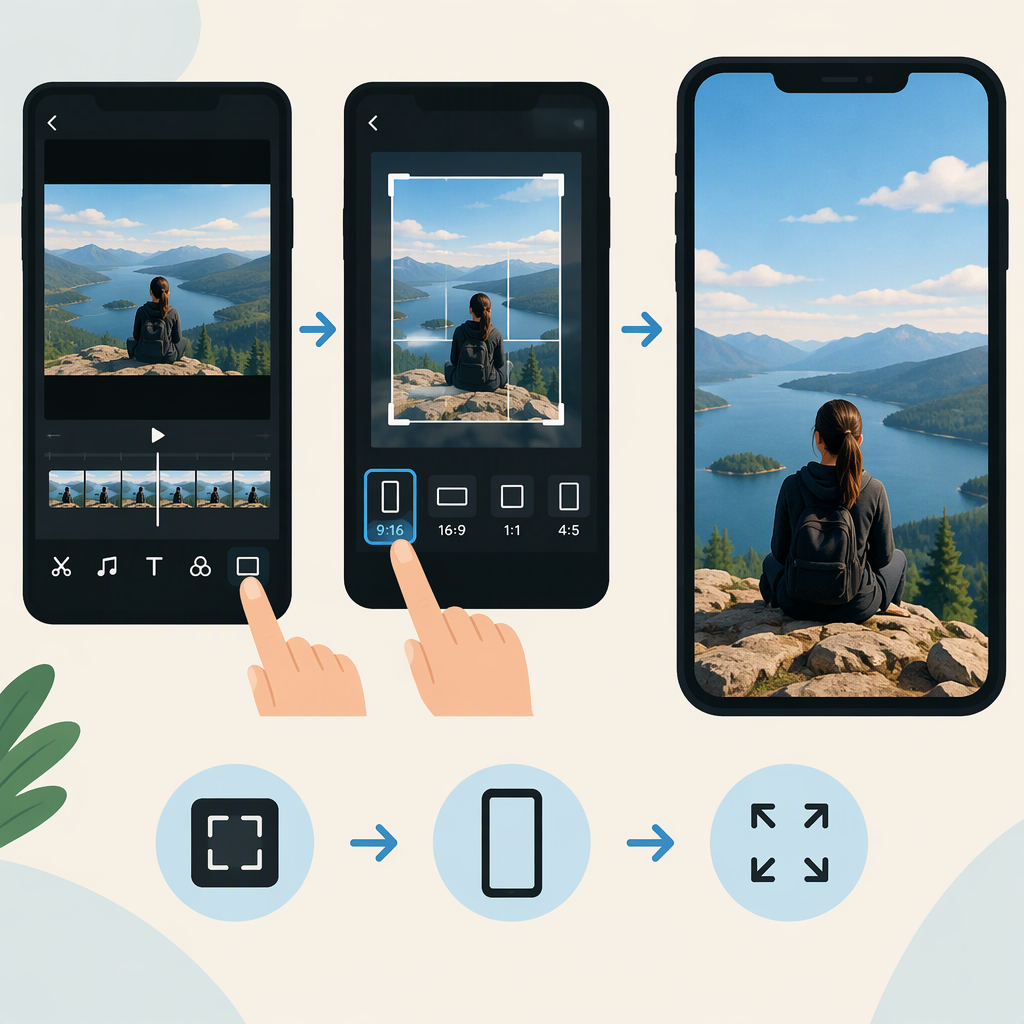
To make a TikTok edit fill the video frame, use a vertical 9:16 composition and, if an existing clip has borders, zoom in on the clip in TikTok’s editing screen. Zooming can crop the edges. “Full screen” here means the video fills its portrait frame—not that it covers TikTok’s buttons, captions, or other interface elements. TikTok’s public 9:16 guidance is for ad creative, so treat it as a useful framing target, not a confirmed technical requirement for every regular post. (ads.tiktok.com)
Choose the Frame You Want to Fill
A 9:16 frame is tall and portrait-oriented. For example, 1080 × 1920 pixels has a 9:16 ratio; that is a ratio example, not a required TikTok export size. TikTok’s business creative guidance recommends full 9:16 for its immersive ad experience, but the public sources cited here do not establish a required pixel size for regular organic posts. (ads.tiktok.com)
The video frame is only the content area. TikTok’s interface remains visible around or over the video, depending on where it appears. So, filling the video frame does not mean filling every part of the phone display.
Fit Your Clip in TikTok
TikTok’s Help Center describes uploading a clip and adjusting its zoom in the editing tools. The labels or layout may vary by app version, so look for the corresponding upload, edit, and clip controls if your screen differs. (support.tiktok.com)
- Tap Add post (+) and choose Upload to select a video from your device.
- Tap Next, then Edit to open the editing tools.
- On the editing screen, tap the clip—or tap Edit at the bottom—to select it.
- Pinch out on the clip to zoom in and fill more of the frame. Pinch in to show more of the original image.
- Preview the video before posting. Check that the main subject and any important text remain in view.
If you record in TikTok instead, the Help Center says to tap Edit after recording; you may need to tap Continue first. Then select the clip and adjust its zoom in the editing screen. (support.tiktok.com)
Fix Borders or Unwanted Cropping
When a clip’s shape does not match the portrait frame, you are choosing between two visual outcomes:
- Fill the frame: Zoom in until the borders disappear. This enlarges the image, so some of its edges may be cut off.
- Keep the whole image visible: Zoom out enough to preserve the edges. Depending on the clip and preview, unused space around the video may remain.
For example, a landscape clip placed in a portrait frame will need substantial cropping to fill it. If the subject is near an edge, keeping the full landscape image visible may be preferable to cutting the subject off. This is a framing trade-off, not a guarantee that TikTok offers a separate background-fill option; the cited editing guidance confirms pinch-to-zoom, not a specific background treatment. (support.tiktok.com)
Before posting, preview the result and check the subject, faces, and text near the edges. Also check that important details are not covered by TikTok’s on-screen interface. The sources cited here do not provide a universal safe-area measurement, so use the actual preview rather than relying on a fixed margin.