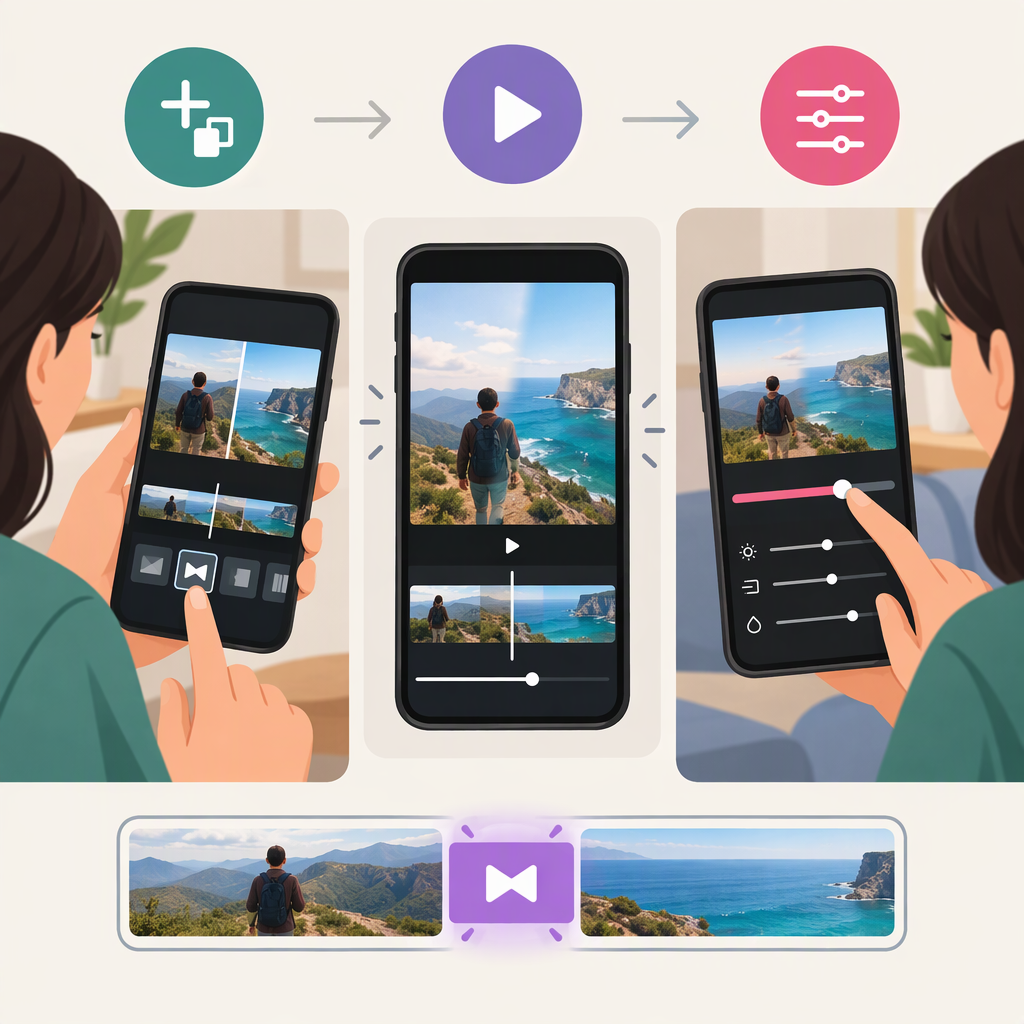
How to Do a Transition on TikTok: Add, Preview, and Smooth Your Edit
How to Do a Transition on TikTok
In the TikTok app, start a post with two or more clips, open the editing tools, and look for Effects or Transitions. Choose a transition, place it where you want the change to happen, then play back the video and adjust if needed. TikTok’s editing tools support multi-clip editing and transitions, but the precise controls can differ between editing screens and app versions. (support.tiktok.com)
Add and Preview a Transition
- Open TikTok and tap Add post (+). Record clips or tap Upload to choose clips from your device. TikTok’s Help Center describes both recording and uploading as ways to start a post. (support.tiktok.com)
- Continue to the editing screen. If you recorded in TikTok, you may need to tap Edit; for uploaded content, TikTok’s documented route is Next, then Edit. (support.tiktok.com)
- Find Effects or Transitions in the editing controls. In a commonly documented in-app workflow, tap Effects, open the Transition tab, and move the playhead to the point where you want the effect. The exact label or location may vary; TikTok’s Help Center confirms transitions are part of its editing tools, while this specific sequence is described by a third-party how-to guide. (support.tiktok.com)
- Choose a transition effect, then tap Play to review the edit. If the timing or effect looks wrong, undo it or try another placement before saving. (wikihow.com)
- When the preview looks right, save the edit and continue with the post.
If you can’t find the control: Check that you’re in the post’s editing screen, not just the recording camera. TikTok’s documented editing route differs slightly depending on whether you recorded or uploaded the video. If the transition option still isn’t present, the control may be presented differently in your version of the app; avoid assuming the Ads Manager editor’s steps apply to a regular post. (support.tiktok.com)
For a Custom-Looking Transition
A transition can also be created in the footage itself—for example, end one clip with your hand covering the camera, then start the next with your hand in a similar position and trim the clips near the moment the view is covered. This is a filming-and-cutting approach, not a built-in transition effect. It can suit a reveal or outfit change; a built-in effect is simpler when you want an effect between clips without matching the shots yourself. A creator tutorial describes this kind of hand-cover technique; treat it as an example, not a guaranteed result. (kapwing.com)
If the Transition Looks Abrupt
Replay the edit around the change. If the clips seem to jump at different moments, adjust their trim points or split a clip closer to the intended change. TikTok documents tools for shortening or lengthening clips and splitting them in the editing screen; using those tools to refine the transition is a practical editing step, not a guaranteed fix for every abrupt-looking edit. (support.tiktok.com)
Quick check: Watch the transition at normal speed, including a moment before and after it. Confirm the change happens where you intended and that neither clip cuts off an important movement.