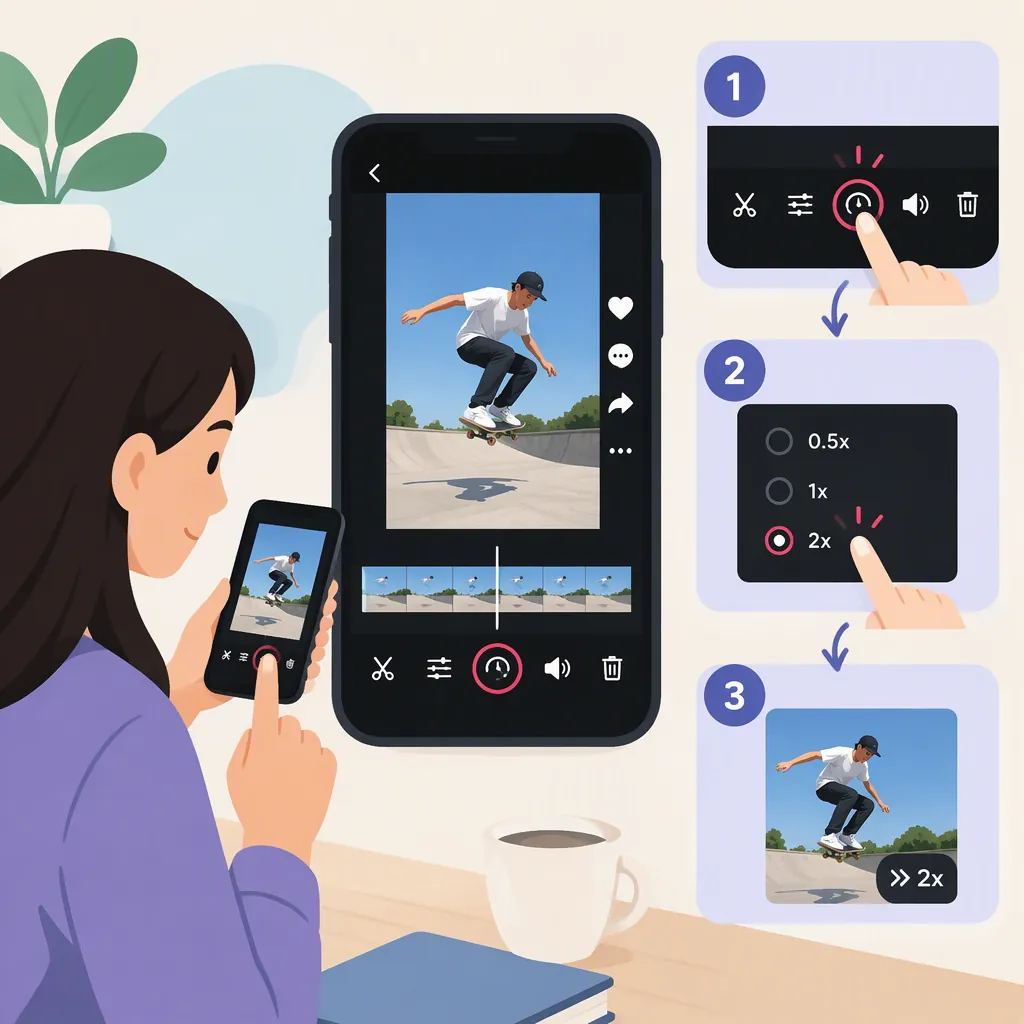
How to Make a Video 2X Speed on TikTok
To make a video 2x speed for TikTok, apply a 2x recording or clip-speed setting, if your workflow offers one, then preview the result at normal playback speed. For existing footage, doubling the speed makes an unchanged 10-second segment last approximately 5 seconds. Changing the speed while watching a TikTok does not change the video you are creating.
Interface limitation: This article provides a conditional workflow, not a verified button-by-button guide to TikTok’s current interface. The wikiHow reference introduces both watching and creating TikToks at 2x speed, but its available text does not establish control names, locations, or availability. [c1]
Choose the Right Workflow
Choose the route that matches your footage:
- New recording: Look for a recording-speed setting in TikTok’s video-creation workflow, and test the result before recording the full video.
- Existing video: Use a clip-speed setting in your editing workflow. If that workflow does not offer one, use an editor that explicitly supports 2x speed, save the edited video, and use that file for TikTok.
In either case, the goal is to change the recorded or edited video—not just how quickly its preview plays.
Make a New Recording at 2X Speed
Start with a short test so you can confirm what the available setting does.
- Open TikTok’s video-creation workflow.
- Check for a recording-speed control. It must affect the recording, rather than playback while viewing.
- Select 2x if it is available.
- Record a brief, recognizable movement, such as moving an object across a table.
- Preview the recording at normal playback speed. Confirm that the recorded action is accelerated, without applying a separate viewing-speed change.
- Record your full video using the same setting if the test produces the intended result.
If no recording-speed control is available, do not substitute an unrelated playback setting. Instead, record your footage and follow the existing-video workflow below.
Make an Existing Video 2X Speed
For footage you have already recorded:
- Open the video in your editing workflow.
- Select the clip or segment you want to accelerate. Decide whether the change should affect the whole video or only part of it.
- Check for a clip-speed control. A preview playback setting alone will not establish that the finished video has changed.
- Apply a 2x multiplier if the editor offers it.
- Preview the entire sequence at normal playback speed, including the cuts into and out of the faster section.
- Save the edited result, then check it before using it for your TikTok video.
If your TikTok editing workflow does not expose a clip-speed control, use a video editor that explicitly supports 2x speed. Apply the change there, save the resulting file, and use that file in TikTok’s video-creation workflow.
Verify That the Result Is 2X Speed
Visual inspection can show that motion is faster, but it cannot reliably confirm the exact multiplier. For existing footage, compare the duration of the same unchanged segment before and after the edit:
Duration at 2x speed = original duration ÷ 2
For example, a 10-second segment should take approximately 5 seconds to play at a constant 2x speed.
This comparison is useful only when you have not also trimmed the segment, added pauses, or made other changes that affect its duration. Compare the accelerated segment itself, not the total video if other sections remain at their original speed. Keep preview playback at normal speed during the check.
For a new recording, use the short test to confirm that the setting affects the recorded result. Motion alone confirms acceleration, not an exact 2x rate.
Final Check Before Posting
Use one final preview to check both the speed change and the rest of the edit:
- Speed: Where a duration comparison is possible, the unchanged segment lasts approximately half as long.
- Scope: Only the intended clip or segment is accelerated.
- Motion: The action looks suitable at the faster pace.
- Audio: Speech, music, and other sound suit the result. Listen rather than assuming how the editor handles audio.
- Text: Captions and on-screen text remain readable.
- Transitions: Cuts into and out of the faster footage work at the new pace.
- Playback: The preview is running at normal viewing speed, not a separate 2x playback setting.
FAQ
Does Selecting 2X While Watching a TikTok Make My Video Faster?
No. A viewing-speed setting changes the viewing experience, not the recorded or edited file. The wikiHow reference covers watching and creating TikToks as separate tasks, so a viewing control should not be treated as a creation-speed control. [c1]
What If My Video Becomes Shorter but Does Not Look Faster?
Check whether you trimmed the footage rather than changing its speed. Trimming removes footage; a constant 2x speed change plays the same action in half the time. To verify the multiplier, compare the same segment before and after editing without other duration-changing edits.
Can I Speed up Only Part of My Video?
If your editor supports applying speed to a selected segment, select that portion and apply 2x there. Preview the surrounding footage to confirm that the rest remains unchanged and that the transitions work.
Will 2X Speed Change the Audio?
Do not assume a particular audio result. Listen to the edited preview and the saved file to check whether speech, music, and other sounds still suit the video. The cited reference’s available text does not verify how TikTok’s speed controls handle audio. [c1]