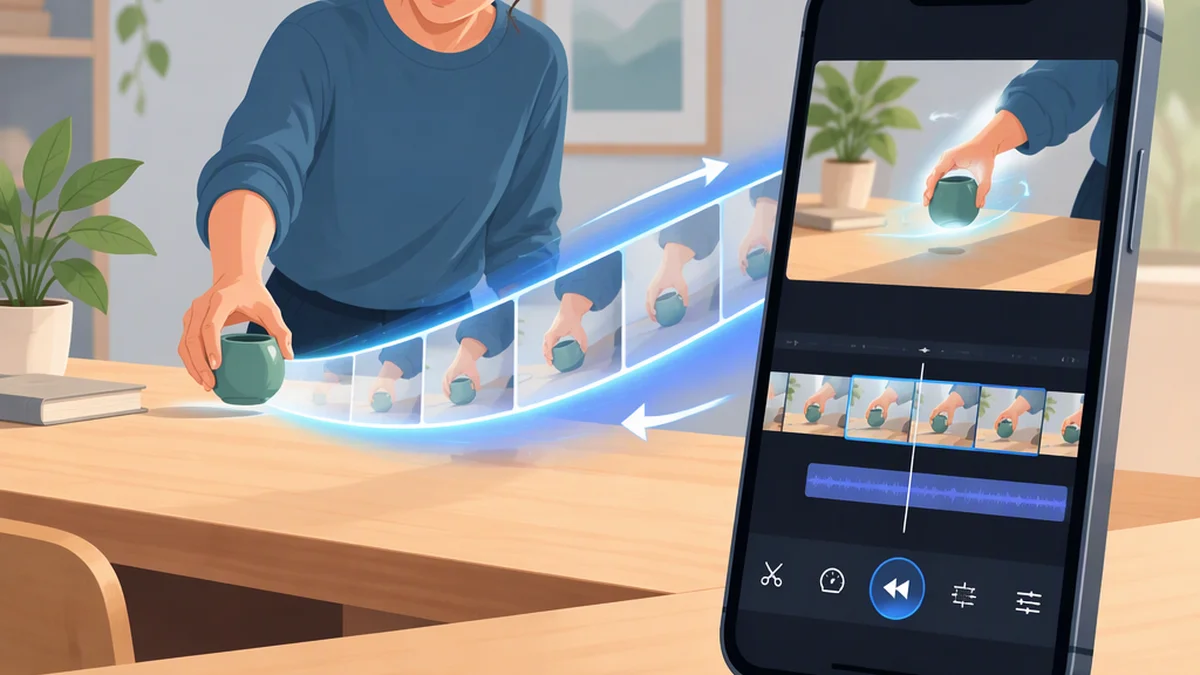
How to Play TikTok Videos in Reverse
If your TikTok editing interface offers Reverse, you can use it to make a recorded or uploaded clip play backward. The workflow documented in the linked guides is Effects > Time > Reverse: apply the effect, preview the result, and save it before continuing.
This is an editing effect, not a general playback control for watching another creator’s published TikTok backward. To reverse an existing post, you need a permitted copy and an editor that supports reversal.
Availability note: The guides below were updated in 2021 and 2022. They document an older TikTok workflow, not a verified layout for every current account or device. Labels, feature availability, audio behavior, partial-clip controls, and export options may differ in your app.
How to Reverse a TikTok Video in the App
If your editing interface includes Reverse, follow the workflow documented by Business Insider and FlexClip:
- Start a post. Open TikTok and tap the plus (+) button.
- Record or upload a video. Use the recording button, or choose a clip from your camera roll.
- Open Effects after recording or importing. This is the editing screen, not the camera-effects menu shown before recording.
- Find Time or Time Effects. You may need to swipe across the effect categories.
- Select Reverse. The preview should show the clip running from its ending back to its beginning.
- Review the video and sound. Watch the full clip before accepting the edit.
- Save the effect and continue. In the documented workflow, tap Save, then Next to continue to captions, privacy settings, and posting options.
Uploading a video from your camera roll uses the same workflow; you do not have to record it inside TikTok.
How to Check Whether Reverse Worked
A reversed clip should start with frames from the original ending and finish with frames from the original beginning.
- Movement: An object being picked up should appear to return to the surface. Someone walking forward should appear to retrace their movement backward.
- Text: Reversal changes the order of frames; it does not mirror the image or flip letters left to right. Check whether animated text and captions still appear at the right moments and match the reversed action.
- Transitions: Watch the first and last seconds, as well as any cuts. Reversed entrances, exits, and scene changes can feel abrupt.
- Audio: Listen to the preview rather than assuming the sound stays unchanged. If speech becomes unclear or no longer matches the action, adjust it or add a new voice-over or soundtrack you are allowed to use.
What to Do If You Cannot Find Reverse
First, confirm that you have recorded or imported a video and are looking at the post-recording editing controls. Then:
- Swipe through the effect categories to look for Time.
- Check any available Edit, Effects, or timeline panel.
- Try a short local clip to see whether the problem is specific to your original video.
If Reverse still is not available, use another editor that supports video reversal rather than relying on an older tutorial’s button locations.
Reverse a Video in Another Editor
The exact labels vary, but the general workflow is:
- Obtain a local video you are allowed to use. Use your own footage or a permitted copy.
- Import it into an editor with a reverse function.
- Select the clip or segment to reverse. If necessary, split or trim a longer video first.
- Apply Reverse.
- Preview the picture and audio. Adjust or replace the soundtrack if needed.
- Export the edited video. You can then watch the exported file locally or upload it to TikTok.
Check the editor’s privacy, watermark, and export conditions before uploading sensitive footage.
Can You Play Someone Else’s TikTok in Reverse?
TikTok does not provide a general reverse-playback mode through its ordinary viewing controls, according to the linked guides. Dragging a progress bar to revisit a moment is not the same as playing the video backward.
To reverse another creator’s post, obtain a permitted copy and follow the external-editor workflow above. Local viewing and republication are different uses: exporting a reversed file to watch yourself does not give you permission to post it publicly.
Before republishing, make sure you have permission or another applicable right to edit and share the clip. Follow TikTok’s copyright and community rules, credit the creator where appropriate, and do not present their work as your own.
Ideas for a Reversed TikTok
These are examples, not guarantees of audience results:
- Object-return illusion: Record a lightweight object being placed on a table. In reverse, it appears to return to the person’s hand.
- Drawing that disappears: Record yourself creating a drawing, then reverse the footage so the marks appear to disappear.
- Matching-pose transition: Reverse a clip and cut to another shot with a similar pose at the transition point.
- Backward movement: Use a short, safe walking scene to create an unusual motion effect.
Keep filming safe; do not perform a dangerous action just to make the reversed version look surprising.
FAQ
Does Reversing a TikTok Reverse the Sound Too?
Do not assume either outcome. Preview the audio in your editing workflow. If it becomes unintelligible or no longer fits the visuals, adjust it or replace it with audio you are permitted to use.
Can I Reverse Only Part of a Video?
If your editor supports segment selection, select or isolate that portion before applying Reverse. Otherwise, split or trim the video in an editor that supports both functions, reverse the segment, and combine it with the remaining footage.
Can I Undo the Reverse Effect?
Business Insider’s documented workflow says to select None to remove the effect before continuing. If that option is not present, use an available undo control or return to the original clip and edit it again.
Can I Save a Reversed Video Without Posting It?
Check the save or export options in your app. A TikTok draft is not necessarily a video file in your phone’s folders. If you need a local file and TikTok does not offer a suitable export option, reverse and export the clip in another editor.
Why Do My Captions No Longer Match the Video?
Reversal changes when actions occur, which can put captions or animated text out of sync. It does not make the letters themselves appear mirrored. Adjust the text timing or add new captions after reversing the clip.