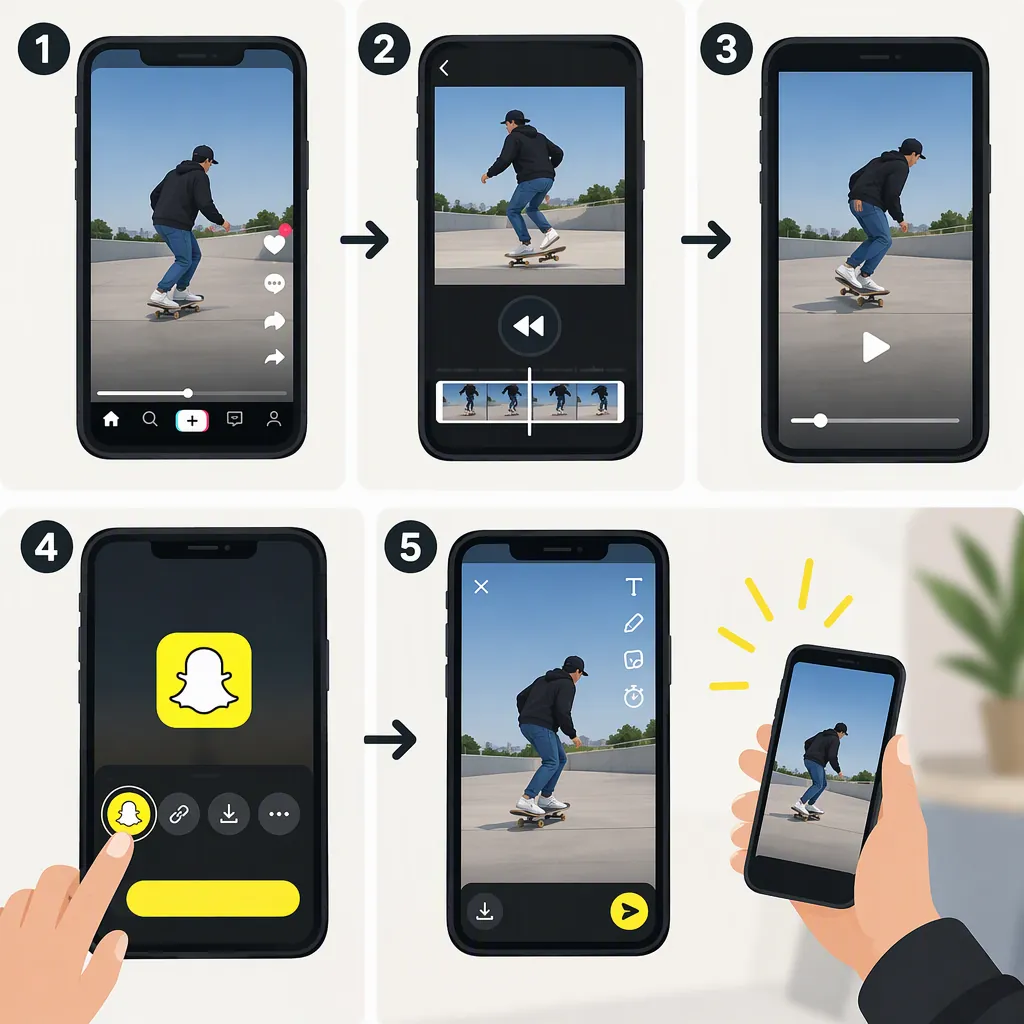
How to Reverse a TikTok Video on Snapchat
If you already have the TikTok video saved on your phone, try opening it in Snapchat’s Memories → Camera Roll, choosing Edit Snap, and swiping through the filters for the reverse effect. The supplied CapCut guide describes this workflow and recommends trimming clips to under 10 seconds if the filter is missing. It is a third-party guide, not confirmation that every imported TikTok will work in the current Snapchat app. [c1]
Before You Start
Start with a video file already saved on your phone, preferably your own clip or one you have permission to edit and share. These instructions begin with that file; the supplied reference does not document TikTok’s download controls.
Here, reverse means playing the action backward in time, not mirroring the picture left to right.
The only supplied source is a CapCut guide dated June 17, 2025. It describes reversing existing videos through Snapchat’s editing filters, including videos saved from other apps if they meet Snapchat’s requirements. It does not establish that every TikTok download is compatible or that the same controls remain available in every current app version. Treat the steps below as a workflow to try, not a guaranteed feature. [c1]
Try the Reverse Filter in Snapchat
The supplied guide gives this sequence for an existing video: [c1]
- Open Memories. In Snapchat, tap the image icon next to the recording button.
- Choose Camera Roll. Select the saved TikTok video.
- Enter editing. Open the three-dot menu and choose Edit Snap, if those controls are available.
- Browse the filters. Swipe left and look for the reverse effect. The guide describes its symbol as a curved back arrow.
- Check the preview. Confirm that the action actually runs backward before saving or sharing.
- Save the result. The guide describes using Save to keep the edited video or Send to to share it.
If your screen does not offer those controls, do not assume you missed a step. The supplied source does not verify the interface for your device or app version. [c1]
Preview Check
- Confirm that the ending action now appears first.
- Listen to the audio before deciding whether to keep it.
- Check the opening and closing frames for unwanted cuts.
- Keep the original file until you have checked the saved result.
If the Reverse Filter Is Missing
Try a shorter excerpt first. The supplied guide says the reverse filter will not appear for videos longer than 10 seconds and recommends trimming the clip to under 10 seconds, saving it, and trying the filter again. Using an excerpt clearly below that length avoids ambiguity at the boundary. [c1]
If it still does not appear, use a separate editing workflow. A shorter clip is a troubleshooting step, not a guarantee. The reference does not provide a verified compatibility list for imported TikTok videos or a current Snapchat support statement. It therefore cannot establish why the filter is unavailable on a particular device. [c1]
Fallback: Reverse the File Before Importing
If Snapchat does not offer the effect, reverse the saved video in an editor first. The supplied source documents a CapCut desktop workflow: create a project, import the video, trim it as needed, select Reverse on the timeline, and export the result. This is a documented alternative, not a claim that CapCut is required or preferable. [c1]
After transferring the exported file to your phone, try selecting it from Snapchat’s Camera Roll using the existing-video workflow described above. Preview the result before sharing; do not apply another reverse effect if it already plays backward. The reference does not guarantee compatibility for every exported file. [c1]
FAQ
Can I Reverse Any TikTok Video on Snapchat?
That is not established by the supplied reference. It says videos saved from other apps can be reversed if they meet Snapchat’s requirements, but it does not provide a complete compatibility list or verify every TikTok download. [c1]
How Short Should the Video Be?
For troubleshooting, use a clip under 10 seconds. The supplied guide recommends that length when the reverse filter is missing; it does not guarantee that shortening alone will make the effect available. [c1]
What Can I Do If Snapchat Has No Reverse Filter?
Reverse the file in a video editor before trying to import it into Snapchat. The supplied guide documents this process in CapCut desktop, using Import, Reverse, and Export. Check the exported preview before sharing. [c1]