How to Crop a Video on TikTok Before Posting
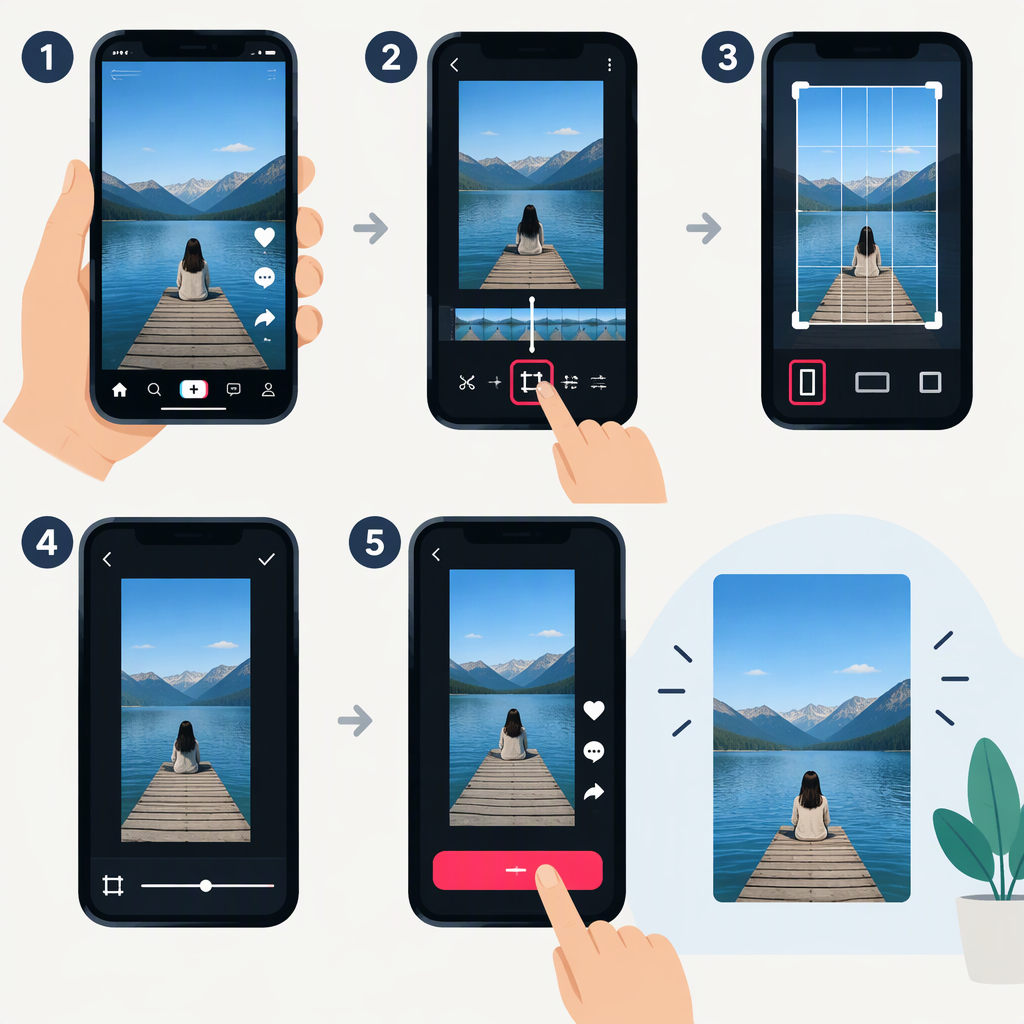
How to Crop or Reframe a Video on TikTok
For a new recording, use TikTok’s camera Zoom to change the framing: tap Add post (+), then pinch on the camera screen to zoom in or out before or while recording. TikTok also documents pressing and holding the Record button and moving to zoom. After recording, tap Continue to edit. This changes what the camera captures; it is not the same as cropping an already-recorded clip. (support.tiktok.com)
TikTok’s Help Center documents camera zoom and editing after recording or uploading, but the guidance found here does not give a step-by-step crop-box workflow for an existing clip. So if you need to move or resize the frame of a video already in your camera roll, don’t confuse trimming with cropping or assume the same camera zoom control will reframe that imported video. (support.tiktok.com)
Reframe a New Recording
- Open TikTok and tap Add post (+).
- Before recording—or while recording—pinch on the camera screen to zoom in or out. You can also use the Record-button zoom gesture TikTok describes.
- Record the clip, then tap Continue to open the editing stage.
- Preview the result before posting. Check that faces, hands, signs, captions, and anything near the edges remain in frame. If zooming has cut off something important, adjust the framing and record again.
TikTok lists the camera zoom gesture as a camera tool; it does not describe it as a way to crop an existing upload. (support.tiktok.com)
Crop a Video You Already Recorded
If the editing screen for an imported clip does not show a crop or framing control that does what you need, crop the video before uploading with a video editor on your device that offers a crop tool. In that editor, open the clip, adjust the visible frame, and save or export the edited copy. Then return to TikTok, tap Add post (+), upload that copy, and review it in TikTok before posting. TikTok’s help describes uploading a video from your device and proceeding to additional edits before posting. (support.tiktok.com)
The exact buttons in an outside editor depend on the device and app, so look for its crop or framing control rather than relying on a particular label. Cropping removes or hides parts of the picture; trimming only changes which moments or how much duration the video includes.
Check the Framing Before You Post
Play the preview from beginning to end, not just the first frame. Confirm that the main subject stays visible as it moves and that important text or objects are not clipped at the edges. If you added on-screen text or stickers, check those too. TikTok’s documentation explains that you can edit after recording or uploading and review items from the editing or preview screen; these visual checks are practical composition advice, not a platform-mandated format specification. (support.tiktok.com)