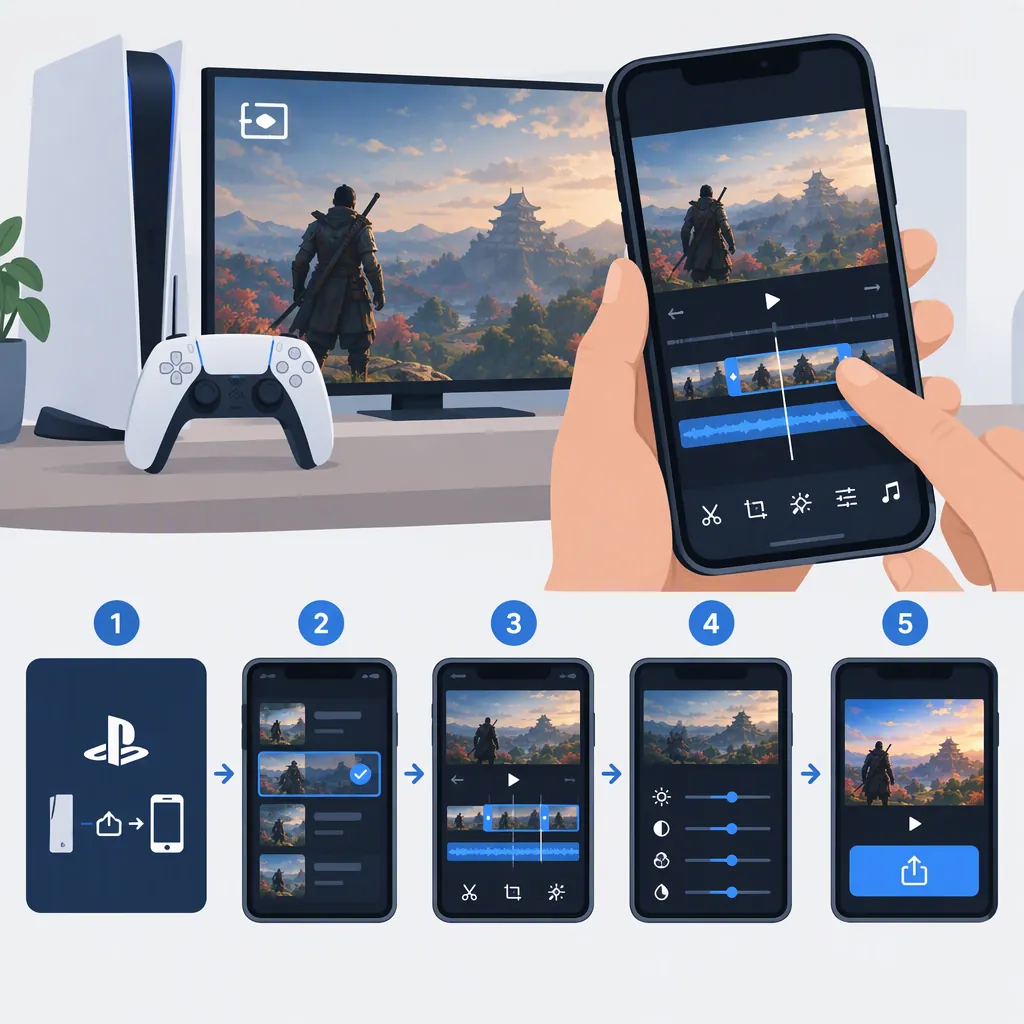
How to Edit Playstation Videos on Your Phone
To edit a PlayStation video on your phone, first save the clip to your device, then import it into a phone video editor. For eligible PS5 captures, use PlayStation App > Library > Captures, select the video, and choose Download. This transfer feature supports short, non-4K clips. [ps-app]
This guide covers downloading eligible PS5 captures and making a simple phone edit: trimming the action, checking the framing, adding optional text, reviewing audio, and exporting a separate copy.
Check Your Clip Before Transferring It
The PlayStation App capture feature is available for PS5 with the latest app update on iOS or Android in supported countries and regions. Check these conditions before starting: [ps-app]
| Check | Requirement or limit |
|---|---|
| Console and app | A PS5 linked to PlayStation App |
| Video resolution | Non-4K, no more than 1920×1080 |
| Video length | Use a clip shorter than three minutes |
| Availability | Captures remain available in the app for 14 days after creation on the console |
| Capture type | Trophy moments and Activity Challenge auto-captures are not uploaded |
These conditions come from PlayStation’s capture documentation. Its eligibility list says “under 3 minutes,” while its FAQ says “up to 3 minutes.” Using a clip shorter than three minutes stays within both descriptions. [ps-app]
Download the original before the availability window ends so you have a local file to edit.
Download the Ps5 Video to Your Phone
Set up Capture Uploads
- Link your PS5 console to PlayStation App and install the latest app update.
- For auto-upload, leave the console in rest mode with Stay Connected to the Internet enabled.
- In PlayStation App, open Library > Captures and select Enable.
- On PS5, go to Settings > Captures and Broadcasts > Captures and turn on Auto-Upload. You can also enable it through the invitation in Media Gallery. [ps-app]
Save the Video
After an eligible capture uploads:
- Open Library > Captures in PlayStation App.
- Select the video you want to edit.
- Choose Download to save it to your phone. [ps-app]
For a manual upload, open Media Gallery on PS5, highlight the capture, press the options button, and select Upload to PlayStation App. Do not assume manual upload bypasses the eligibility limits. [ps-app]
Downloading or sharing videos can use substantial mobile data, so consider using Wi-Fi. [ps-app]
Edit the Downloaded File on Your Phone
Use a separate phone editor that supports the downloaded file. The workflow below is general editing guidance, not a description of PlayStation App editing tools. Button names and available features vary by editor.
For a first edit, use one clear gameplay moment rather than a montage.
1. Import the Clip and Find the Action
Create a project in your editor and use its import or add-media control to select the saved video. Open the clip in the timeline, then play it once before making changes.
Identify three points:
- Setup: What does the viewer need to see to understand the moment?
- Action: Where does the important move, encounter, or play begin?
- Result: Where is the outcome clear?
Hypothetical example: In a 40-second clip, an encounter starts at 12 seconds and ends at 24 seconds. Try keeping roughly 9–27 seconds to include the approach and result. Treat those times as a starting point, not a fixed rule.
2. Trim the Beginning and End
Select the clip in the timeline. If your editor provides trim handles, move the left edge to your chosen starting point and the right edge to your chosen ending point. Other editors may use a trim screen or start/end controls instead.
Play the shortened clip from the beginning. Adjust it if:
- The action starts before the viewer understands the situation.
- The ending cuts off the result.
- Unnecessary waiting remains before or after the moment.
If your editor supports splitting, you can also split at the desired boundaries and remove the unwanted outer sections. Use whichever method is available and easiest to review.
3. Check the Frame Before Cropping
Keep the original landscape framing when the full game interface matters. If you want a vertical version and your editor supports it, choose the vertical canvas or aspect-ratio setting, then reposition the clip within that frame.
Preview the whole clip, not just its first frame. Check whether the player, target, objective, or important HUD information moves outside the crop.
If the crop hides essential action, revise it or keep the landscape version. A tighter frame is not useful if it makes the gameplay harder to follow.
4. Add a Short Label, If Useful
If the editor supports text:
- Add a brief label that explains the challenge or outcome.
- Position it away from the player, target, and important HUD elements.
- Adjust its timeline duration so it appears when relevant.
- Preview it at normal playback speed to check readability.
For the hypothetical encounter, a label such as “Final encounter” may provide enough context. Skip text if the footage already explains the moment clearly.
5. Review the Sound
Listen to the clip with sound before exporting. PS5 recordings can include microphone or party voice chat when those options are enabled. [ps-app]
If you hear conversation you intend to keep private, use the editor’s available mute, volume, or audio-trimming controls. Replay the affected section to confirm the conversation is no longer audible.
6. Export and Inspect a Separate Copy
Use the editor’s export or save-video control rather than overwriting your downloaded original, where the editor allows that choice.
If export settings are available, use the original clip’s resolution as a starting point rather than assuming a larger setting is necessary. Save the finished video, then open that exported file—not just the project preview—and watch it from beginning to end.
Check that the edit starts and ends correctly, text remains readable, the crop follows the action, and the audio is suitable for sharing.
Pre-Export Review Checklist
- The opening gives enough context to understand the action.
- The ending includes the result without unnecessary waiting.
- Cropping leaves essential gameplay and HUD details visible.
- Text does not obscure the action.
- Audio contains no conversation you intend to keep private.
- The downloaded original is retained.
- The exported copy has been watched all the way through.
Optional: Trim on Ps5 Before Moving to Mobile
If you only need to remove footage from the start or end, PS5 has a console-side trim tool. Open Media Gallery, choose the capture, and select Edit > Set Trim. Use Preview before saving. The editing area also includes a Cover Image option. [ps5-edit]
For more involved console editing, Share Factory Studio supports effects, music, voice commentary, intros, and transitions. Exported content is saved to console storage and accessible in Media Gallery. These are console features, not phone-editor features. [ps5-edit]
Trimming a 4K video does not address the transfer feature’s resolution limit. Check the clip requirements before attempting an upload. [ps-app]
Check Why a Capture Is Missing
If the video does not appear in PlayStation App, check the transfer setup before troubleshooting your phone editor:
- Console connection: Confirm the PS5 is linked to the app and capture upload is enabled.
- Auto-upload connection: Confirm rest mode and Stay Connected to the Internet are configured.
- Eligibility: Compare the clip with the requirements table, including resolution, length, age, and capture type.
- Activation timing: Enabling captures does not automatically make earlier recordings available. PlayStation separately documents the manual Upload to PlayStation App command in Media Gallery. [ps-app]
This guide does not provide a verified alternative transfer procedure for videos outside the feature’s limits.
FAQ
Can I Edit Videos Inside Playstation App?
PlayStation’s capture documentation describes viewing, downloading, and sharing videos, but does not describe a video-editing timeline inside the app. Use PlayStation App to save the clip, then edit it in a separate phone editor. [ps-app]
Does This Method Work for Ps4 Videos?
The documented capture-download feature is for PS5. This guide does not establish a PS4-to-phone transfer method, so do not apply the PS5 upload instructions to PS4. [ps-app]
Can I Download a Long or 4K Ps5 Clip Through Playstation App?
Not if it exceeds the documented capture limits. Check the clip requirements; shortening a clip alone does not resolve an unsupported resolution. [ps-app]
Do I Need Playstation Plus to Download Captures?
No. PlayStation states that a PlayStation Plus subscription is not required for this capture feature. [ps-app]