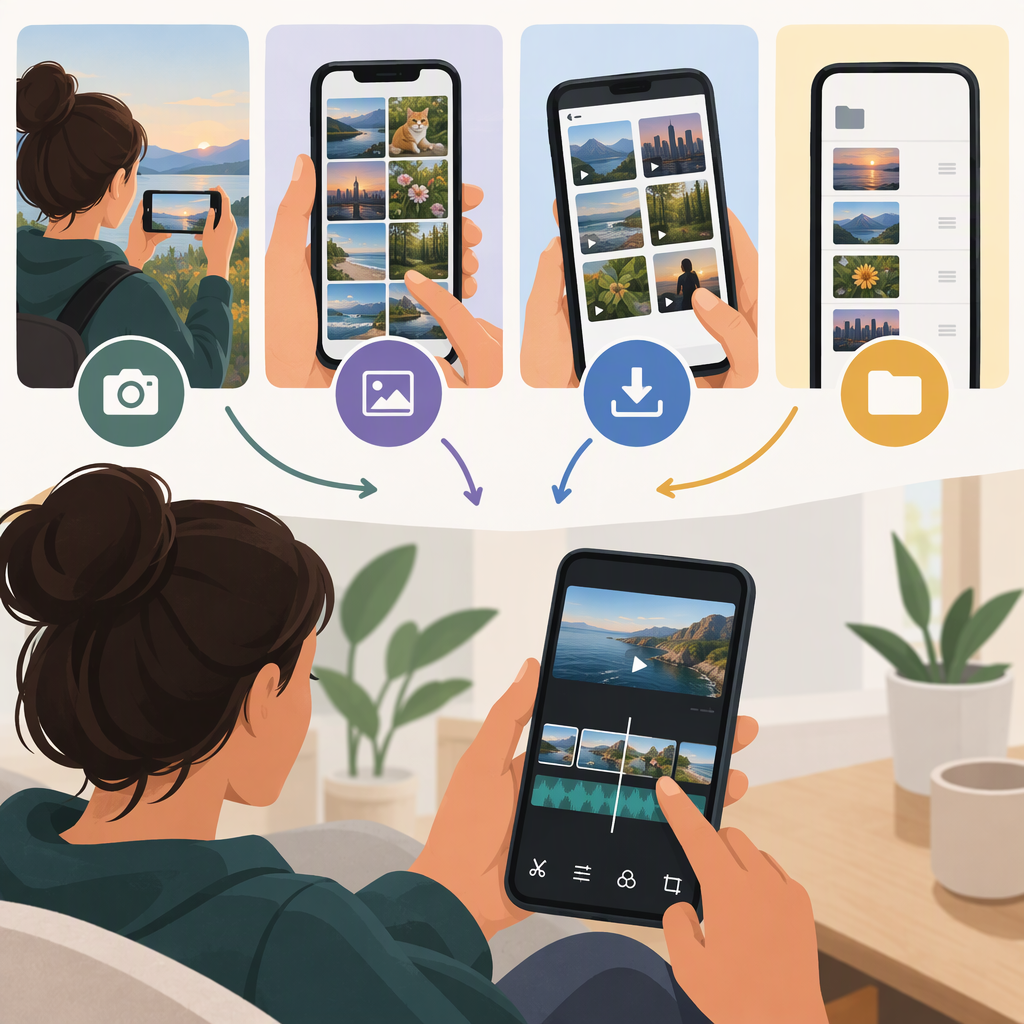
How to Get Clips for Edits on Your Phone
To get clips for a phone edit, record your own footage, use clips whose license allows your intended edit and sharing, or get permission from the rights holder. Then save or transfer the authorized video to a place your phone and editing app can access, such as Photos or Files. Before posting, check the clip’s terms for editing, attribution, and commercial use; a clip being viewable or downloadable online does not, by itself, mean it is cleared for reuse.
Three Practical Ways to Get Clips
- Record the footage yourself. Film with your phone, then open your editing app and choose the option to add or import media. This is a straightforward source when you have the necessary rights to the material you filmed; be mindful of other people’s privacy and any music, artwork, or other protected material captured in the shot.
- Use a clip with a license that covers your use. Check the license for both adapting the footage and sharing your edit. For example, Creative Commons licenses differ: some permit adaptations and commercial use with conditions, while “NoDerivatives” licenses do not permit sharing adaptations, and “NonCommercial” licenses restrict commercial use. Attribution may also be required. Read the license attached to the individual clip, not just the site’s general description. (creativecommons.org)
- Ask the rights holder for permission. Describe what you want to do: edit the clip, post the result, credit the creator, and—if relevant—use it commercially. Keep a record of the permission and any conditions. The U.S. Copyright Office identifies permission or a license from the copyright owner as one way to ensure an intended use is authorized. (copyright.gov)
If you can’t confirm that a clip’s terms cover your planned edit and post, choose another clip or ask for permission before sharing it.
Get the Video onto Your Phone and into Your Editor
Use a download or transfer method that the source permits. Don’t bypass access controls or platform restrictions to obtain a clip.
- If you recorded the clip on your phone: Open your editor, start or open a project, and look for an option such as Add media, Import, or Video. Select the clip from Photos, Gallery, or the media browser. The label and exact taps vary by editor.
- If you downloaded an authorized file on iPhone: Check the Files app’s Downloads folder. Apple documents that internet downloads can be found there; depending on how you saved the file, it may instead be in another Files location. In your editor, choose its import or browse option and select the video. (support.apple.com)
- If the authorized file is on a computer: Transfer it using a supported method, then import it from the folder or media library where it arrived. Google documents moving files between a computer and Android using a Google Account or USB cable; some listed steps depend on Android version. Apple documents importing photos and videos from a camera or external drive to iPhone. (support.google.com)
Expected result: the clip appears in your editor’s media browser or project timeline. If it doesn’t, check where the file was saved, whether the editor can access that location, and whether the editor supports the file. Exact menus and compatibility depend on your phone, file, and editing app.
Before Using Clips Found Online
Finding, streaming, or being able to save a video doesn’t establish permission to reuse it. Movie and TV scenes, music videos, and social-media posts may be protected works. Crediting the creator or using only a short portion does not automatically establish that your edit is allowed.
For U.S. readers, copyright owners have certain exclusive rights, including rights related to copying and preparing adaptations. U.S. fair use is a fact-specific legal doctrine; the Copyright Office provides a case index, not a guarantee that a particular fan edit or social post qualifies. This guidance is U.S.-focused and general, not a legal determination for your circumstances or another jurisdiction. (copyright.gov)
Before posting, confirm:
- Editing: Are you allowed to cut, remix, or otherwise adapt the footage?
- Sharing: Does permission cover posting the finished edit on your intended platform?
- Attribution: What credit is required, and where should it appear?
- Commercial use: Are monetization, sponsorship, or other commercial uses allowed?
- Extra material: Does the clip include music or other elements with separate rights or restrictions?
If any answer is unclear, use footage you recorded, choose a clip with clear terms that cover your use, or ask the rights holder. Don’t assume that a platform’s save or download feature grants permission to publish an edit.