How to Edit a Video on a Samsung Phone
At a Glance
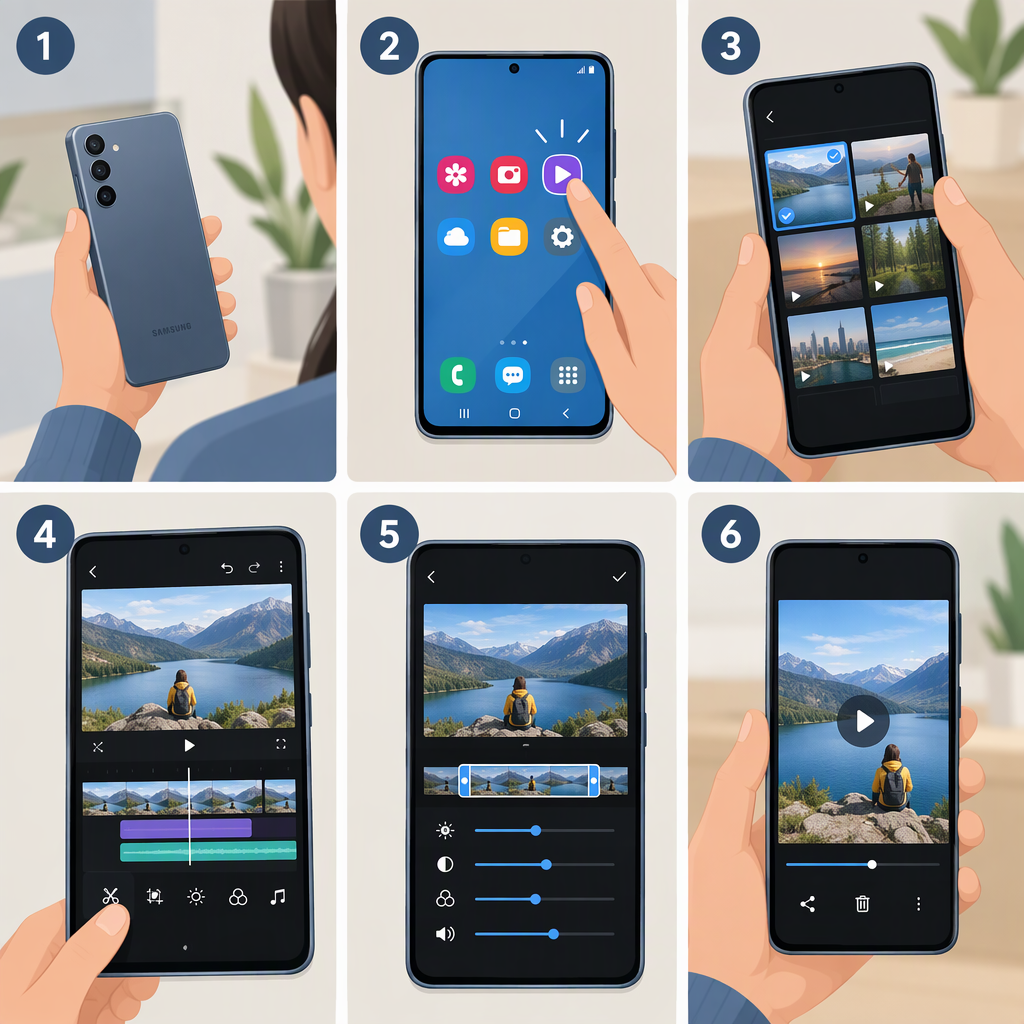
On supported Galaxy phones, open Gallery, select a video, and tap Edit (the pencil icon). Tap Trim, adjust the white sliders to choose the start and end, then preview the selected section before saving. Samsung’s support guide says its Video Editor is available on Galaxy S20 models and newer; controls and availability can differ, so these steps may not match every phone. (samsung.com)
Open a Video and Trim It
- Open Gallery and select the video you want to edit.
- Tap Edit (the pencil icon) to open the editing tools.
- Tap Trim. Samsung describes using the white slider bars at the bottom to choose when the video begins and ends. Move the left slider to set the new start and the right slider to set the new end. (samsung.com)
- Preview the selection using the playback control if it appears on your screen. Check that the clip starts and ends where you intend; adjust the sliders and preview again if needed.
For example, if a clip has a few seconds of unwanted footage at the beginning, move the left slider forward while leaving the right slider at the end. Preview the result to make sure the moment you want to keep is still there.
Samsung’s guide confirms the trim tool and sliders, but it does not specify a universal preview-control label or tap sequence. If your screen looks different, use the controls shown on your phone rather than assuming the layout is identical.
Save and Check the Result
When you finish, look for the save action shown in your editor and follow its on-screen prompt. Samsung notes that large or high-resolution videos may take a few minutes to save. Afterward, return to Gallery and check the video entry: play it and confirm the trimmed beginning and ending are correct before sharing or deleting anything. (samsung.com)
Protect the original if you need to keep it. Samsung’s cited video-editing guide does not establish whether the final save replaces the source or creates a separate copy on every phone or software version. If your editor offers Save as copy, that label indicates an option intended to keep a separate version; if the choice is unclear, keep the source video until you have confirmed the edited result is saved and playable. Samsung documents Save as copy for edited photos, but that photo guidance does not confirm the same behavior for video. (samsung.com)
If the Controls Do Not Match
Samsung’s support article identifies Galaxy S20 models and newer as compatible with the Video Editor it describes. If you cannot find Edit or Trim, check your phone’s model and whether the editor is available in Gallery; do not assume the same tools are present on every Galaxy phone. Samsung’s guide does not establish a single alternate route for devices where those controls are missing. (samsung.com)
Sources
- Samsung Canada, Unlocking creative possibilities with Samsung video editor tools
- Samsung UK, How to use Samsung Video editor
- Samsung US, Edit photos or videos on your Galaxy phone or tablet