How to Edit a GoPro Video on Your Phone: A Step-By-Step Guide
The Short Version
For a documented GoPro-to-phone workflow, use the Quik mobile app: pair your camera, download clips into Quik, select them to make an edit, refine the timeline, save the edit, and then save a copy to your phone. Before sharing it, play the saved copy from your phone’s Photos or gallery app to check the picture and sound. The exact app labels below follow GoPro’s published mobile instructions and may change with app updates. (community.gopro.com)
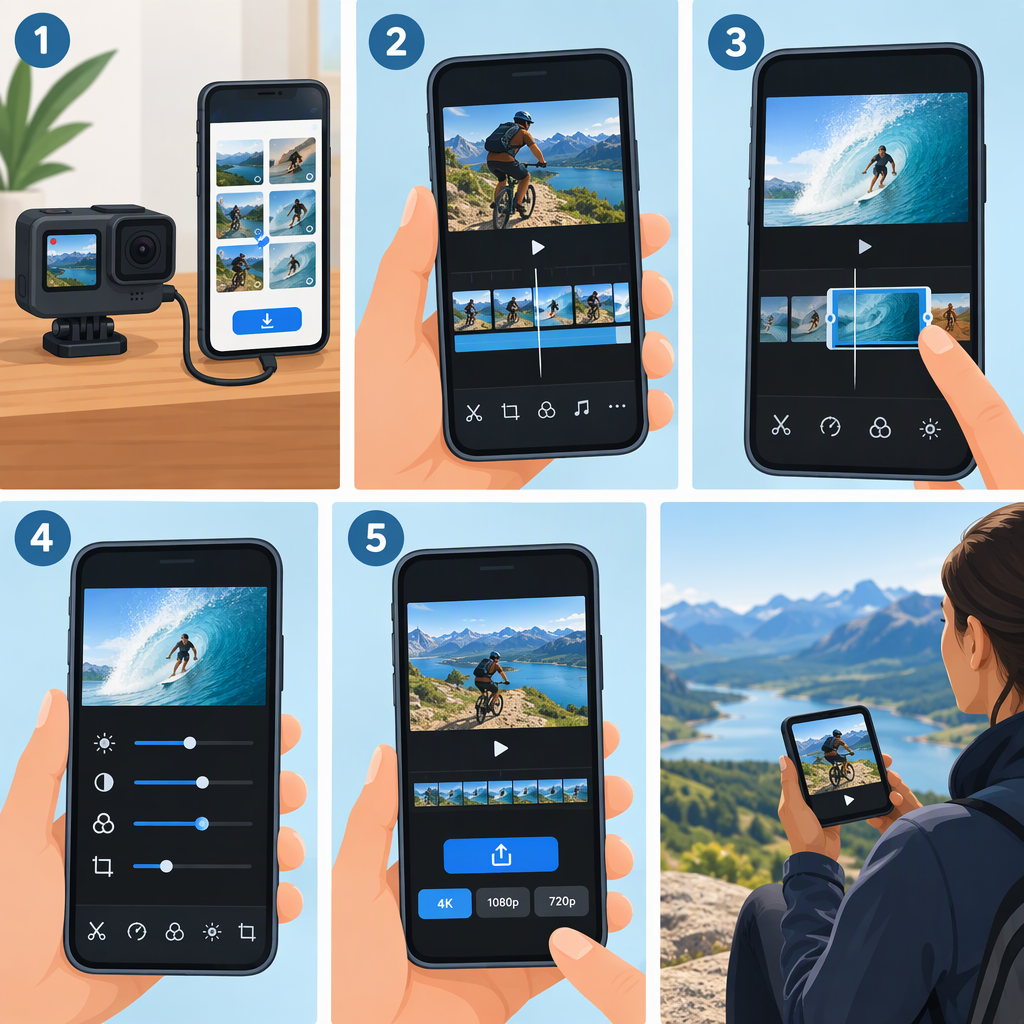
1. Get the Footage onto Your Phone
- Open Quik and pair your GoPro with the app. GoPro’s getting-started guidance says Bluetooth needs to be enabled for pairing.
- In Quik, tap View Media to see footage on the connected camera.
- Tap a clip to select it—or tap Select to choose several—then tap Download.
- When the download finishes, open Media and look for the clips in the Quik tab. Tap one and play it to confirm it opens before you start editing. (community.gopro.com)
If the video is already in your phone’s photo library, Quik’s Phone tab can be used instead. If it is in GoPro Cloud, GoPro’s instructions say to download it to app storage before using it to create an edit. Keep enough phone storage free for the footage and the finished video; exporting creates an output file on the device. (community.gopro.com)
2. Choose the Simple Phone Workflow
Use Quik if you want to move footage from a paired GoPro into the same app where you can make and save an edit. It also lets you select footage already on the phone. This guide sticks to that documented route rather than comparing other editors, since app compatibility and controls vary. (community.gopro.com)
One limitation to watch for: when selecting footage, Quik may flag media it cannot use in that edit. GoPro gives 360 media, photo bursts, and some higher-resolution footage as examples of content that may not be supported for a multi-clip edit. If you see a warning, try a supported clip or a single-clip workflow rather than assuming every file will work the same way. (community.gopro.com)
3. Make and Refine the Edit
- In Media, open the Quik or Phone tab and tap Multi Select.
- Choose the clips for your edit, then tap Make Edit. Quik creates a starting timeline; review it rather than assuming the automatic selection tells the story you want.
- Open the edit in Studio > My Edits and enter the timeline to customize it.
- Trim each clip to its useful action. GoPro documents a Trim control for choosing a clip’s start and stop points. In the timeline, you can also adjust the frame, speed, volume, and image settings such as exposure or contrast. Available controls depend on the selected footage and app workflow. (community.gopro.com)
- Put the clips in an order that makes sense, then preview the whole edit. Listen for abrupt audio changes and check that important action is not cut off.
Hypothetical example: For a short bike ride recap, you might order a trail-opening shot, a few seconds of the ride, and a finish-line moment. Trim pauses before and after the action, keep any useful natural sound, and preview the sequence. This is an illustrative edit plan, not a tested project or a required format.
4. Save the Edit and Check the Exported Video
In the edit, tap Save in the top-right corner. GoPro’s instructions say this first saves the edit in the app. To put a copy in your phone’s library, tap Share and choose Save to Photos on iOS or Save to Phone on Android. For individual source clips, the separate Media > Quik workflow uses Save to phone and may offer quality selections; those instructions concern saving media, not a recommended resolution for the finished edit. (community.gopro.com)
After saving, open the phone’s Photos or gallery app, locate the new video, and play it from beginning to end. Check that it opens, the framing looks right, and the audio is present. If the export does not complete or the file will not play, verify that the edit was saved to the phone and try a shorter edit or fewer clips; GoPro notes that some higher-resolution media may not be supported in certain edit workflows. Do not delete the original clips until you have confirmed the saved video works. (community.gopro.com)
Quick Checklist
- The source clips appear in Quik’s Quik or Phone tab and play.
- The selected footage is accepted by the edit workflow.
- The timeline has been reviewed, trimmed, and previewed.
- The edit is saved in Quik, then saved to the phone if you need a separate gallery copy.
- The saved copy plays with the expected picture and sound.