How to Trim a Video on a Vivo Phone Using Google Photos
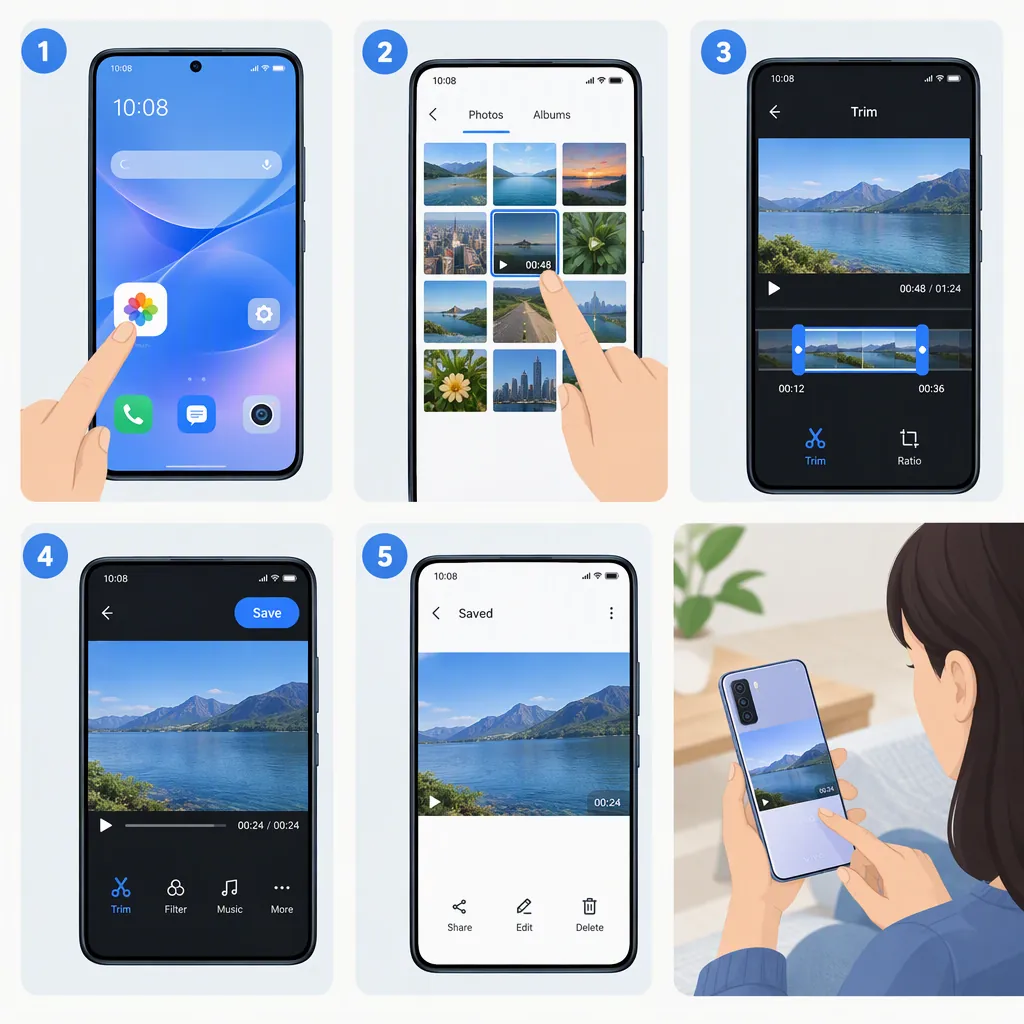
To trim a video on a compatible vivo phone, open it in Google Photos, touch and hold the trim handles, and drag them to select the portion you want to keep. Tap Save at the top to save an edited copy. [google-photos-video]
Before you start: This guide covers only the Google Photos method. Google Photos must be installed, and its video-editing controls must be available on your phone. Google’s Android documentation does not verify compatibility with your specific vivo model or provide instructions for vivo’s built-in gallery. [google-photos-video]
Trim Your Video Step by Step
When the documented controls are available, follow these steps: [google-photos-video]
- Open Google Photos on your vivo phone.
- Open the video you want to shorten.
- Touch and hold the beginning trim handle, then drag it to choose where the clip should start.
- Touch and hold the ending trim handle, then drag it to choose where the clip should stop.
- Tap Save at the top to save a copy of the video with your edits. [google-photos-video]
The selected portion is what you want to keep. For example, move the beginning forward to remove waiting time before the action, or move the ending backward to remove footage after the action finishes.
Review the Saved Copy
Google describes the save operation as creating a copy with your edits. Review that copy before deleting any original footage. [google-photos-video]
Use this checklist to check your chosen boundaries:
- Play the edited copy from the beginning.
- Check that the opening does not cut off an important word or action.
- Watch the ending to confirm that it stops where intended.
- Confirm that everything you wanted to keep remains in the clip.
- Keep the original until you are satisfied with the result.
These are review suggestions, not additional app features.
If You Cannot Find the Trim Handles
Check the following in order:
- Confirm the app. Open Google Photos rather than vivo’s built-in gallery; the documented trimming controls belong to Google Photos. [google-photos-video]
- Open the video. Google’s trimming instructions begin by opening the video you want to edit. [google-photos-video]
- Check your Android version. Google states that non-Pixel devices running Android 9 do not support or have access to video editing in Google Photos. [google-photos-video]
If that restriction does not apply but the controls are still missing, consult Google Photos Help. Requirements listed for other editing features are not a guarantee that trimming works on your phone, and the documentation does not explain every cause of missing controls. [google-photos-video]
FAQ
Can I Trim a Video Using Vivo’s Built-In Gallery Instead?
The cited documentation covers Google Photos, so this guide cannot confirm native vivo gallery trimming controls or provide a verified menu sequence. [google-photos-video]
Does Google Photos Save the Trimmed Video as a Copy?
Yes. Google’s trimming instructions say to tap Save at the top to save a copy of the video with your edits. [google-photos-video]
Should I Use Trim or Crop to Make a Video Shorter?
Use the trim handles to select a shorter portion of the video. Google documents Crop separately for changing the picture’s aspect ratio, not for shortening its duration. [google-photos-video]
Will These Steps Work on Every Vivo Phone?
Compatibility with every vivo model is not established by the cited documentation. These steps apply when the documented Google Photos controls are available; Google specifically excludes non-Pixel devices running Android 9 from video editing. [google-photos-video]
Sources
- [google-photos-video] Edit your videos with Google Photos - Android phone & tablet - Google Photos Help