How to Crop a Video on Your Phone (iPhone and Android)
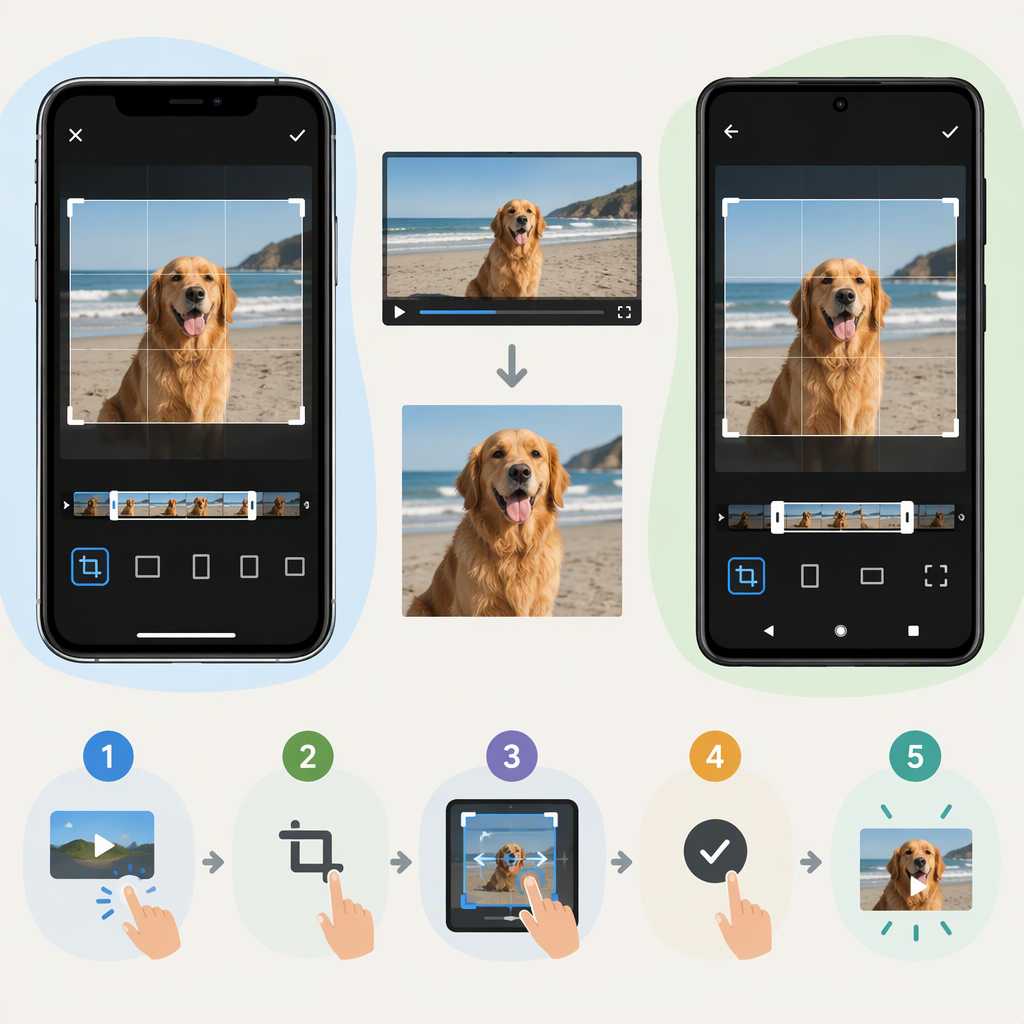
To crop a video on your phone, open it in a video editor, choose Crop or the crop-frame control, adjust the area you want to keep, preview the video, and save the edit. The exact controls depend on your phone and app. Here are documented steps for iPhone Photos and Google Photos.
Crop a Video on Your iPhone in Photos
- Open Photos and select the video.
- Tap Edit, then tap the Crop control.
- Drag the crop-frame corners or pinch to adjust the visible area. To use a preset, choose one from the crop options; the available choices can vary with the app version.
- Preview the video to check that the subject and any important details remain in frame.
- Tap Done to save the edit. Apple also documents a Revert option for undoing saved edits in Photos. (support.apple.com)
Apple’s instructions say that dragging a corner keeps the original aspect ratio by default; you can unlock the ratio to change it. Avoid choosing a preset just because it is available—pick a frame that suits where you plan to use the video and keeps essential content visible. (support.apple.com)
Crop a Video in Google Photos
On Android: Open the video in Google Photos, tap Crop, adjust the frame or choose Aspect ratio for a preset, then tap Save at the top to save a copy. Google says crop and some other video-editing features require Android 6.0 or later and at least 1 GB of RAM; its help page also notes that non-Pixel Android devices running Android 9 do not support or have access to video editing. If you don’t see the control, your device or app setup may not support that workflow. (support.google.com)
On iPhone or iPad: Google Photos’ documented video-editing steps require iOS 16 or later. Open the video, tap Edit, then Crop; adjust the frame or choose Aspect ratio, then tap Save copy. (support.google.com)
Choose and Preview the Crop
Cropping changes what part of the picture is visible; trimming changes which part of the video’s timeline plays. If you want to remove a person or object near the edge, adjust the crop. If you want to remove the beginning or end, use trim instead. (support.apple.com)
Before saving, play the video and check a few moments—not just the opening frame. A person or moving object may drift toward the edge later in the clip. If the crop is for a particular destination, choose a frame that fits that use; a tighter frame can fill a different shape but may cut off more of the original edges. Don’t assume one aspect ratio is right for every platform.
Check the Saved Video
After saving, reopen the result and play it from beginning to end. Confirm that the framing is right throughout and that the video plays as expected. Google Photos describes its Android save action as saving a copy and its iPhone action as Save copy. In iPhone Photos, Apple documents Revert for undoing saved edits. In other editors, check the app’s save behavior before replacing or deleting the source video; don’t assume the original is preserved or recoverable. (support.google.com)