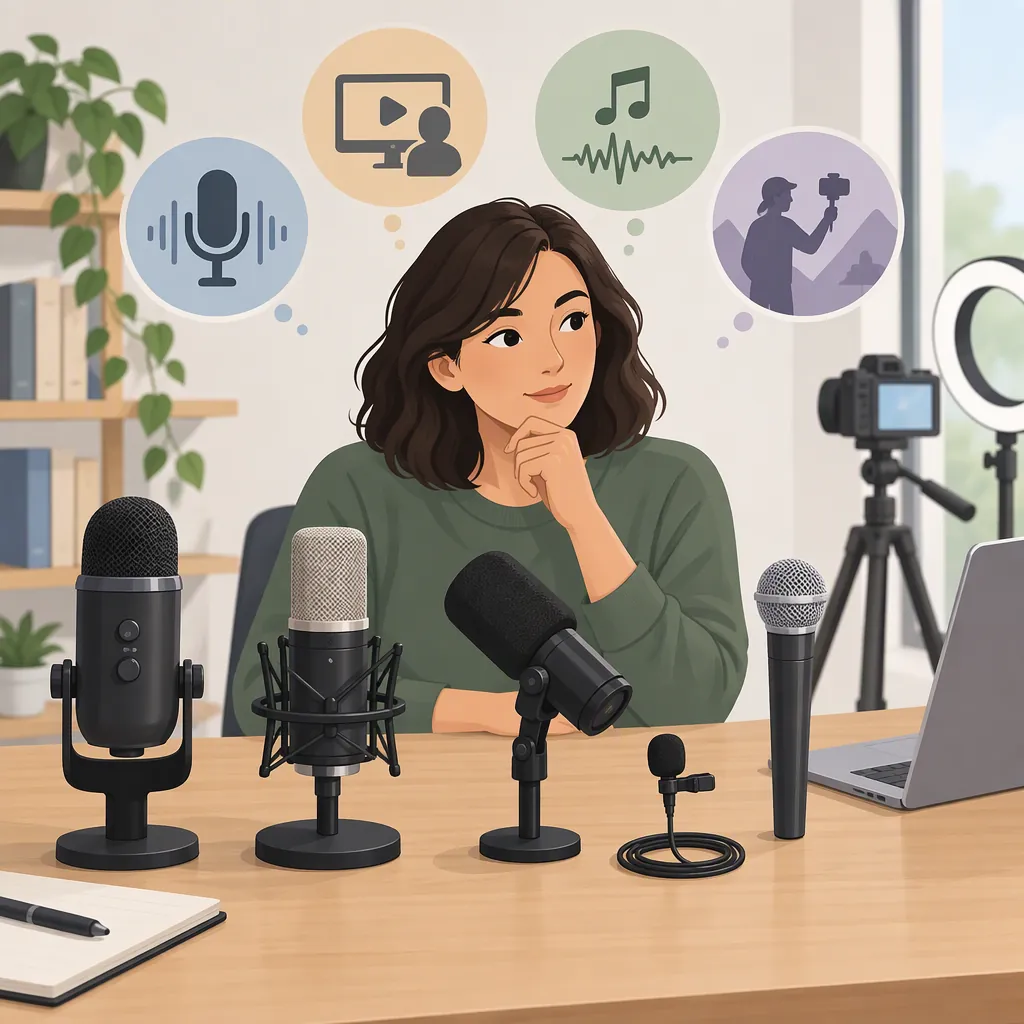
How to Choose a Microphone for Content Creators
Choose a microphone for content creators by matching it to your recording setup—not a universal “best” ranking. Start with your device, movement, speaker count, and microphone placement. Use those requirements to shortlist suitable categories, verify the complete setup before buying, and test the recording-to-editing workflow once you have access to the equipment.
The sources cited in this guide focus on wireless microphones and specific creator scenarios; they do not establish a best option across all microphone types. The category framework below offers starting points for evaluation, not product rankings or performance guarantees. [src_1] [src_2] [src_3]
Start with Your Recording Setup
A seated voiceover, a walking phone video, and a two-person interview need different shortlists. Before comparing specifications, answer these questions:
- Recording device: Which exact phone, camera, or computer—and which app—will capture the audio?
- Movement: Will speakers remain seated, walk, or move between locations?
- Speakers: How many people must be recorded at the same time?
- Placement: Can the microphone appear in the frame? Can you use a stand, clip, or boom?
- Environment: Where will you record, and what background sounds should your test include?
- Editing: Must audio arrive in the video file, or can you manage separate recordings?
- Session length: How long must the complete setup operate between charging or other interruptions?
Match Your Scenario to a Category
Use this table to decide which categories to investigate first. The trade-offs are questions to check against your setup, not claims that one category always sounds better.
| Recording scenario | Categories to consider | Main trade-offs to evaluate |
|---|---|---|
| Seated voiceover, tutorial, or livestream | Desktop or stand-mounted microphone, with a USB connection or an audio interface as required | Can you maintain the intended position? Is a visible microphone acceptable? What mounting and connection equipment is needed? |
| Talking-to-camera video while staying in one place | Wired lavalier, wireless clip-on system, or an off-camera directional microphone | Would you rather wear a microphone or place one outside the frame? Can you manage a cable or maintain the off-camera position throughout the shot? |
| Walking phone video or changing locations | Wireless clip-on system; wired lavalier if the cable arrangement permits the planned movement | Check receiver compatibility, attachment, charging, and whether the complete setup accommodates your movements. |
| Two-person interview | A microphone for each speaker, or a shared microphone arrangement you can test | Confirm how many inputs are recorded and whether each voice remains separately editable. Test both speakers in their actual positions. |
| Video with no microphone visible | Off-camera directional microphone, or a wearable microphone placed out of view | Check mounting, framing, clothing contact, and whether placement remains workable as the speaker moves. |
Separate connection, placement, and pickup characteristics. “USB” describes a connection; “lavalier” describes a small wearable microphone format; “directional” describes a pickup characteristic. These are not mutually exclusive categories. Similarly, a wireless system may use a microphone built into a transmitter or a separate lavalier.
For mobile filming, the cited DJI page and Whimsy School article provide examples of wireless setups discussed for short videos and portable creator work. Use those scenarios to generate questions—not to assume wireless is necessary for every creator. [src_2] [src_3]
Recording Requirements Worksheet
- Recording device and app:
- Typical location and background sounds:
- Number of speakers:
- Movement during the take:
- Acceptable microphone placement:
- Typical session length:
- Separate audio files acceptable: yes / no
- Independent editing of each speaker required: yes / no
- Total budget, including required accessories:
Screen Candidates Before Buying
You can narrow a shortlist without owning every candidate. Start with current documentation for the microphone system, recording device, and app. Treat broad labels such as “for phones” or “for cameras” as prompts for verification, not proof of compatibility.
Check the Complete Recording Chain
Map the proposed route:
Microphone → any transmitter, receiver, adapter, or interface → recording device and app → editor → exported file
Not every setup uses every component. Identify which ones yours requires and where the primary audio file will be saved.
The Alli and Will review distinguishes recordings saved within a wireless system from audio captured through a camera or external recorder. That distinction matters when planning file handling, but this guide does not independently verify the reviewed product’s specifications. [src_1]
For each candidate, check:
- Exact compatibility: Does documentation cover your device model, connector, and intended app or camera input?
- Required accessories: Which cables, adapters, interfaces, mounts, and wind protection are included, and which are separate?
- Inputs and recorded channels: Can the setup capture the required number of speakers simultaneously? How are those inputs saved?
- Monitoring: Where can headphones connect, and what signal does that connection let you hear?
- Recording location: Does audio enter the video file, remain in separate files, or both? Confirm rather than assume.
- File access: If recordings are stored separately, what transfer method, software, and file formats are required?
- Session requirements: What power or charging arrangements are documented for the complete setup?
- Total cost: Include every item necessary for your intended recording chain.
Make Key Requirements Specific
“Supports two people” is not enough if you need separate control in editing. Ask whether each speaker is saved to an independently editable track or channel, or whether their voices are combined. Check the recording device and app as well as the microphone system.
Likewise, “has monitoring” leaves an important question unanswered: are you hearing the receiver’s output, the recording device’s input, or playback of the saved file? Record the documented monitoring point, then verify it when equipment is available.
For separate audio, ask whether your usual editor can import the files and align them with video. If you edit on a phone, include transfer to that phone in your plan—not just recording compatibility.
Keep unknowns visible. If you cannot try a candidate before buying, mark real-world sound, movement, and export checks as “pending.” Not tested does not mean failed, but it also does not mean verified.
Validate the Setup Once Equipment Is Available
Use a repeatable test rather than relying only on a polished demonstration. These are suggested workflow checks, not a standardized laboratory test or a guarantee of performance.
Keep the script, location, recording device, and listening volume as consistent as practical across candidates. Note differences in microphone placement and processing so you do not mistake different test conditions for a clear winner.
Short Audio Test Script
- Record a normal spoken introduction.
- Repeat one sentence quietly, then more loudly.
- Pause briefly to capture surrounding sound.
- Turn your head and perform your usual filming movements.
- For an interview, record each speaker alone, then both speaking in the intended arrangement.
- If recording separate audio, make a visible and audible clap near the start.
- Import the files into your usual editor.
- Export a short video and listen to the exported file.
Listen for understandable speech, distracting background sound, changes in voice tone, interruptions, and unwanted sounds from clothing or movement. For outdoor work, test the conditions you expect to encounter rather than treating a wind-protection or noise-processing label as a settled result.
If processing can be switched off, compare recordings with and without it. Evaluate the files you can actually record and edit, not just the available settings.
Confirm That the Workflow Passes
Use practical pass conditions:
- Intended input: Confirm the saved clip contains audio from the selected microphone, rather than an unintended device input.
- Speaker control: If independent editing is required, confirm that you can adjust one speaker’s recorded level without changing the other’s.
- Monitoring: Confirm what you hear during recording, then compare it with playback of the saved file.
- Synchronization: Use the clap’s visible moment and audible transient to align separate audio. Check alignment again near the end of the test, not only at the start.
- Export: Confirm the final video contains the intended audio and that no file-transfer or import step remains unresolved.
- Usability: Note setup time, attachment problems, charging steps, and extra editing work.
A candidate may meet its documented specifications yet still require more handling than you want. Include that workload in your decision.
Compare Evidence and Complete Setup Costs
Use reviews to identify questions worth investigating: placement, charging, monitoring, file handling, and accessories. Keep the source’s perspective visible.
The cited references include a DJI manufacturer scenario page and creator review articles from Alli and Will and Whimsy School. They do not use one shared comparison method across all microphone categories. [src_1] [src_2] [src_3]
Treat manufacturer descriptions as information to verify for the exact model and configuration. Treat a reviewer’s preferred microphone, battery experience, or audio comparison as that source’s account—not a universal result. This guide does not validate the sources’ prices, performance comparisons, or “best” labels.
Candidate Evaluation Sheet
Use “verified,” “pending,” or “does not meet requirement,” with a short note explaining the evidence.
| Stage | Requirement | Candidate A | Candidate B |
|---|---|---|---|
| Before buying | Exact device, connector, and app compatibility | Pending | Pending |
| Before buying | Required inputs and recorded channel arrangement | Pending | Pending |
| Before buying | Monitoring point documented | Pending | Pending |
| Before buying | File transfer and editor requirements identified | Pending | Pending |
| Before buying | Required accessories and complete cost verified | Pending | Pending |
| With equipment | Placement and movement tested | Pending | Pending |
| With equipment | Speech and background sound evaluated | Pending | Pending |
| With equipment | Independent speaker editing confirmed, if needed | Pending | Pending |
| With equipment | Separate audio aligned, if used | Pending | Pending |
| With equipment | Exported video checked | Pending | Pending |
Shortlist candidates that meet your essential documented requirements and fit your complete budget. Where practical, use hands-on validation to resolve the remaining uncertainties. Avoid promoting an untested assumption into a confirmed advantage.
FAQ
What Is the Best Microphone for Content Creators?
There is no universal winner established by the sources cited here. Their recommendations concern particular wireless products and creator scenarios. Start with your recording device, movement, speaker count, and placement, then compare compatible setups against those requirements. [src_1] [src_2] [src_3]
Should I Choose a Desktop Microphone or a Lavalier?
For a seated setup, consider whether a stand-mounted microphone fits your workspace and framing. For a wearable setup, consider whether a lavalier’s placement and cable or wireless arrangement suit the shot. Evaluate positioning, required connections, and editing workflow rather than assuming either format is automatically better.
How Should I Check Whether a Microphone Works with My Phone?
Verify the exact phone model, connector, recording app, and required adapter in current documentation. Once equipment is available, record a short clip, confirm the intended input, import any separate files, and export through your usual editor. This is a verification process, not a compatibility guarantee.
What Should I Check for a Two-Person Interview?
Check simultaneous input support and how the voices are saved. If you need separate volume adjustments, confirm that each speaker remains independently editable in your editor. The Alli and Will review describes a two-transmitter setup, but that example does not verify the channel arrangement of every candidate or recording app. [src_1]
Should I Record Audio Separately from Video?
Consider whether you are willing to transfer, organize, and synchronize separate files. The Alli and Will review discusses onboard recording as distinct from camera or external-recorder capture. Test import, alignment, and export in your own workflow before making separate recording a requirement. [src_1]
What If I Cannot Test a Microphone Before Buying?
Use current documentation to verify compatibility, accessories, inputs, monitoring, and complete cost. Leave real-world sound and workflow results marked as pending. Reviews can help identify unresolved questions, but the cited manufacturer and creator pages do not replace validation of your exact setup. [src_1] [src_2] [src_3]